Compare
The best SSH clients for Windows in 2026
The best SSH clients for Windows in 2026: Xshell, GoTerm, Termius, MobaXterm and PuTTY, plus the ssh already in PowerShell and Linux’s own in WSL.
Published
Windows has more ways to SSH than ever. The ssh command is built into PowerShell, WSL brings Linux’s own, and there are dedicated SSH clients for Windows that add tabs, saved hosts, file transfers and scripting. Which one is a good SSH client for you depends on how you work: one command now and then, a Linux habit, a long day in many sessions, or a team that shares the same servers.
So this list starts with what Windows already has, then ranks five SSH clients and consoles for Windows by who they suit. We make GoTerm, so we aren’t neutral, and we put Xshell first: for one person who lives in Windows, it does the most. Every fact about the other SSH software here is from its own pages, checked on 22 November 2026 and linked at the end.

At a glance
| Price | Best for | Also on | |
|---|---|---|---|
| 1. Xshell | $119 once, on 2 devices; free for home and school | One window for servers, PowerShell and WSL | Windows only |
| 2. GoTerm | Free desktop app; Personal $6 a month; Teams $35 a month for 5 | Teams, and sessions that keep running | Any browser, phones included |
| 3. Termius | Free plan; Pro $10 a month, billed yearly | Windows, a Mac and a phone | Mac, Linux, iPhone, Android |
| 4. MobaXterm | Free Home Edition; Professional $69 per user | The most tools in one app | Windows only |
| 5. PuTTY | Free and open source | Small and familiar | Unix, from source |
| Built in: ssh in PowerShell | Free, part of Windows | A command, nothing to install | |
| Built in: WSL | Free, part of Windows | Linux’s own tools |
Already on your PC: ssh in PowerShell
Windows 10 from version 1809 and Windows 11 come with OpenSSH, Microsoft’s own port of it, as an optional feature that may need adding. Check in PowerShell: if this prints a version, you have it.
ssh -VIf PowerShell doesn’t know ssh, open PowerShell as administrator. The first line shows OpenSSH.Client and its state; if it says NotPresent, the second adds it:
Get-WindowsCapability -Online | Where-Object Name -like 'OpenSSH*'
Add-WindowsCapability -Online -Name OpenSSH.Client~~~~0.0.1.0
Then you have the same commands as on Linux or a Mac: ssh, scp, sftp, ssh-keygen, ssh-agent and ssh-add. They work in PowerShell, in Command Prompt, and in Windows Terminal, which is free, open source and the default console on Windows 11 since version 22H2, with tabs and split panes.
ssh deploy@203.0.113.20
ssh -J deploy@bastion.example.com deploy@10.0.1.20
scp .\release.tar.gz deploy@203.0.113.20:/srv/releases/
Your hosts go in %USERPROFILE%\.ssh\config, as ~/.ssh/config does elsewhere. Make a key with its type named: OpenSSH makes Ed25519 keys by default only since version 9.5, and older ones, as some Windows builds ship, make RSA.
ssh-keygen -t ed25519To have the agent hold your key, start its service, which Windows leaves off, in PowerShell run as administrator:
Get-Service ssh-agent | Set-Service -StartupType Automatic
Start-Service ssh-agent
ssh-add $env:USERPROFILE\.ssh\id_ed25519
Where it falls short: a config file is your only list of hosts, there is no file browser, and a session ends with its window, as a sleeping laptop usually ends it too. Windows updates its OpenSSH only when Windows itself updates, and Microsoft says that version often lags behind its latest release. ssh -V tells you which you have.
WSL: Linux’s own ssh, on Windows
The Windows Subsystem for Linux runs a real Linux beside Windows, Ubuntu unless you pick another. It needs Windows 10 version 2004 or later, or Windows 11, and one command in PowerShell run as administrator, then a restart:
wsl --installInside it you get Linux’s ssh and ssh-copy-id, your ~/.ssh/config as on any Linux machine, and whatever else apt installs: rsync, tmux, Mosh. If your scripts were written for Linux, they run here unchanged. WSL itself has been open source since 2025.
- Its own keys. WSL has its own file system, separate from Windows, so its
~/.sshisn’t your Windows%USERPROFILE%\.ssh. You keep two sets of keys and two config files, or copy one into the other, and a copied key is one more place a key can be taken from. - Behind a VPN. WSL 2 reaches the network through Windows with NAT by default. If it can’t reach servers that Windows reaches over a company VPN, Windows 11 22H2 and later can use mirrored networking:
networkingMode=mirroredunder[wsl2]in.wslconfig, which Microsoft says improves VPN compatibility.
Where it falls short: it is a whole Linux to keep updated, and a session still ends with its window.
1. Xshell: the best SSH client for Windows
Xshell, from NetSarang, is a Windows SSH client built for people who spend the day in many sessions at once. It is at version 8, with its latest release on 11 November 2026, and since October it opens PowerShell, cmd and WSL distributions such as Ubuntu in Xshell tabs too. So one window holds your servers, your PowerShell and your Linux, which is why it comes first here.
- Tabs and tab groups, side by side in one window, and a session manager for your hosts.
- Local shells in tabs: PowerShell, cmd, bash and WSL, through Windows’ ConPTY (Windows 10 version 1809 or later), with Find, scripts and the Compose Bar working in them.
- Scripting in VB, JScript and Python, and a Compose Bar and Compose Pane that send the same text to several sessions at once.
- Tunnels and X11: dynamic port forwarding over SOCKS4 and SOCKS5, and X11 forwarding.
- Windows sign-in options: PKCS#11 and the Windows certificate store, Kerberos through MIT Kerberos or Microsoft SSPI, and a master password that encrypts saved passwords.
- More than SSH: SFTP, Telnet, rlogin, serial, and RDP sessions inside Xshell.
What it costs: $119 for a single-user licence you keep, on up to 2 devices, with a year of updates and support. Xshell Plus, with Xftp for files, is $139. It is free for personal, home and educational use, but not for work.
Where it falls short: it runs on Windows only, the free licence doesn’t cover business use, and updates after the first year come with renewed maintenance. Your sessions live in the app on your PC.
2. GoTerm: best for teams, and sessions that keep running
GoTerm has a desktop app for Windows 10 and 11, and it works in any browser too. Signed in to a workspace, on Personal and up, the SSH connection runs on GoTerm’s gateway instead of on your PC. The session keeps running when you close the laptop, and you pick it up from another computer or a phone’s browser. With no account, goterm Free in the same app connects straight from your PC, like the other clients here.
- Sessions that keep running on the gateway, to come back to from any device, with what you missed replayed.
- Live sharing with a teammate, view only or read-write. View only is enforced by the gateway, which drops a viewer’s typing.
- A team’s SSH keys stay off laptops. They live in the workspace’s Vault, protected at rest, and only the gateway uses them. The Vault’s own key, which opens it and is never an SSH key, lives where you choose: on GoTerm’s server, on a few owners’ and admins’ laptops, or in your own AWS or Google Cloud key.
- Made for Windows too: the app installs for you alone with no admin prompt, runs port forwarding (local, dynamic and remote), shows your PC’s own folders on its SFTP page, and installs only updates GoTerm signed.
- Control for teams: roles, access grants that end on their own, recordings and an audit log, and on Business a server of your own with Private access.
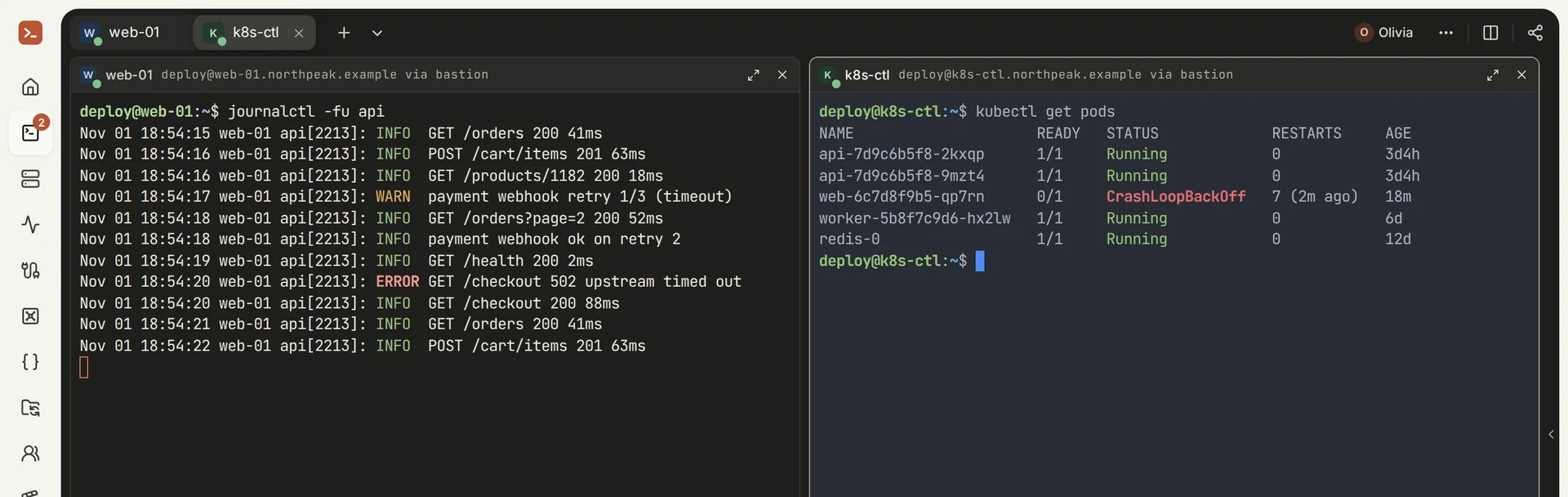
What it costs: the desktop app is free with no account. Personal is $6 a month or $60 a year, Teams $35 a month for 5 seats, and Business $199 a month for 10 seats with a server of its own. Personal and Teams come with a 7-day free trial and no card.
Where it falls short: it connects to servers only, with no PowerShell or WSL tabs, so keep Windows Terminal for those. There is no Mosh, Telnet or serial. The installer isn’t signed for Windows yet, so SmartScreen asks once (More info, then Run anyway), and where a company’s rules refuse unsigned apps, GoTerm works in the browser instead.
3. Termius: best if you also work on a Mac or a phone
Termius runs on Windows, Mac, Linux, iPhone and Android, and keeps your hosts in step between them. On Windows, download it from Termius’s site: its docs say that build has the most complete features and updates itself, and that serial connections can fail in the Microsoft Store build.
- A free plan you may use at work, with SSH, SFTP, port forwarding, a local vault and AI-powered autocomplete.
- Sync with end-to-end encryption on the paid plans, from a key made from your password on your own device.
- More than SSH: Mosh, Telnet, serial and a local terminal, and SSH keys held on a FIDO2 security key or by Windows Hello.
- Teams too: a team vault, live terminal sharing (Termius calls it Multiplayer, with one person typing at a time) and shared session logs.
What it costs: Starter is free. Pro is $10 a month, Team $20 a seat a month and Business $30 a seat a month, as its pricing page shows them, paid yearly.
Where it falls short: sync, session logs and snippets need a paid plan. Termius connects from the app itself, so a session lives in the app on one device rather than on a server your team can come back to.
4. MobaXterm: the most tools in one app
MobaXterm, from Mobatek, packs more into one Windows app than anything else here. Its tabbed SSH terminal is based on PuTTY, and around it sit an X server, a graphical SFTP browser that opens beside each SSH session, RDP and VNC, and Unix commands such as bash, grep and rsync. It runs WSL in its own terminal too. Version 26.6 came out on 25 October 2026.
- Files beside the terminal: log in over SSH and the SFTP browser pops up in the left sidebar.
- X11 apps from your servers on your Windows desktop, through the built-in X server.
- MultiExec, which types the same commands on many servers at once, and split views of 2 or 4 terminals.
- A portable version, a single program that needs no admin rights and runs from a USB stick.
What it costs: the Home Edition is free, and you may use it at work if you install it yourself. It is limited to 12 sessions, 2 SSH tunnels and 4 macros. Professional, with no limits and deployment across a company, is $69 per user, yours to keep, with 12 months of updates.
Where it falls short: it runs on Windows only, and the Home Edition’s limits arrive quickly once you have many servers. If you only want SSH, it is a lot of app.
5. PuTTY: the small, free classic
PuTTY is free under the MIT licence, small, and the SSH client many people met first. Version 0.85 came out on 16 August 2026 with security fixes. It comes with pscp and psftp for files, plink for scripts, Pageant (an SSH agent) and PuTTYgen for keys, and there are builds for x86 and Arm Windows.
Where it falls short: one window per connection, with no tabs. Its own wishlist puts tabs at low priority, and says the team would rather another program wrapped PuTTY’s windows in tabs. Its keys use PuTTY’s own format, which PuTTYgen converts to and from OpenSSH’s. We compared it with GoTerm in a PuTTY alternative for teams.
Also worth knowing
- Bitvise SSH Client is free for every use, at work included. Its strength is files: one of the most complete graphical SFTP clients, SFTP drive mapping and an FTP-to-SFTP bridge, plus single-click Remote Desktop forwarding and command-line tools for scripts. It runs on Windows from Vista to 11; version 9.69 came out on 16 November 2026.
- Tabby and mRemoteNG are free and run on Windows too. They are in our list of the best SSH clients, with Termius, GoTerm and Xshell for every platform.
How to choose

- A command now and then, nothing to install:
sshin PowerShell, in Windows Terminal. - Your scripts and habits are Linux’s: WSL.
- You live in Windows, in many sessions, and want PowerShell and WSL in the same window: Xshell.
- A team shares the same servers, sessions must outlive a laptop, and keys must stay off it: GoTerm.
- You also work on a Mac or a phone: Termius.
- You want X11 apps, RDP and file transfers in one free app: MobaXterm.
- Small, free and familiar: PuTTY. Free at work, with the best file transfers: Bitvise.
To try GoTerm, download the Windows app, open the demo for a workspace of your own for an hour, or see pricing for a 7-day trial with no card.
Sources
- Get started with OpenSSH for Windows, OpenSSH for Windows overview, key management, server and client configuration and the in-box OpenSSH version: the Windows versions, the optional feature, the commands, the agent service, the config file and the version that lags.
- OpenSSH release notes: Ed25519 keys by default from 9.5 (October 2023).
- Windows Terminal and the default in Windows 11 22H2, with its source on GitHub (MIT).
- Install WSL, WSL networking, WSL and Git and WSL is open source: the command, the versions, NAT and mirrored mode, the separate file system, and the 2025 release of its source.
- Xshell, its features, what’s new and the free licence for home and school: the price, the local shells through ConPTY, the features and the free licence’s terms.
- Termius pricing, Termius for Windows, its security page, its download docs and serial on the Microsoft Store build.
- MobaXterm, its download page, its features, the Home Edition and its licence: the editions, the limits, the price and the features.
- PuTTY, its latest release, its licence and its wishlist entry on tabs.
- Bitvise SSH Client, its licence and its download page.
- GoTerm’s download page, the desktop app guide and pricing: GoTerm for Windows and its plans.
