Keys and security
You choose where the key lives
Every password and private key saved in your workspace is sealed to your workspace’s own key. You choose where that key lives: on GoTerm’s server, on your own laptops, or in your own cloud key. Owners and admins choose it on the Security page.
Updated
On this page
Three places for the key
Wherever the key lives, the gateway opens a saved secret with it only when someone connects. What changes is who else can open it.
- On GoTerm’s server, on every plan, the key is kept apart from your data: a copy of the database alone opens nothing.
- On your laptops, on Personal, Teams and Business, only the laptops you chose and a recovery code open the key.
- In your own cloud key, on Business or as an add-on on Teams, your AWS or Google Cloud account holds it, and you can cut GoTerm off.
What it protects, and what it doesn’t
With the key on your laptops or in your cloud key, your saved secrets are protected at rest: a copy of GoTerm’s database, key file or backup opens none of them.
- Backups made before you moved the key still open the secrets saved before then. Changing those passwords and keys on your servers closes that.
- Two-factor secrets, Private access keys, recordings and host checks stay under GoTerm’s own key.
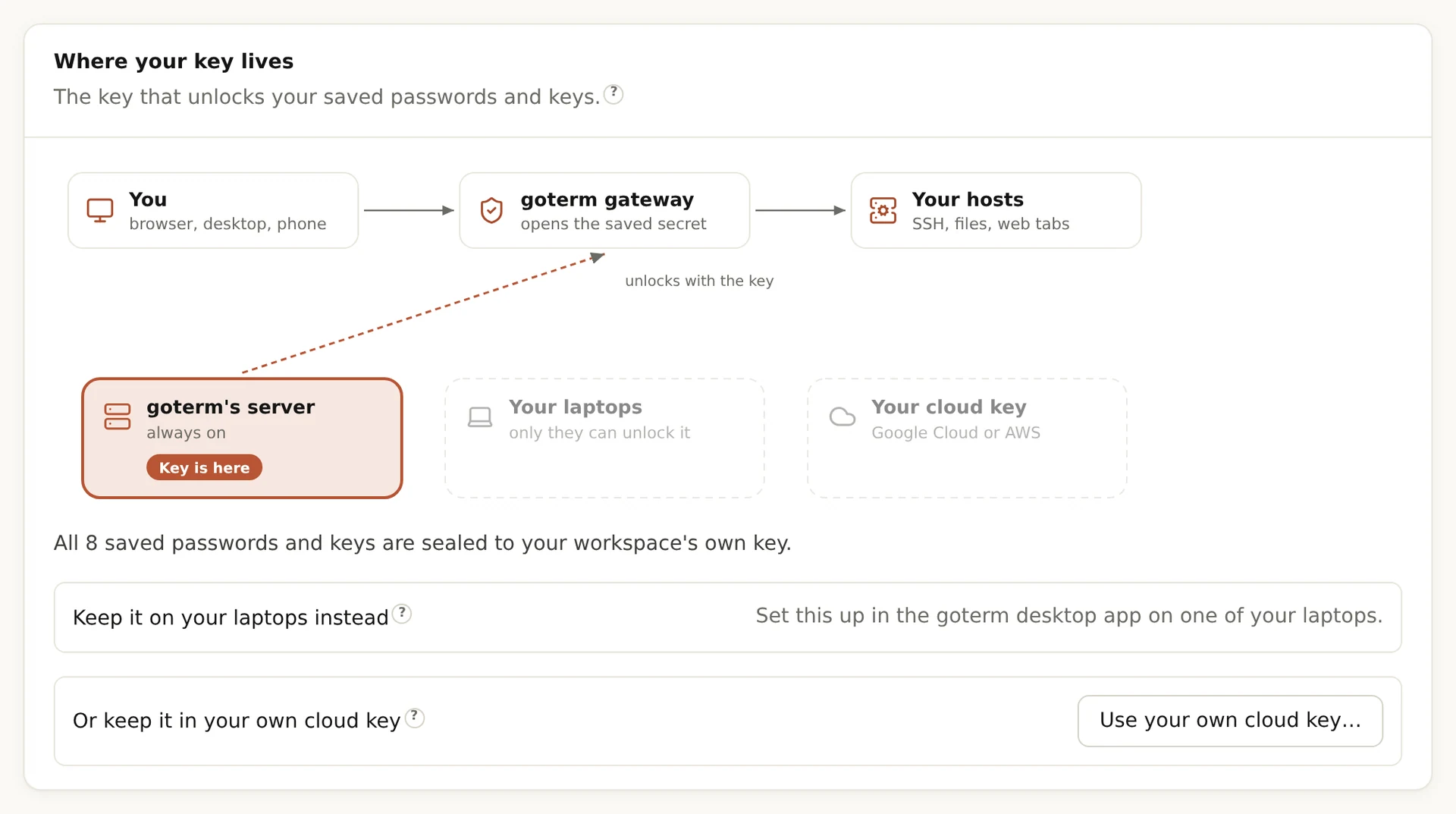
See where your key lives
Owners and admins see it, and move it.
- Open Admin, then Security, and find Where your key lives.
- The drawing marks where the key is with Key is here. The line under it says how many saved passwords and keys are sealed to it.
- To move it, choose Keep it on your laptops… in the desktop app, or Use your own cloud key….
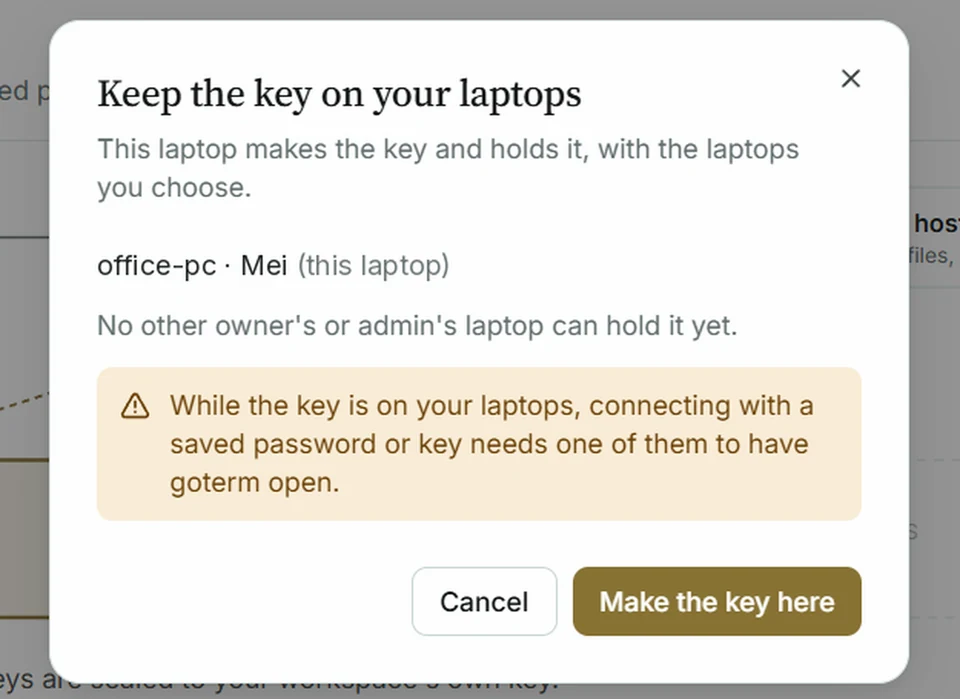
Keep the key on your laptops
You set it up in the desktop app, on an owner’s or admin’s laptop. The new key is made on that laptop, and GoTerm never sees it.
- In the desktop app, open Admin, then Security, and choose Keep it on your laptops….
- Tick the other laptops that will hold the key: owners’ and admins’ confirmed desktops. One is enough. We recommend two, so connecting doesn’t depend on one laptop being on.
- Choose Make the key here, then save the recovery code it shows (below).
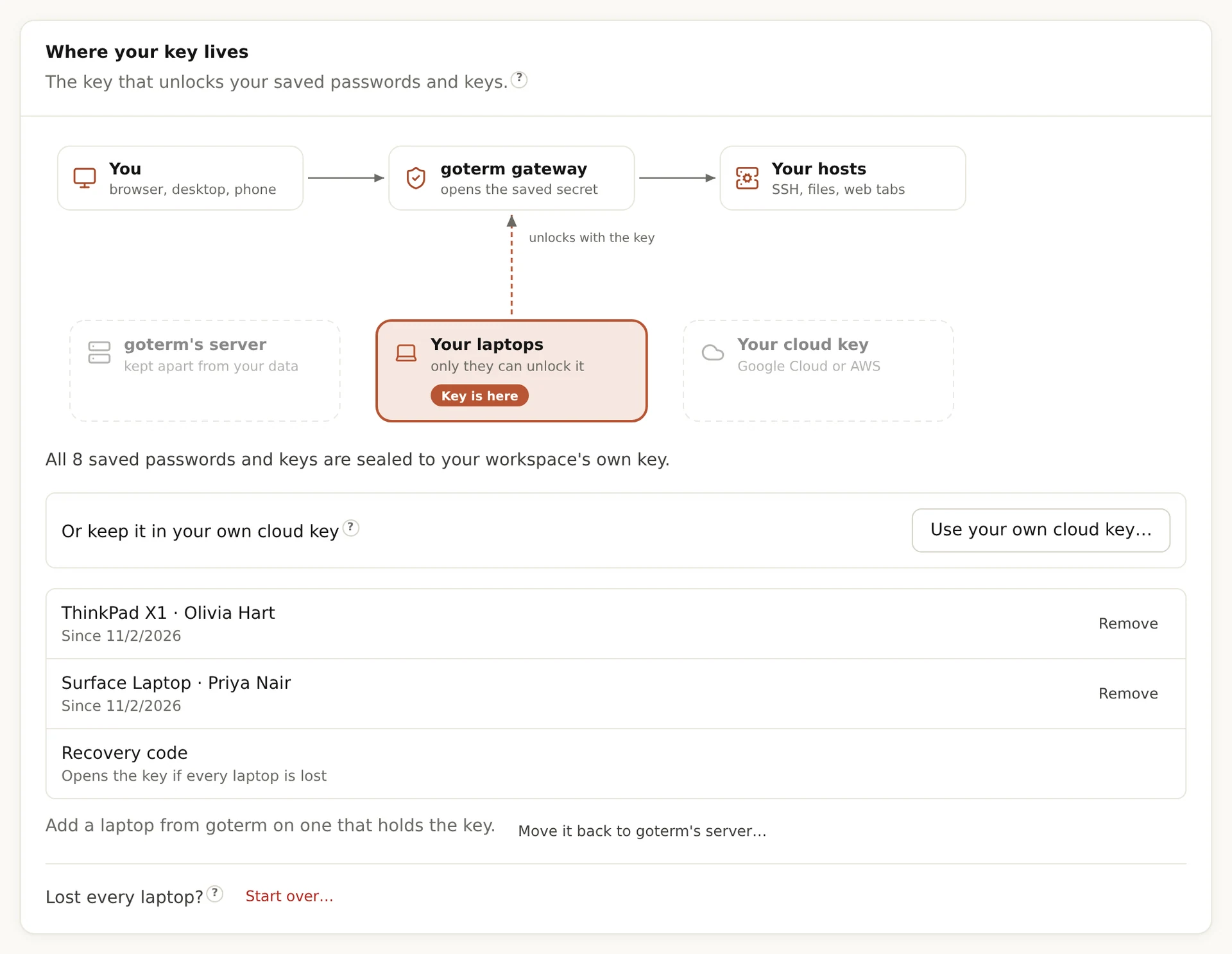
- Your saved passwords and keys then move to the new key, and the card lists the laptops that hold it.
Tip: A computer whose system keeps no passwords for apps can’t hold the key. On Linux, a keyring such as GNOME Keyring or KWallet must be running.
Save the recovery code
The recovery code opens the key if every laptop holding it is lost.
- Right after Make the key here, the desktop app shows Your recovery code, once. GoTerm can’t show it again.
- Choose Save to a file…, or write it into your password manager. Keep it away from the laptops that hold the key.
- Tick I saved the recovery code, then choose Done. Until you do, nothing changes.
When no laptop is on
With the key on your laptops, connecting with a saved password or key needs one of them to have GoTerm open.
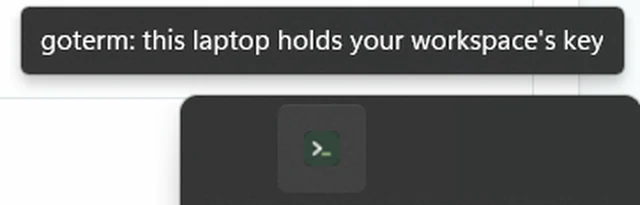
- On a laptop that holds the key, closing GoTerm’s window keeps it running, with its icon in the tray.
- Leave Start goterm at login on, under This laptop holds the key, so GoTerm is there after a restart.
- If no laptop is on, a terminal waits up to 2 minutes for one, and says so. Web tabs and tunnels wait 45 seconds, and monitors 30.
Tip: A laptop opens one saved secret at a time, at most 120 a minute, and each one is in the audit log with the laptop’s name.
Add or remove a laptop
- On a laptop that holds the key, choose Add a laptop… and pick an owner’s or admin’s confirmed desktop. That laptop seals the key to it.
- To take a laptop off, choose Remove on its row. It stops opening the key at once.
- Lost or stolen? Tick It was lost or stolen, and it’s signed out too. Then, on a laptop that holds the key, choose Replace the key now…: the new key is one the lost laptop never had.
Tip: A secret the gateway opened in the last 5 minutes stays in its memory until then, and no longer.
Move the key back to GoTerm’s server
Choose Move it back to goterm's server…. From laptops, a laptop holding the key moves your saved secrets the next time GoTerm is open on it. From your cloud key, GoTerm’s server moves them itself.
- Every move makes a new key. The old one is deleted once nothing is sealed to it.
- On a smaller plan, a key already on laptops or in a cloud key keeps working, and you can always move it back.
If every laptop and the code are lost
The recovery code opens the key on one of the owner’s laptops, and makes it a holder. Without the code, the owner starts over.
- On the Security page, the owner chooses Use the recovery code… in the desktop app, or Start over….
- Starting over deletes every saved password and key sealed to the lost key. Your hosts and everything else stay; you save the secrets again.
Didn’t find your answer?
Write to us, and an engineer who builds GoTerm will reply.