Everyday work
Hosts, groups and jump hosts
A host is a server you saved: its address, its user and how it signs in. A server on a private network is reached through a jump host, as with ssh -J.
Updated
On this page
How a jump host works
GoTerm signs in to the jump host first, asks it for a connection to the private server, and signs in there too. The private server’s name is looked up inside its own network.
- One hop: a jump host can’t go through another.
- Each signs in with its own saved password or key, and GoTerm shows neither.
- Hosts behind a jump host work in the terminal and in Files.
Sort hosts into groups
- On Hosts, open the arrow beside New host and choose New group.
- Name it, and pick its space: yours, or a team’s.
- Edit a host and pick the group under Group.
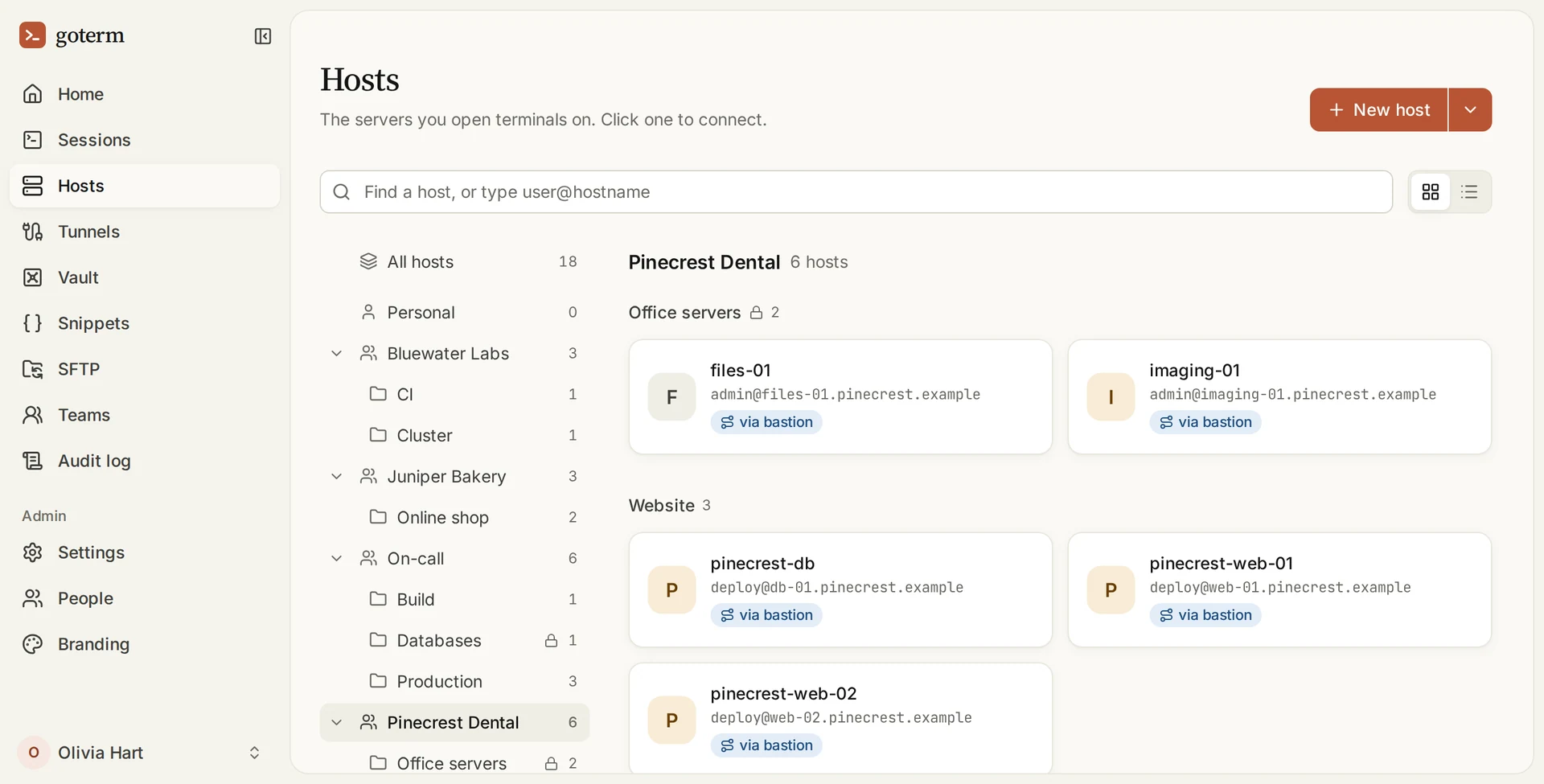
Go through a jump host
- Save the jump host first, as a host with a saved password or key.
- Open the private server’s host with Edit, or choose New host.
- Give its address as the jump host reaches it, such as 10.0.0.12.
- Under Connect through, pick the jump host, then choose Save.
Tip: On the jump host’s menu, Use as jump host starts a new host that goes through it.
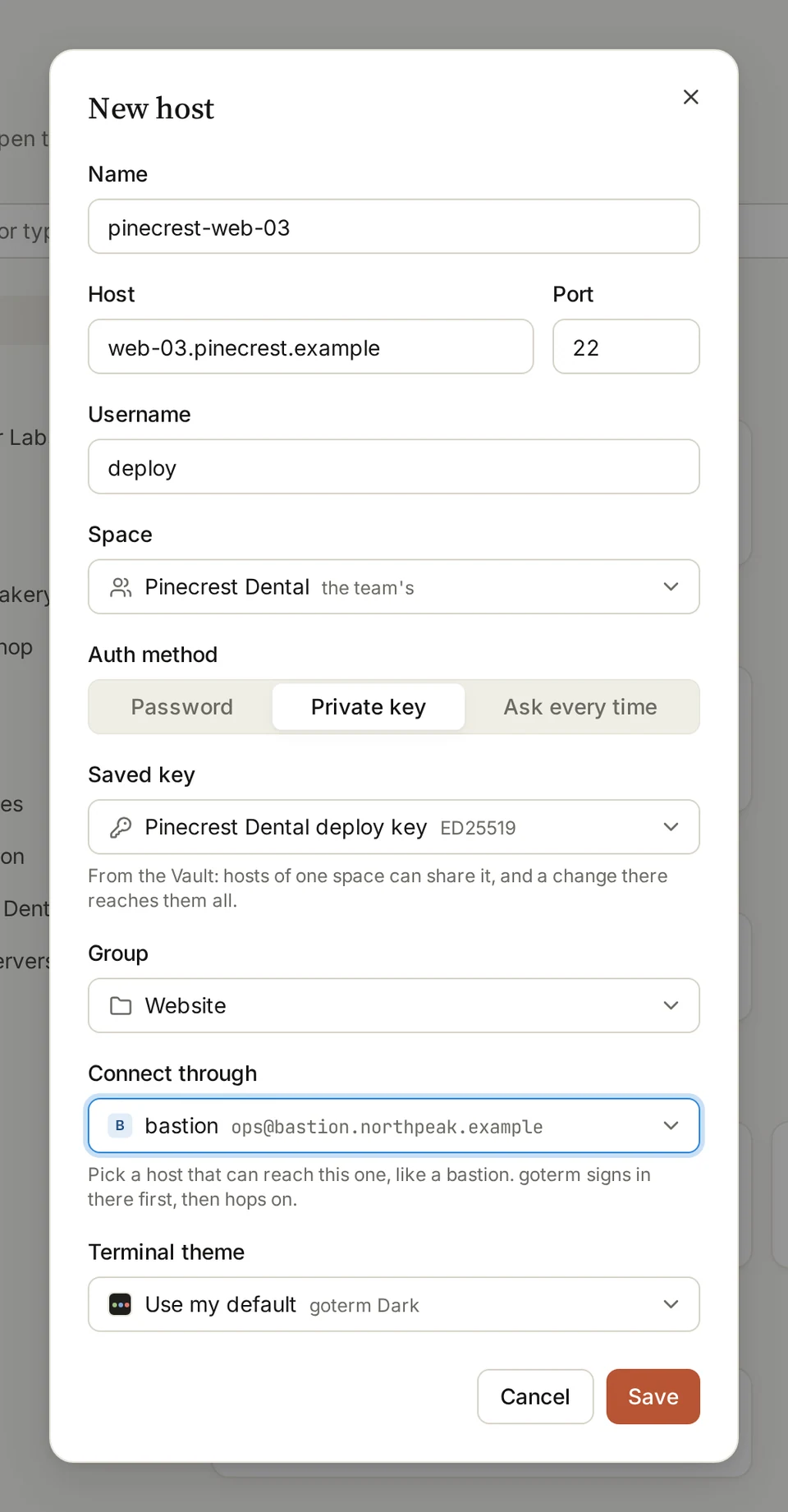
Three ways to sign in
Each host has one, under Auth method.
Password
- Saved in GoTerm
- Yes
- Typed each time
- No
- Team members use it
- Yes
Private key
- Saved in GoTerm
- Yes
- Typed each time
- No
- Team members use it
- Yes
Ask every time
- Saved in GoTerm
- No
- Typed each time
- Yes
- Team members use it
- No
| Auth method | Saved in GoTerm | Typed each time | Team members use it |
|---|---|---|---|
| Password | Yes | No | Yes |
| Private key | Yes | No | Yes |
| Ask every time | No | Yes | No |
More on hosts
- Docker containersOpen a shell inside any running container on a host you already reach. No extra ports.
- Windows desktops over RDPOpen a Windows server’s desktop in a tab, right next to your SSH sessions.
Good to know
- A jump host and the hosts behind it are in one space: all yours, or all one team’s.
- A host behind a jump host uses SSH’s port 22.
- A jump host that others go through can’t be deleted until you take it off them.
- Direct mode in the desktop app dials from your computer, so it can’t go through a jump host.
- Give a host its own Terminal theme, a red one for production say, so you always know where you are.
Didn’t find your answer?
Write to us, and an engineer who builds GoTerm will reply.