SSH
Transfer files through a bastion, even between two networks
scp -J copies a file through one jump host. Between servers behind two different bastions it gets harder. How GoTerm copies from one network to the other.
Published
Servers that matter usually live on a private network with one way in: a bastion, also called a jump host, that you sign in to first. For a shell that’s easy, since ssh -J has gone through a jump host since OpenSSH 7.3. Moving files is where it gets fiddly. And moving them between two servers in two different private networks, server A behind bastion A and server B behind bastion B, is where most people end up copying the file to their laptop and back.

This article goes through the usual ways to transfer files through a jump host, what each one costs when there are two networks, and how GoTerm copies straight from one server to the other.
One server behind a bastion: scp -J
With one jump host, OpenSSH does the work. Since OpenSSH 8.0, scp and sftp take the same -J option as ssh:
scp -J deploy@bastion-a.example.com release.tar.gz deploy@10.0.1.20:/srv/releases/
sftp -J deploy@bastion-a.example.com deploy@10.0.1.20
For a server you reach often, put the jump host in ~/.ssh/config with ProxyJump, and plain ssh, scp and sftp all use it:
Host bastion-a
    HostName bastion-a.example.com
    User deploy

Host server-a
    HostName 10.0.1.20
    User deploy
    ProxyJump bastion-a
Then scp release.tar.gz server-a:/srv/releases/ goes through the bastion on its own. The bastion has to allow TCP forwarding (AllowTcpForwarding, which OpenSSH turns on by default), and your laptop needs keys that sign in to both the bastion and the server.
Two servers, two bastions
Now the harder case. Server A is in one private network, behind bastion A. Server B is in another, behind bastion B: another cloud account, another provider, a customer’s office. You need a release, a database dump or a folder of uploads copied from server A to server B.
Neither server can reach the other, and that’s on purpose. Each network has one door, its own bastion, and the only machine that can get through both doors is usually your laptop.
The usual ways, and what they cost
Down to your laptop, then up again
scp -J deploy@bastion-a.example.com deploy@10.0.1.20:/srv/backups/shop.dump .
scp -J deploy@bastion-b.example.com shop.dump deploy@10.20.0.15:/srv/restore/
It works, and it’s what most people do. But the file crosses your own internet connection twice, down and then up, which for a few gigabytes over home broadband takes the afternoon. A copy stays on your laptop until you remember to delete it, and for a database dump that’s customer data on a laptop. The laptop has to stay awake until both copies are done. And it holds keys to both bastions and both servers.
scp from one server straight to the other
Give each server a Host entry in ~/.ssh/config with its own ProxyJump (one -J on the command line would send both through the same jump host), and scp copies between two remote hosts in one command:
scp server-a:/srv/backups/shop.dump server-b:/srv/restore/Since OpenSSH 8.7, a copy between two remote hosts goes through your own computer by default, as scp -3 did before. Nothing is written to your disk, but every byte still comes down to your laptop and goes up again, the laptop still has to stay on until it ends, and a copy that breaks halfway starts again from the beginning. rsync, which can pick up where it stopped, doesn’t copy between two remote hosts at all.
Hop from server A to server B
You could sign in to server A and copy from there through bastion B. That needs server A to reach bastion B’s address, which the outbound rules of a private network often block. It needs a key for bastion B and server B on server A, and a key on a server is one more place a key can be taken from. Or it needs agent forwarding (ssh -A), which OpenSSH’s own manual warns about: anyone who can get around file permissions on that server, root for one, can use your keys through it while you’re connected.
Open a way between the networks
A file sharing link, a storage bucket both sides can reach, a firewall rule for the afternoon, or a site-to-site VPN. A VPN between two networks is the right answer when they talk to each other every day. For copying a release or a dump now and then, each of these is a change to review, one more place the data passes through, and something to take down afterwards. Two private networks also often use the same addresses, both 10.0.0.0/16 for example, and then they can’t be joined without renumbering one or translating addresses between them.

How GoTerm copies between two private networks
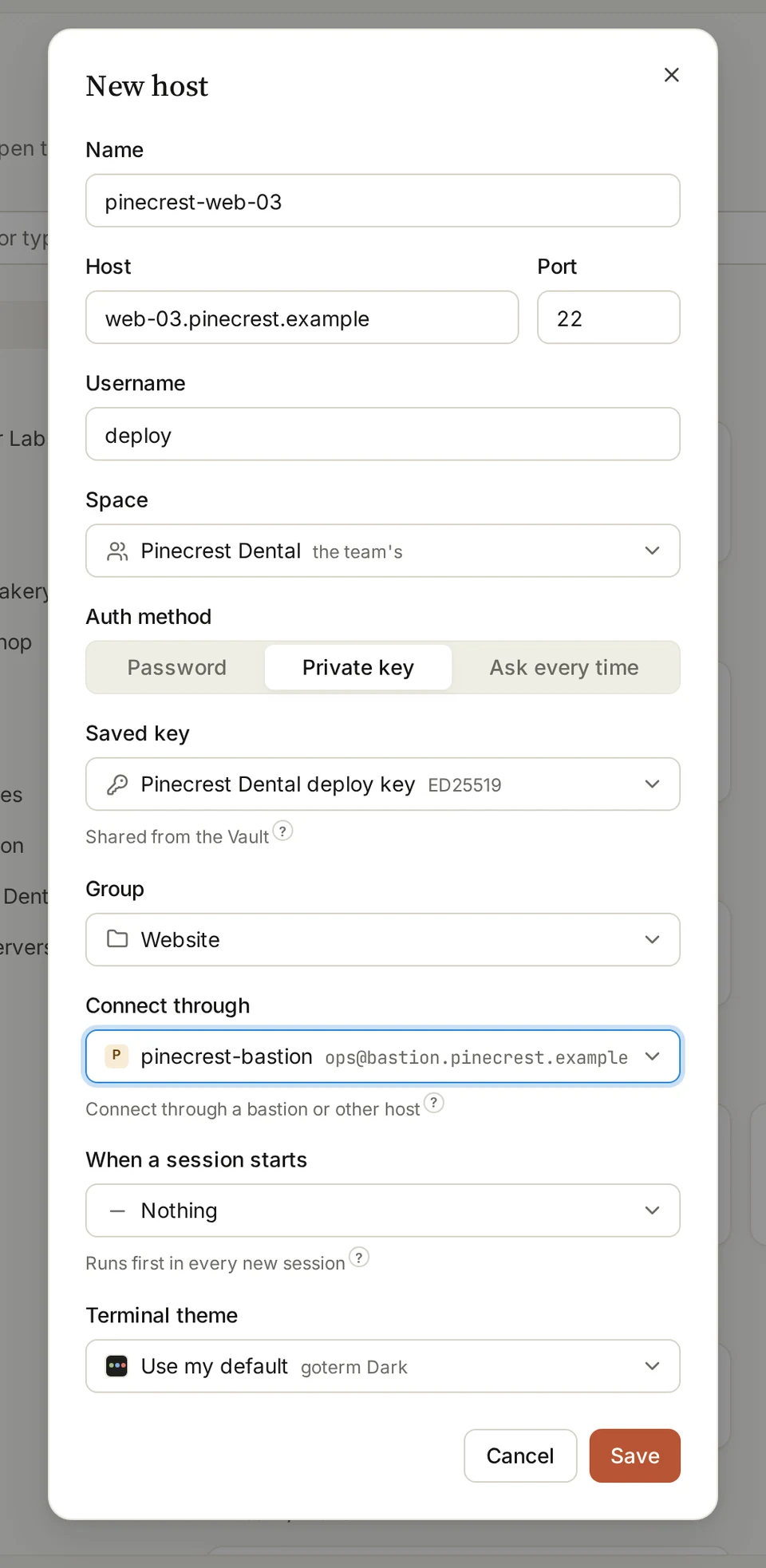
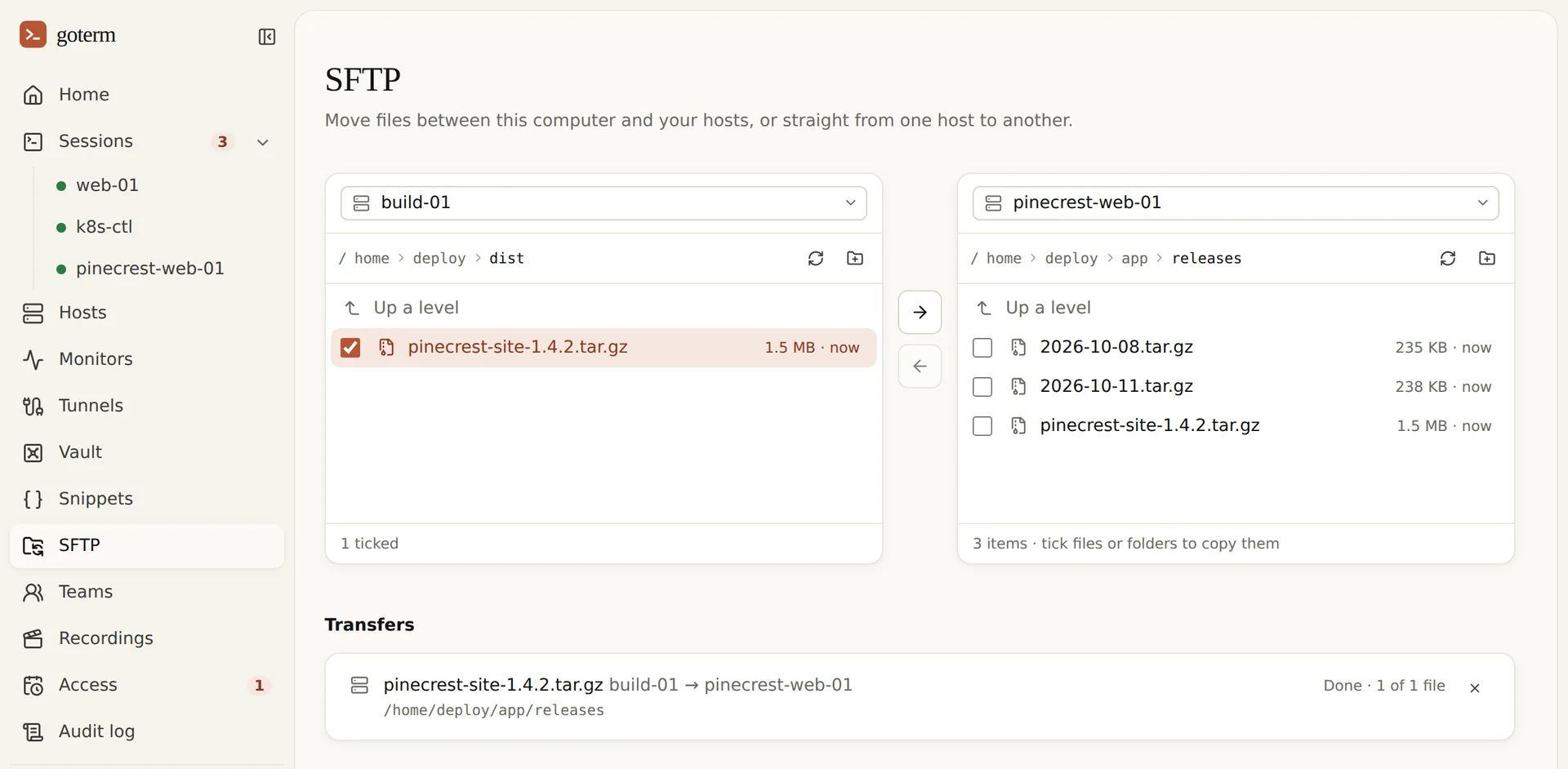
GoTerm’s gateway takes the place your laptop had in that picture. You save each bastion once, and each server with its own bastion under Connect through, as you would with ProxyJump. On the SFTP page you pick server A on one side and server B on the other, tick what to copy and press the arrow. The gateway signs in to server A through bastion A and to server B through bastion B, reads from one and writes to the other as the data comes, and keeps no copy.
- Nothing passes through your computer. Close the page, the browser or the laptop: the copy keeps running on the gateway, and the SFTP page shows how it went when you come back.
- If a connection drops, the copy pauses and tries again a minute later. It carries on after the last file it finished, and a big file stopped part-way continues from the last point server B confirmed, as long as it hasn’t changed on server A. After 10 tries it stops and says why.
- Folders come with everything inside them. If a file is already there, GoTerm asks once: replace, skip or keep both.
- Files keep their permissions and their modified time.
Set it up
- Save bastion A as a host, with a key or password from the Vault. Do the same for bastion B.
- Save server A with its address as bastion A reaches it, such as 10.0.1.20, and pick bastion A under Connect through. Save server B the same way, through bastion B.
- Choose SFTP in the sidebar, and pick server A on one side and server B on the other.
- Open the folders, tick the files or folders to copy, and press the arrow between the sides. The copy shows under Transfers, with its progress and Cancel.
The Hosts and jump hosts guide and the Files guide have the details.
What keeps it safe
- Nothing new is opened. GoTerm reaches each network the way you do, over SSH through its bastion, and the two networks stay closed to each other.
- The keys to both bastions and both servers stay in the team’s Vault on GoTerm’s server. Nobody’s laptop needs a copy, and nobody needs agent forwarding.
- Each person reaches only the hosts their team, or an access grant, gives them. A copy needs access to both hosts and write access to the one it goes to: a read-only grant can be copied from, never into.
- Access is checked when a copy starts, whenever it resumes and every minute while it runs. A copy stops if its person loses access to either host, signs out everywhere, or has the device that started it removed.
- Each server’s host key is pinned for its own network. 10.0.0.5 behind bastion A and 10.0.0.5 behind bastion B are two different machines to GoTerm, so the same addresses in both networks are no problem.
- The audit log records every copy with the files’ names: who copied what, from which host to which, and how much.
When it comes up

- Moving a site from one provider to another: its files, its uploads and a database dump, from the old network to the new one.
- Copying a production backup into a staging network in another cloud account, to test a restore.
- An agency or an IT provider delivering a build from its own build server into a customer’s network, as in the screenshot above.
- Bringing a customer’s logs from their network to a server of yours where you can read them.
Good to know
- One hop: a jump host can’t go through another jump host. Each of the two servers has its own, though.
- A jump host needs a saved password or key, and has to allow TCP forwarding (
AllowTcpForwarding, on by default). - A jump host and the hosts behind it are in one space: yours, or one team’s. The two sides of a copy can be in different teams, if you can reach both.
- A host that asks for its password each time copies to and from your computer, not to another host: a copy that keeps running would need the password again after a restart, and GoTerm never keeps it.
- One copy takes up to 100 ticked items, and 100,000 files and folders in all. Links inside a folder are left out, and on server B the files belong to the user GoTerm signs in as.
- If your workspace’s key lives on a few chosen laptops, a copy opens its connections with one of them, as a terminal does: keep one on for a copy to start, or to pick up after a dropped connection.
- Every byte goes through GoTerm’s gateway. For terabytes a day between two networks, a direct link between them is the better tool.
- Direct mode in the desktop app connects from your own computer, so it can’t go through a jump host. Jump hosts and the SFTP page come with every paid plan, in the browser and in the desktop app.
The demo gives you a workspace of your own for an hour, with five hosts behind a jump host: open SFTP and copy a file from one to another.
Sources
- OpenSSH release notes:
-JandProxyJumpin 7.3,-Jfor scp and sftp in 8.0,scp -3in 5.7, copies between two remote hosts through the local host by default in 8.7. - ssh(1) on agent forwarding (
-A), and sshd_config(5) onAllowTcpForwarding. - rsync(1): “it does not support copying files between two remote hosts”.
- Files and Hosts and jump hosts: GoTerm’s guides to copies between hosts and to jump hosts.
