Keys, people and security
Who can reach which host
Your workspace is one organization, with teams inside it. A team has its own admins, hosts and keys, and a host group can be limited to chosen teams or people.
Updated
On this page
How access is organized
A host is personal, or a team’s. A team’s members use its hosts and keys; its admins manage them.
- A team’s members use its hosts and keys, and never see the keys.
- A limited group opens only for the people and teams you list, and for admins.
- Personal hosts are their owner’s alone. No admin can see or use them.
Invite people
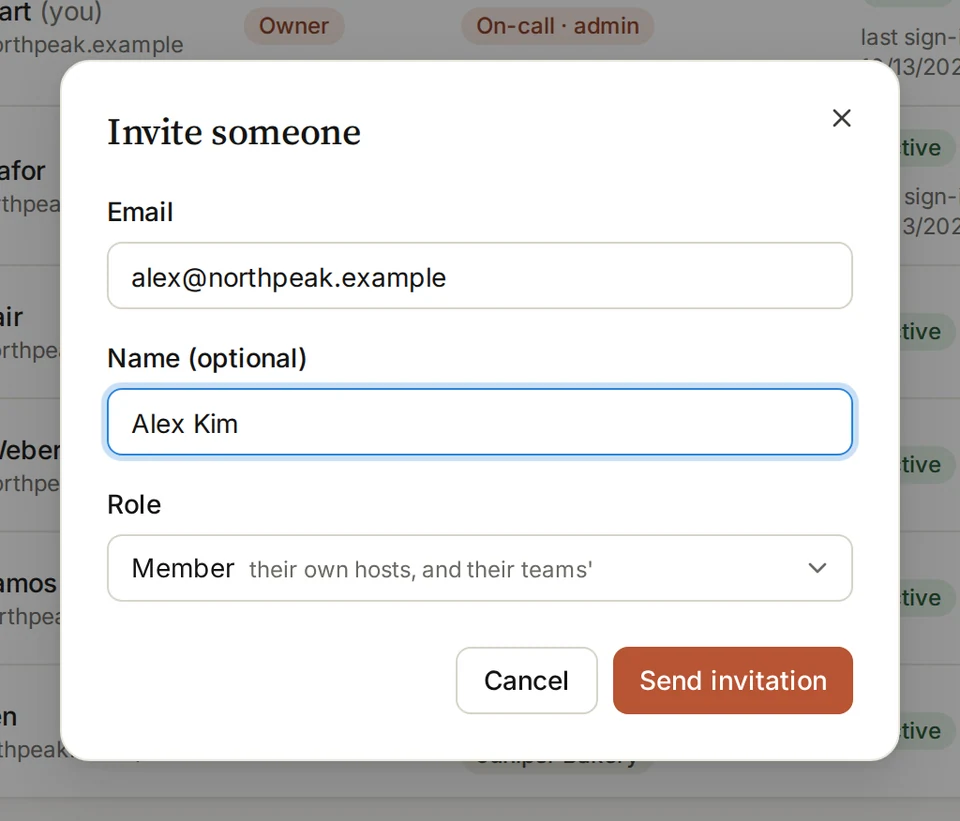
- Open People and choose Invite someone.
- Fill in their Email, and a name if you like.
- Pick a Role: Member, or Admin to manage people and teams.
- Choose Send invitation. They choose a password from the email.
Make a team
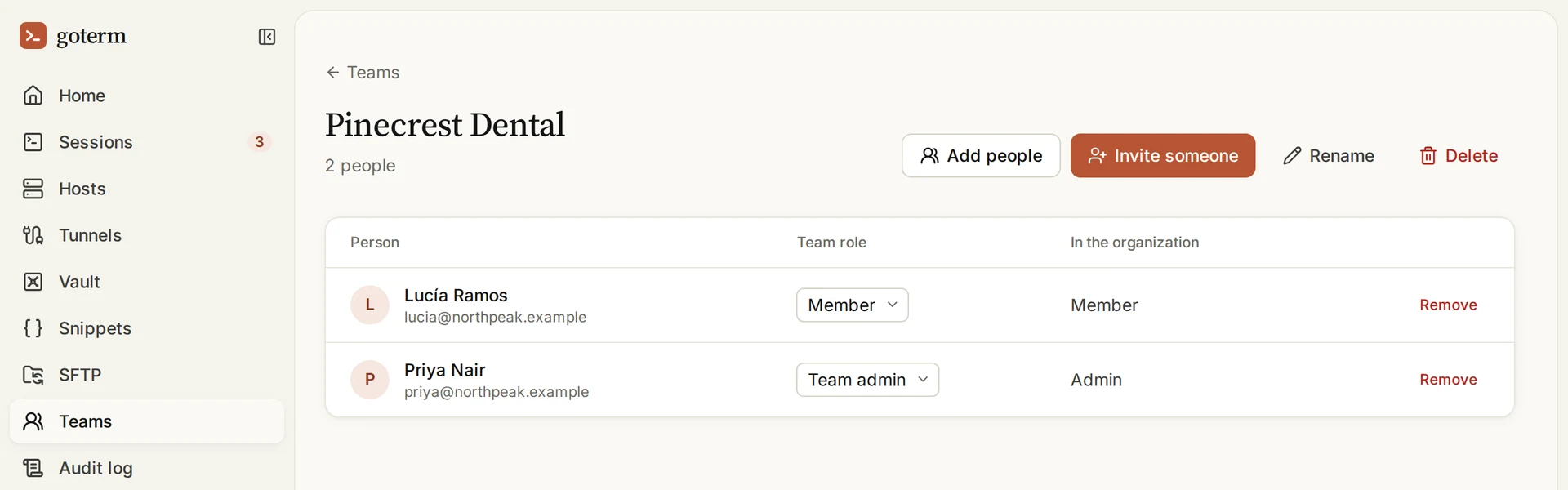
- Open Teams, choose New team and name it.
- Open the team and choose Add people, or Invite someone new.
- Make someone a Team admin to let them manage its people and hosts.
- Give the team hosts by picking it as their Space.
Limit a host group
- On Hosts, open a team’s group.
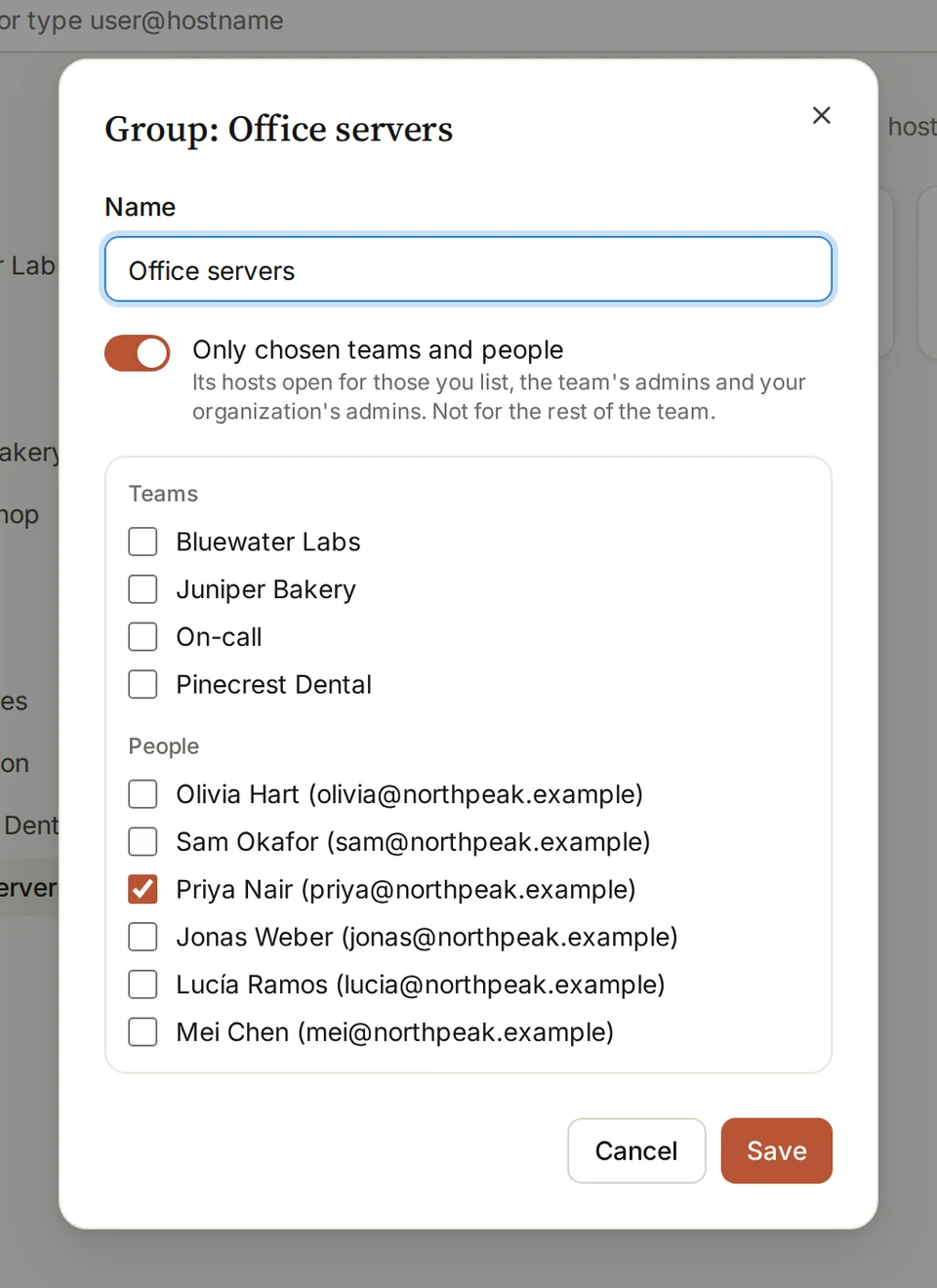
- Open its … menu and choose Rename or limit access.
- Switch on Only chosen teams and people, and tick who may use it.
- Choose Save. Anyone else loses its hosts at once, open terminals included.
See who did what
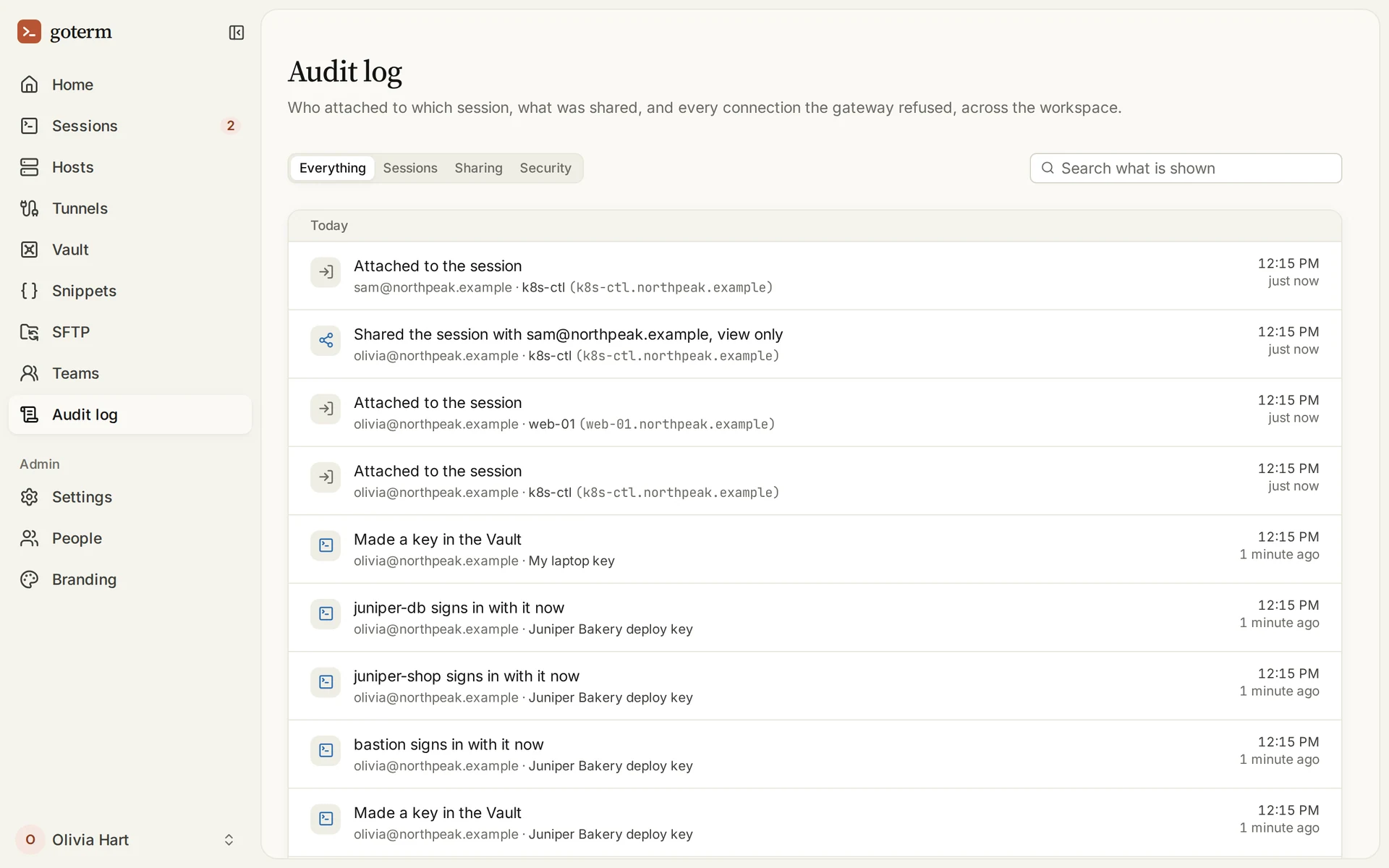
The audit log records sessions and shares, connections the gateway refused, web tabs, changes to saved keys, and devices.
- Open Audit log.
- Each row says who did what, and when. Admins see the whole organization.
Who can do what
Connect to their teams’ hosts
- Owner
- Yes
- Admin
- Yes
- Team admin
- Yes
- Member
- Yes
Keep personal hosts and keys
- Owner
- Yes
- Admin
- Yes
- Team admin
- Yes
- Member
- Yes
Manage a team’s hosts, keys and groups
- Owner
- Yes
- Admin
- Yes
- Team admin
- Their team’s
- Member
- No
Add people to a team
- Owner
- Yes
- Admin
- Yes
- Team admin
- Their team
- Member
- No
Make teams, change roles, branding
- Owner
- Yes
- Admin
- Yes
- Team admin
- No
- Member
- No
Use someone else’s personal hosts
- Owner
- No
- Admin
- No
- Team admin
- No
- Member
- No
| Owner | Admin | Team admin | Member | |
|---|---|---|---|---|
| Connect to their teams’ hosts | Yes | Yes | Yes | Yes |
| Keep personal hosts and keys | Yes | Yes | Yes | Yes |
| Manage a team’s hosts, keys and groups | Yes | Yes | Their team’s | No |
| Add people to a team | Yes | Yes | Their team | No |
| Make teams, change roles, branding | Yes | Yes | No | No |
| Use someone else’s personal hosts | No | No | No | No |
More on access
- Access grants and guestsGive someone a host for a few hours, with approval, and the access ends on its own.
- Connection logSee who connected to which host, when, and from which IP address and country.
- Single sign-onPeople sign in with your company’s identity provider.
- Two-factor sign-inAdd a second step at sign-in for every account.
Good to know
- An organization has one owner. No admin can demote or deactivate them.
- The organization’s owner and admins count as admins of every team.
- Someone who loses a host, by a role or a group, loses its open terminals and files too.
Didn’t find your answer?
Write to us, and an engineer who builds GoTerm will reply.