Teams and admin
Run your workspace
Your workspace has its own address, in the region you chose. Its owner and admins set its colours and rules, and its owner approves a move to another region.
Updated
On this page
Your address and region
A workspace’s address names its region: acme.us.goterm.net runs in the US, globex.ap.goterm.net in Asia-Pacific. You choose the region when you sign up.
- That region’s server holds your hosts, the Vault, the audit log and recordings, and runs your sessions, copies, web tabs and monitors.
- Files pass through it, and are never kept.
- The region is free on every plan.
Brand colours
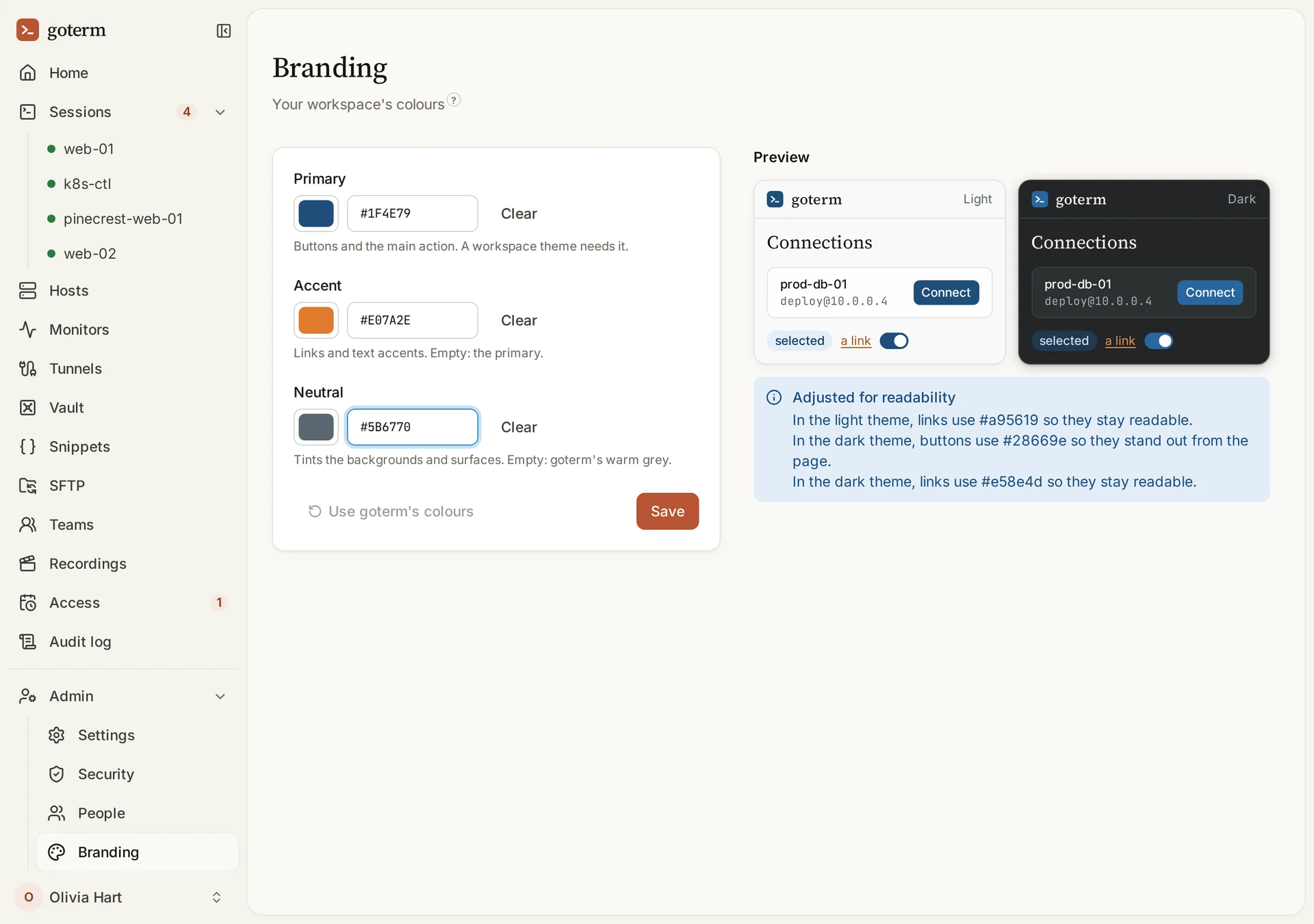
- Open Admin, then Branding.
- Set a Primary colour for buttons, and if you like an Accent for links and a Neutral for backgrounds.
- The preview shows the light and dark themes. GoTerm adjusts a colour that would be hard to read, and says so. Choose Save.
Tip: Use goterm's colours goes back to GoTerm’s own.
Settings
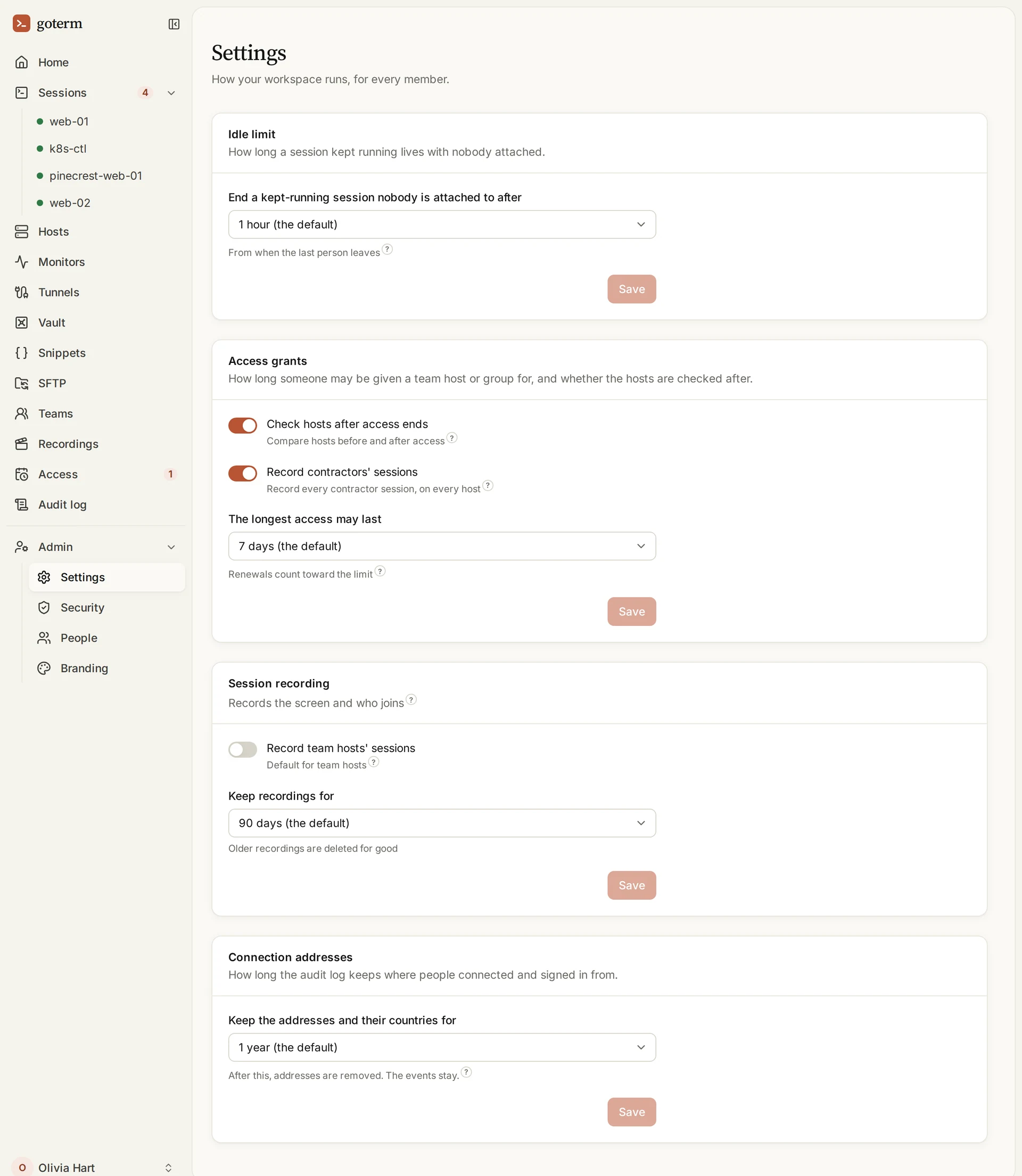
- Open Admin, then Settings: the rules for everyone in the workspace.
- Idle limit: how long a kept-running session with nobody attached lives, from 1 hour to 7 days.
- Access grants, Session recording and Connection addresses: how long each lasts, and what is checked or recorded.
Change region
Want another region? Ask us. GoTerm moves your workspace, with its sealed secrets, only once its owner approves.
- Secrets cross sealed to a key only the new server holds, and are never opened on the way.
- A move nobody approves within 24 hours doesn’t happen.
Approve a move
- When a move is asked for, the owner is emailed, and Admin, then Security, shows Moving this workspace.
- Check where it goes and who asked, then choose Approve, or Decline.
- You’re emailed again when it’s done.

After a move
Everything moves with the workspace: hosts, the Vault, recordings, people and their devices, and the allowed addresses. The address changes with the region.
- VPN only arrives off on the new server. The owner is told, and turns it on again once people have set up their new files.
- Devices stay confirmed: nobody confirms one again. The old address stops working, so share the new one with your team.
- A day’s email pass for an address is asked for again.
More regions
- EuropeA region in Europe, with addresses under eu.goterm.net.
- A server in your cityA server of your own, in the city you choose, at an address in its region.
Good to know
- A workspace’s name is unique across GoTerm, whatever its region.
- Only the owner approves a move that carries the workspace’s secrets.
- A move can give the workspace a new name too, if you ask.
- The brand colours are everyone’s in the workspace, in the browser and the desktop app.
Didn’t find your answer?
Write to us, and an engineer who builds GoTerm will reply.