Teams and admin
Who did what, and what it showed
The audit log records sessions, files, sharing, sign-ins and errors, with who, on which device and from where. Recordings keep what a session’s screen showed, sealed, to watch back.
Updated
On this page
How the audit log works
One log for the whole workspace. Each row says who did what and when, on which device, from which address, and on which host.
- The organization’s owner and admins read the whole workspace; a team’s admins, their team’s hosts; everyone, their own rows.
- Who connected from where shows to the owner and admins, to a team’s admins on their team’s hosts, and to each person on their own rows.
- Rows stay. Only the addresses go, after the time the workspace keeps them.
Find something
- Open Audit log. Its tabs narrow it: Sessions, Sharing, Security, Files and Errors.
- Filter by Team, Host, Person, Event and When.
- Or search the whole log for a name, an address or a device’s ID.
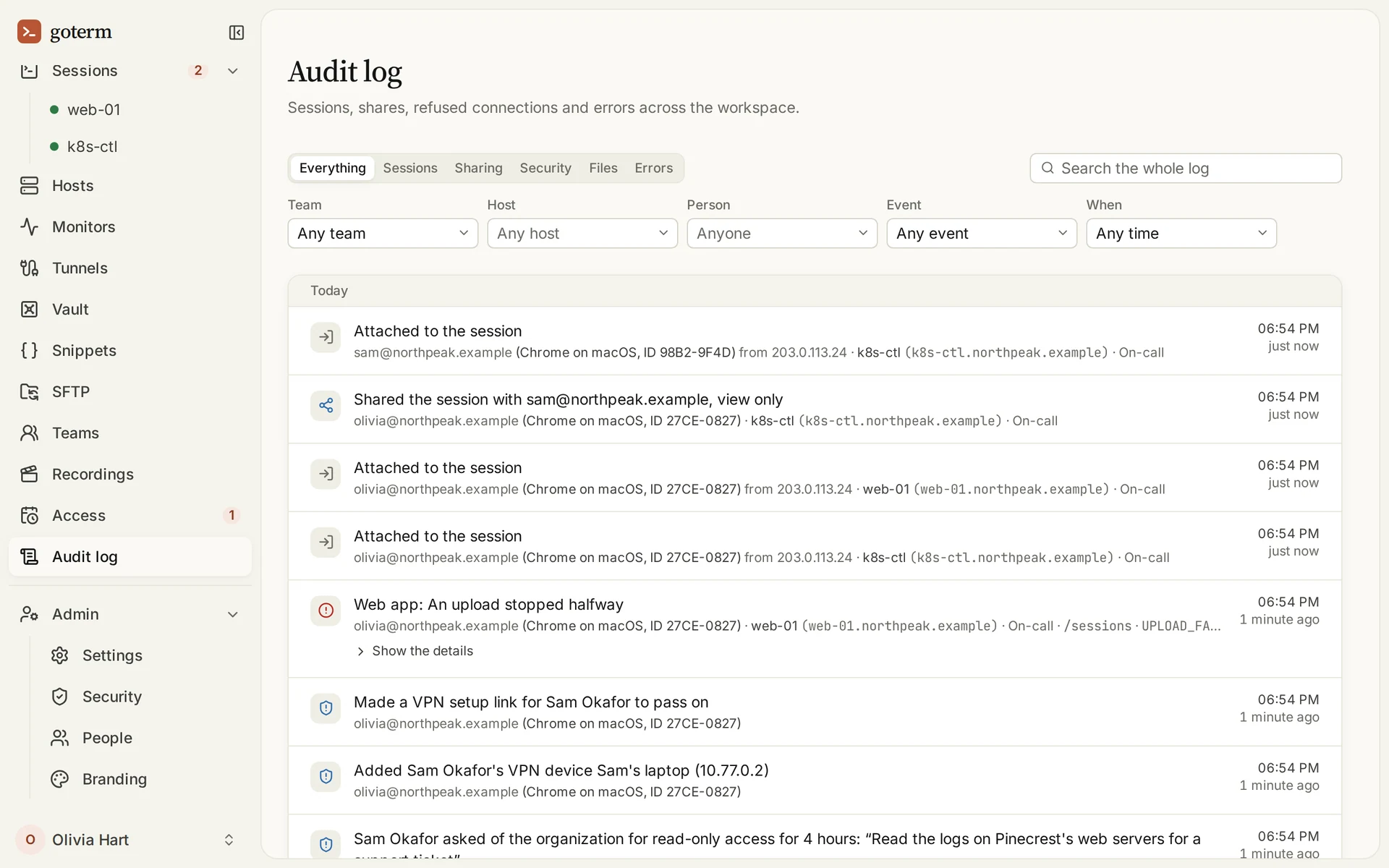
What a row says
- Each row names who did it, on which device and that device’s ID, from which address, and on which host.
- Where GoTerm can place the address, its city and country show beside it.
- Show the details opens more, such as the file an upload stopped on, with Copy.

Errors
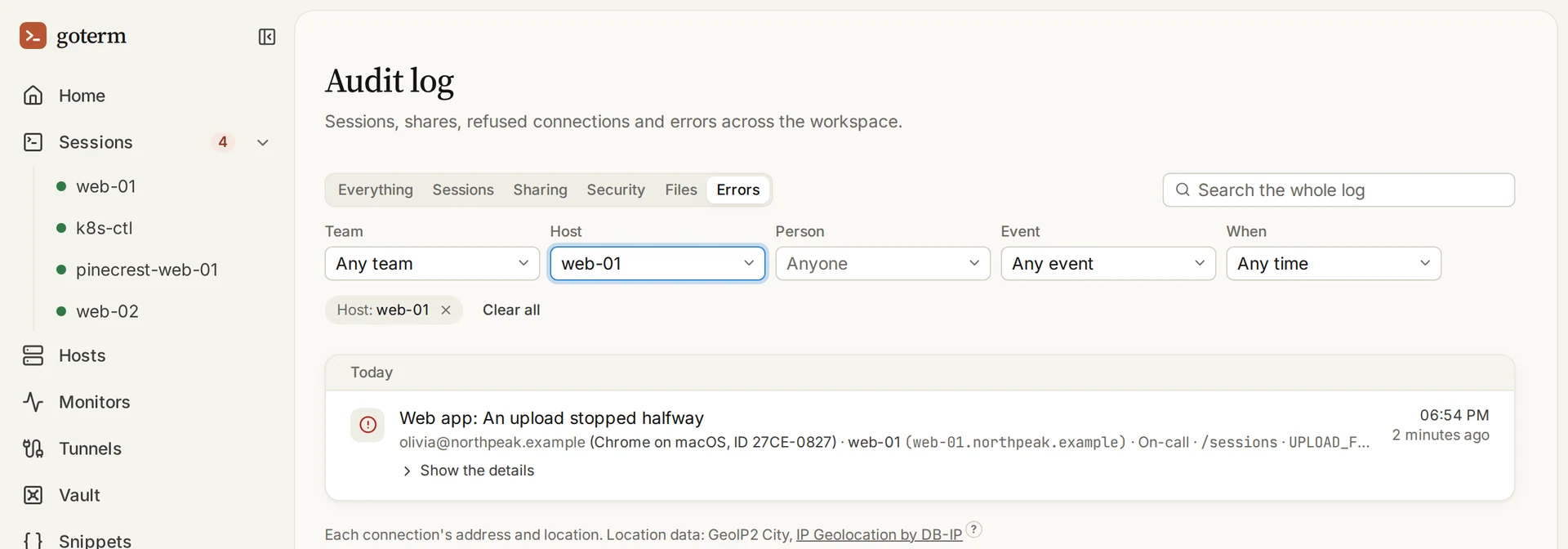
- Open Audit log, then Errors: what went wrong in GoTerm, the desktop app or a browser, and where.
- The same error repeating within minutes is one row, with a count.
- The owner and admins see each error’s full text; everyone else, its plain message.
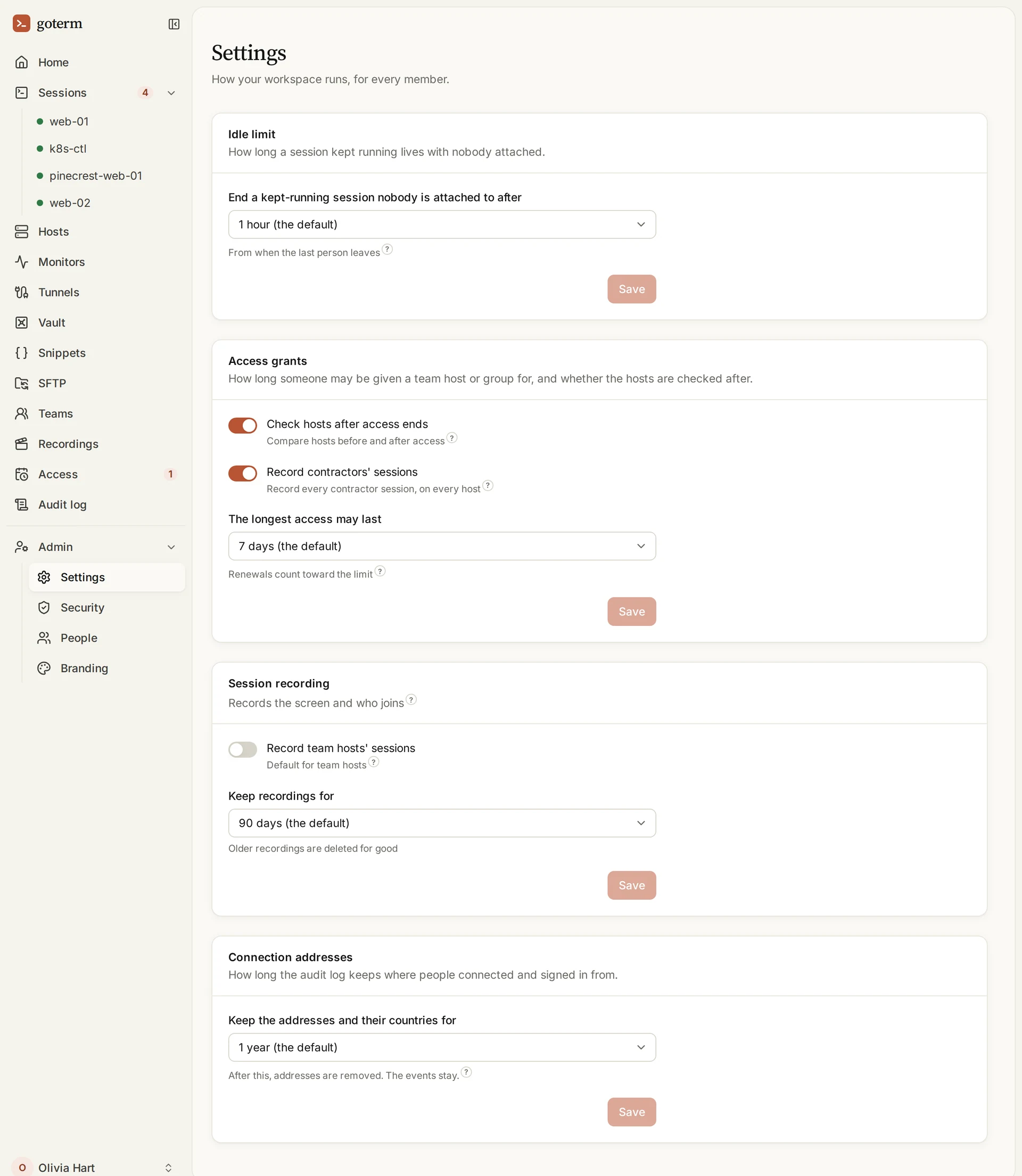
How long addresses are kept
- Open Admin, then Settings, and find Connection addresses.
- Choose how long to Keep the addresses and their countries for, from 30 days to 2 years. A year unless you change it.
- After that, a row’s address, city and country are removed. The row stays.
How recording works
A recorded session keeps what its screen showed, who joined, and when they typed: never what they typed. It’s sealed as it’s written, and only its watchers can play it.
- Typing is kept as when and by whom, never what, so a password typed at a prompt stays out.
- A recorded host’s sessions always go through GoTerm: the desktop app won’t dial it in Direct mode.
- Recording is on Teams, kept up to 90 days, and on Business, up to a year.
Turn recording on
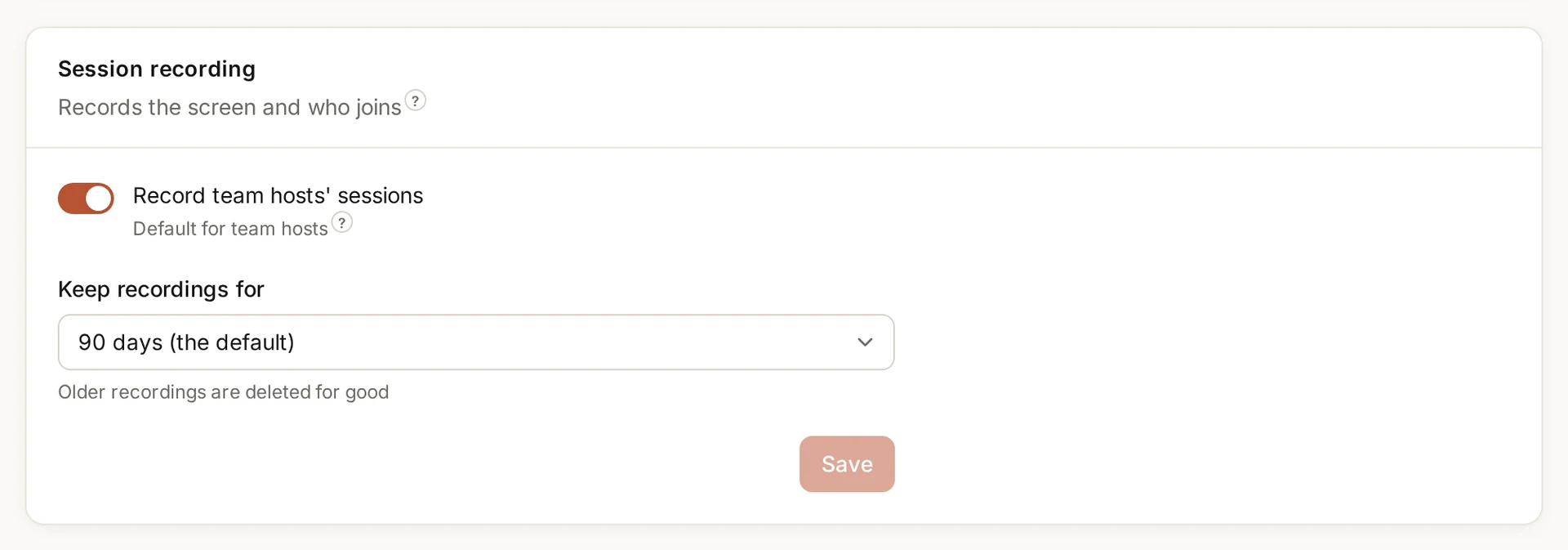
- Open Admin, then Settings. Under Session recording, switch on Record team hosts' sessions.
- Or record one group: on Hosts, open its … menu, choose Rename or record (Rename or limit access on Business), and under Record its hosts' sessions pick Record.
- Choose how long to Keep recordings for, then Save.
Find a recording
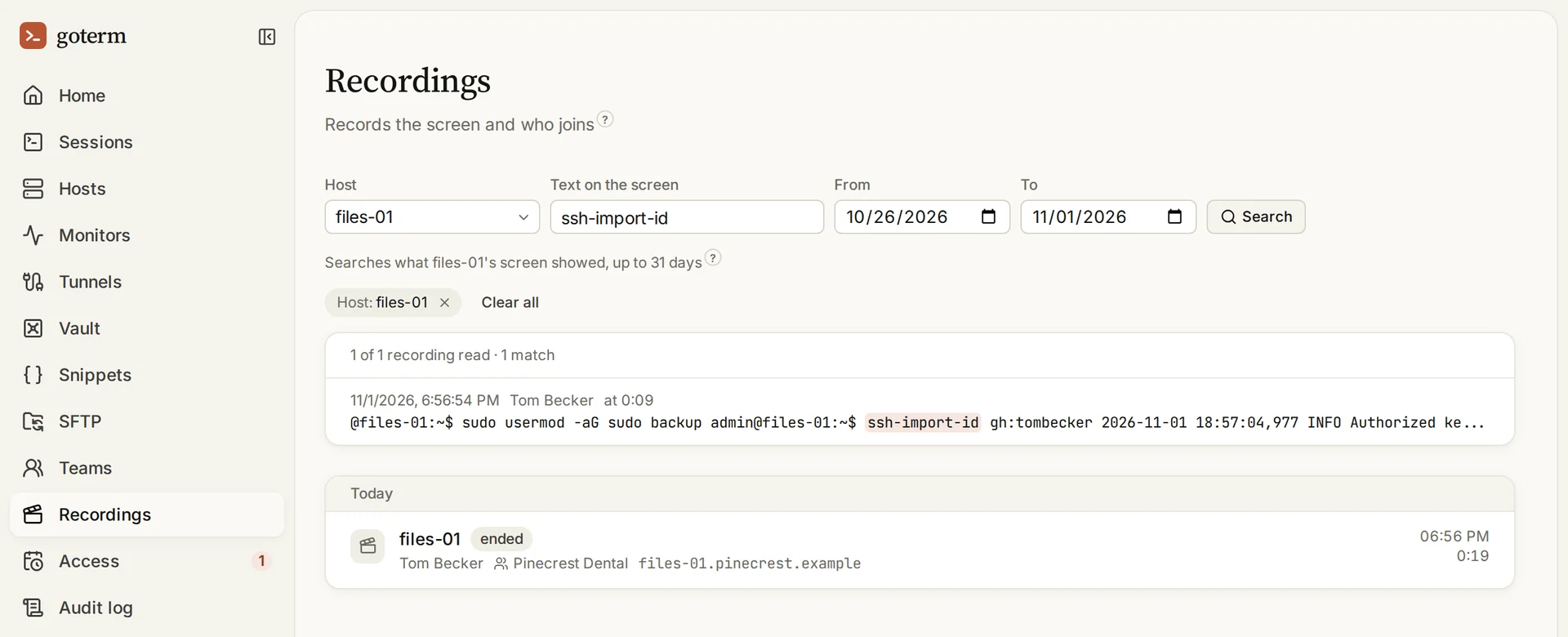
- Open Recordings: each one with its host, who started it, and how long it ran.
- Pick a Host and type Text on the screen to search what it showed, between two dates.
- Each match shows the line it was found on, and when in the recording.
Watch it
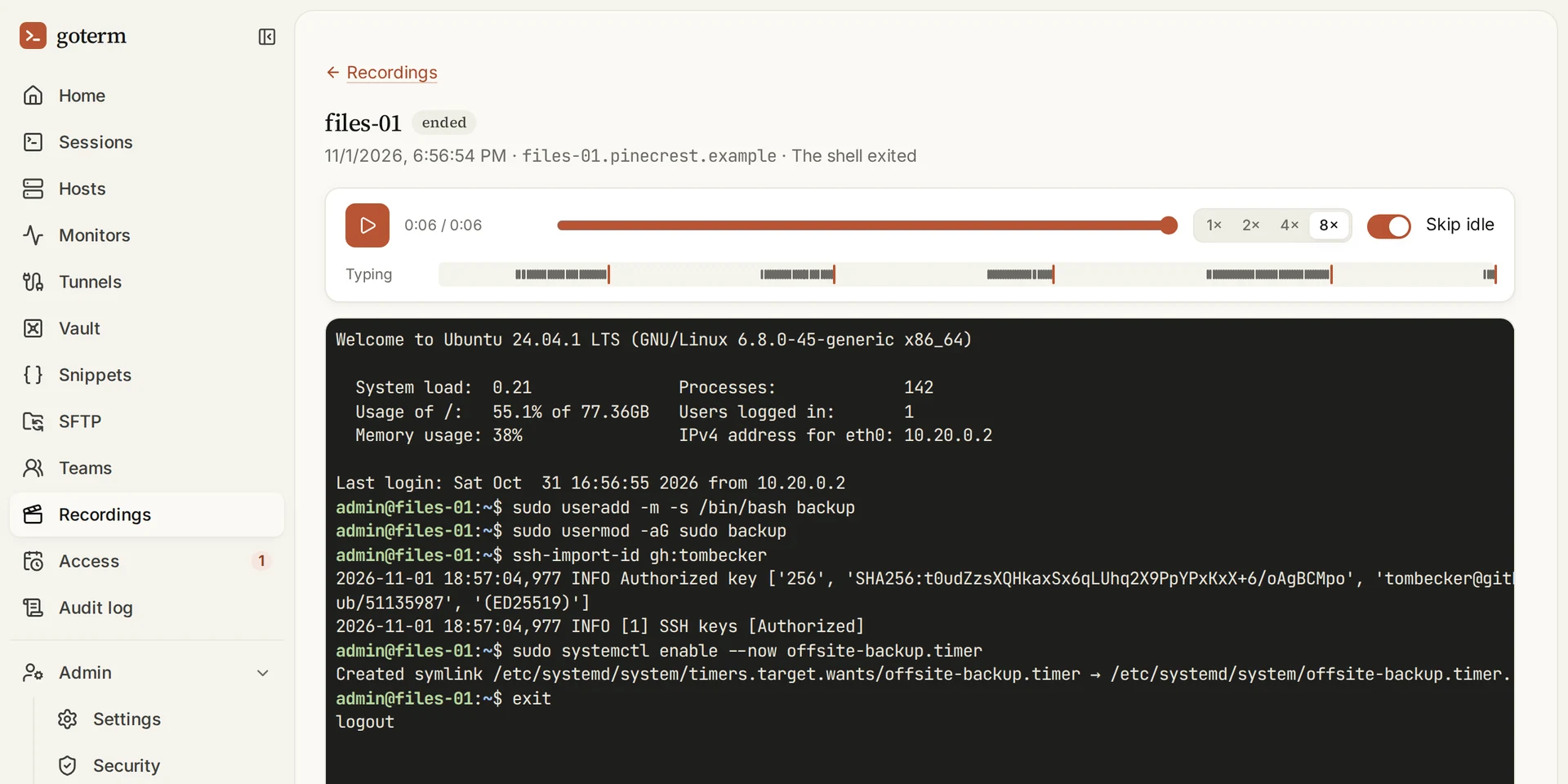
- Open a recording, or a match, and press play. Pick 1× to 8×, and Skip idle to jump the quiet parts.
- The Typing lane shows when someone typed. People joining and leaving show too.
- Opening a recording goes in the audit log.
People are told
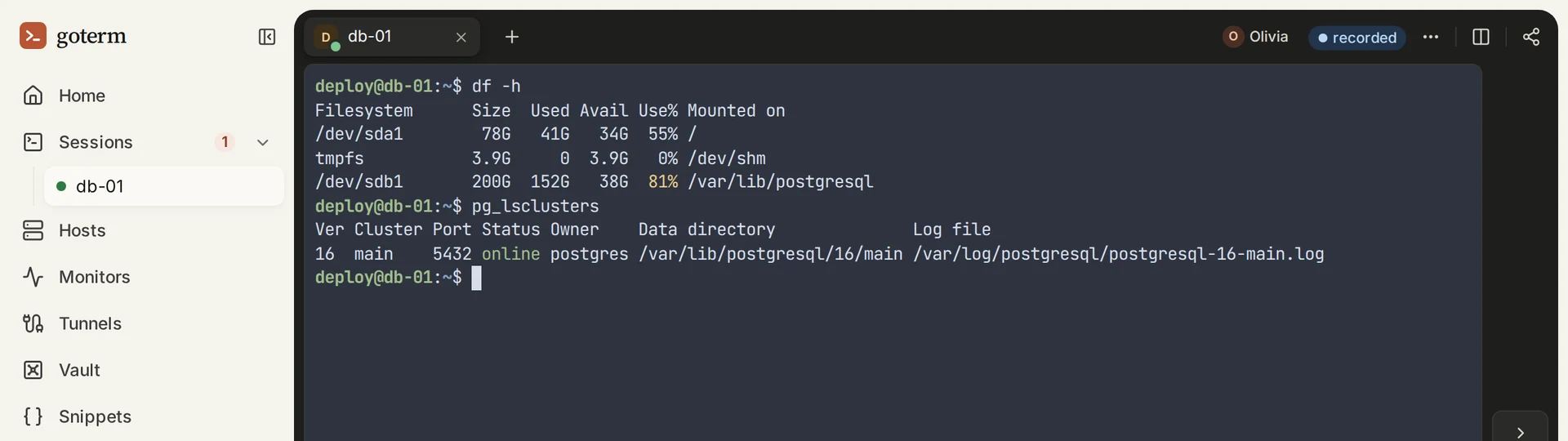
- A recorded session says recorded at its top right, for everyone in it.
- The host list, and the page for joining a shared session, say so before anyone connects.
- A contractor sees it before they connect too.
Good to know
- A team host’s recordings are watched by the organization’s owner and admins and by the team’s admins; a personal host’s, by its owner alone.
- Recordings older than the workspace keeps them are deleted for good.
- A change that stops a host’s recording goes in the audit log, with who made it.
- Recordings are sealed like the Vault’s secrets: a copy of the store alone opens nothing.
Didn’t find your answer?
Write to us, and an engineer who builds GoTerm will reply.