Everyday work
Sessions you can leave and share
A session is a terminal that runs on GoTerm’s gateway, not in your tab. Leave it and it keeps going; come back from any device, or invite a teammate in.
Updated
On this page
A session’s day
The gateway holds the SSH connection and keeps what the terminal printed. Your browser is only a window onto it, and you can close the window.
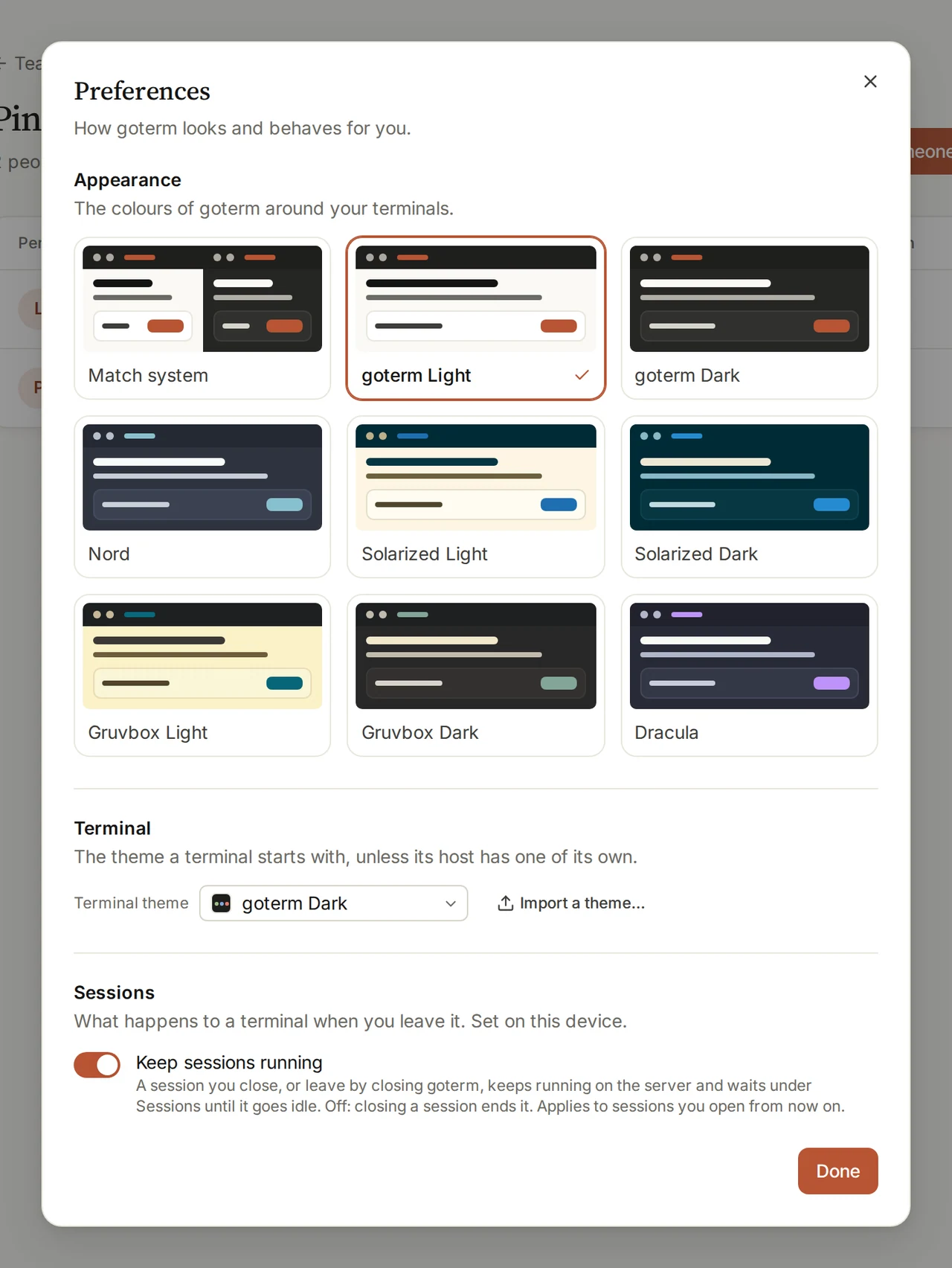
Keep sessions running
It’s on unless you turn it off.
- Open your name at the bottom of the sidebar, then Preferences.
- Under Sessions, switch Keep sessions running on or off.
- It applies to the sessions you open next, on this device.
Come back to a session
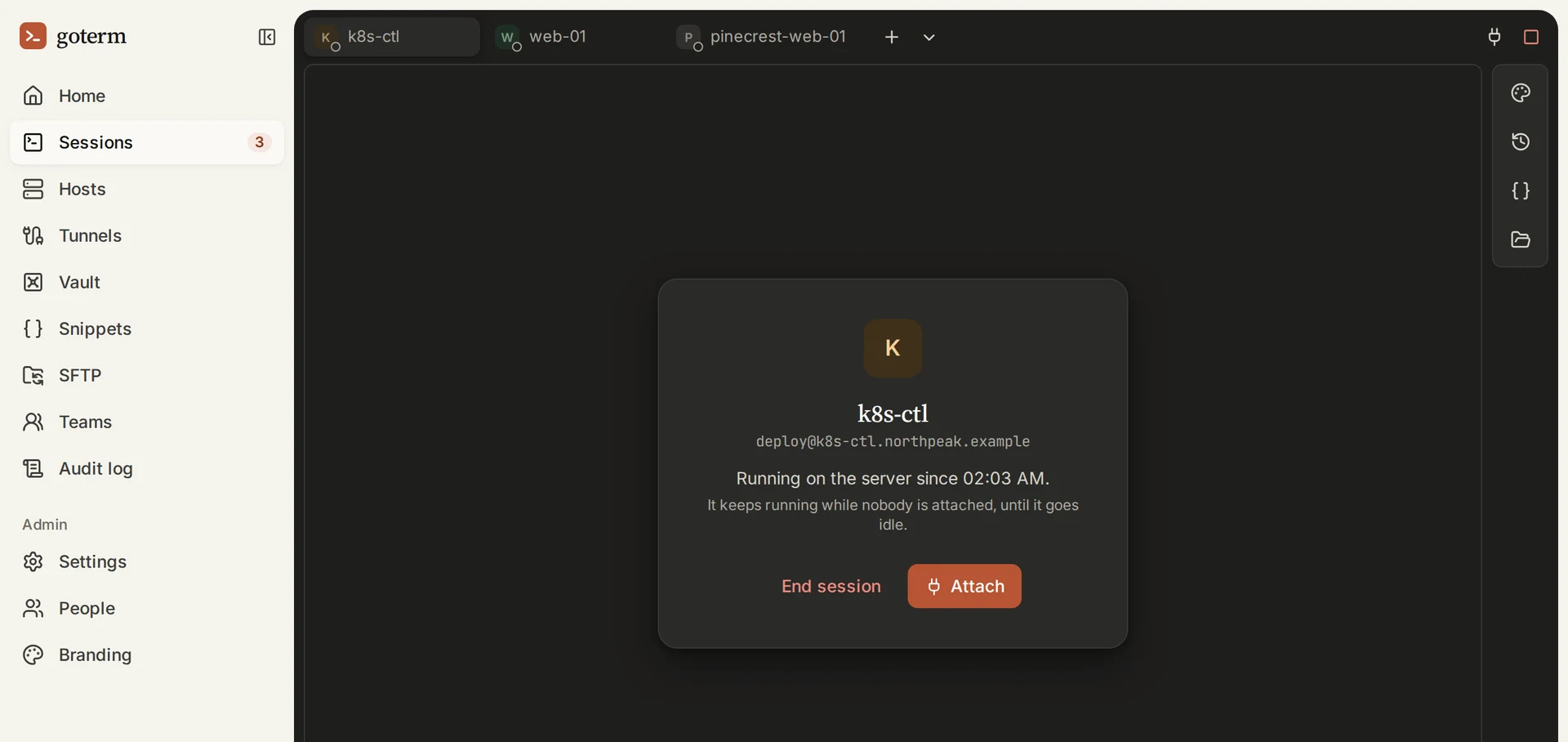
- Choose the Detach (it keeps running) button at the session’s top right, or close its tab.
- Later, on any device, open Sessions: your running sessions are there.
- Pick one and choose Attach. What it printed while you were away is shown again.
Split the view
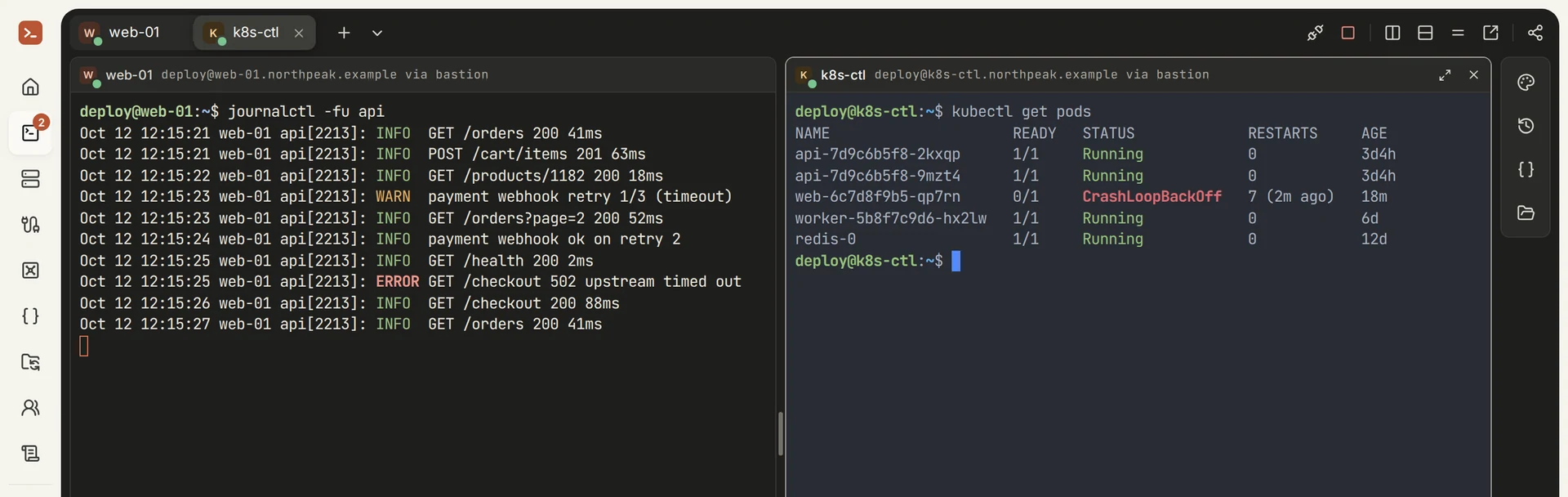
- In a session, choose the Split right… or Split down… button at the top right.
- Pick a host for a new session, or a session already running.
- Drag the line between them to resize them, or use the Even out sizes button.
- The Move to its own tab button puts a pane back in a tab of its own.
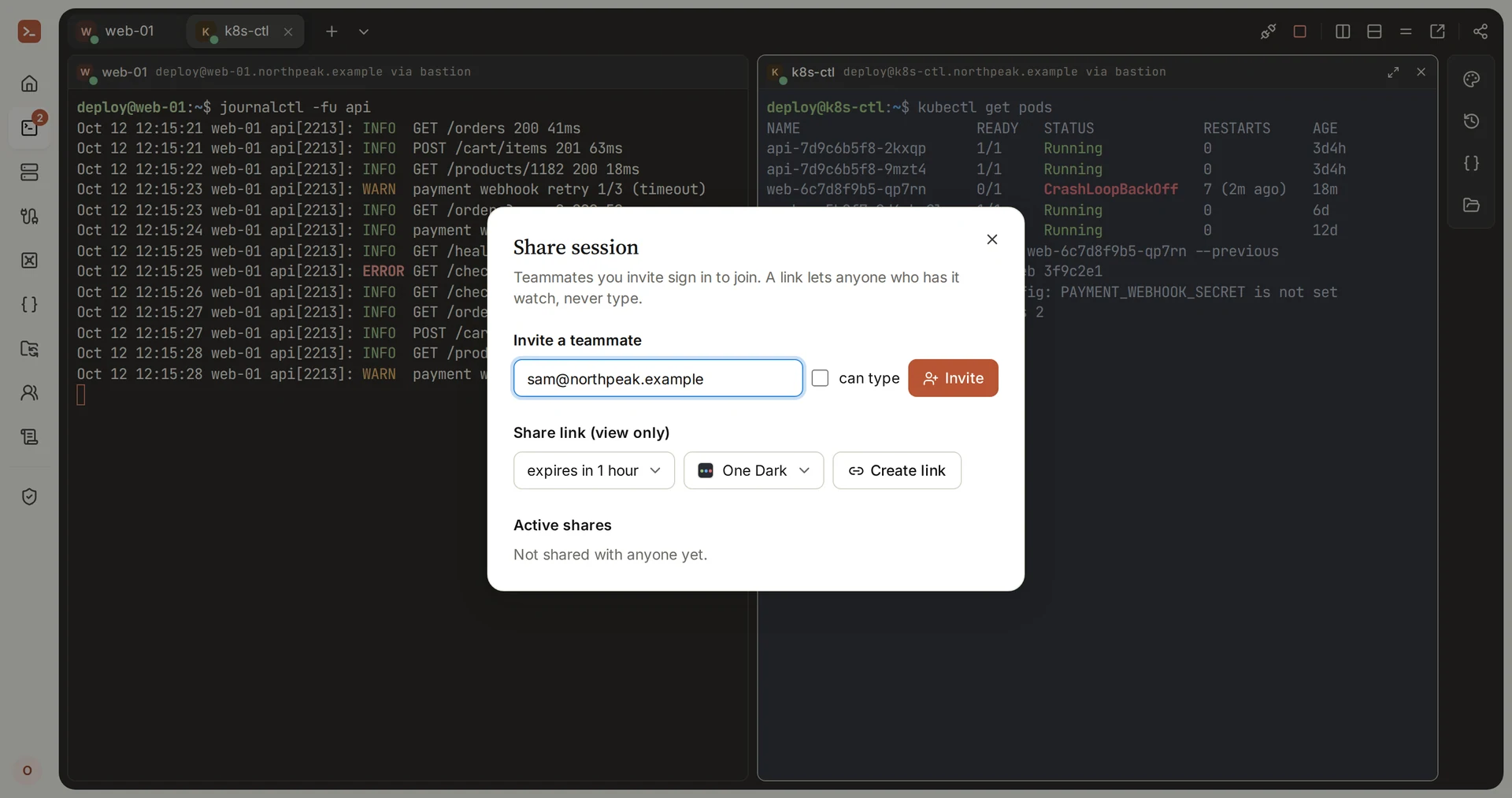
Invite a teammate
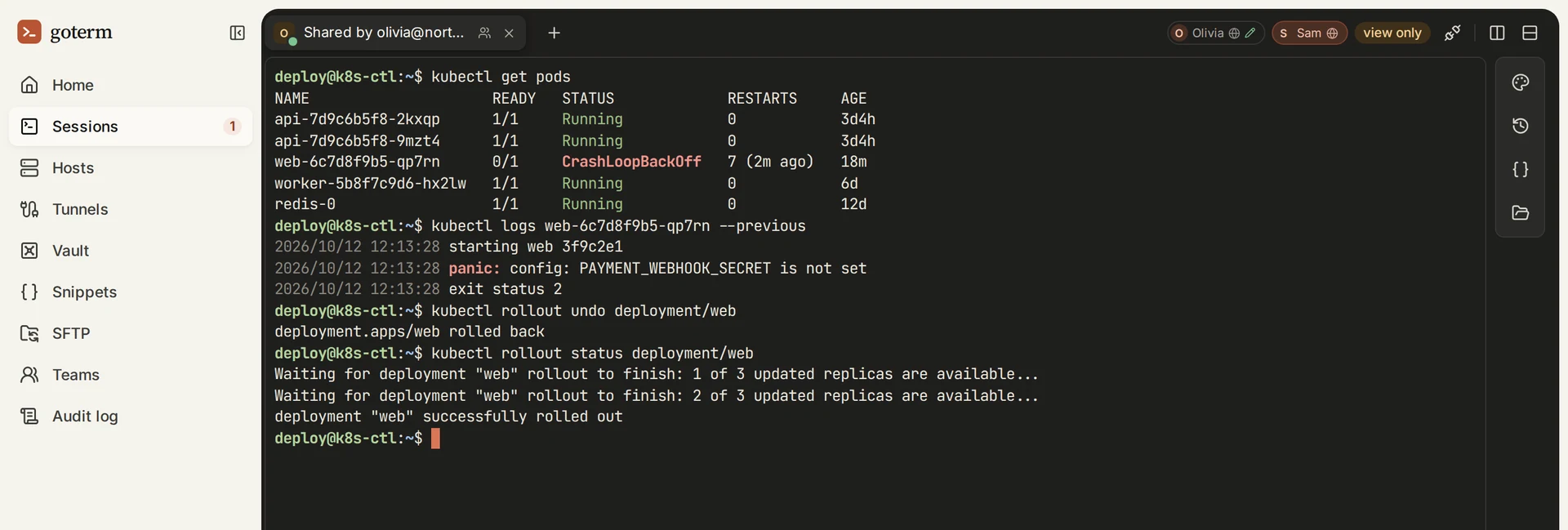
- In the session, choose the Share button at the top right.
- Under Invite a teammate, type their email.
- Tick can type to let them type. Leave it off and they watch.
- Choose Invite. They find the session under Sessions, ready to attach.
Share a view-only link
- Open Share, and under Share link (view only) pick how long it lasts.
- Pick the terminal theme it shows, or leave each guest their own.
- Choose Create link and send it. Anyone with it can watch until it expires.
Tip: Allow typing, Make view-only and Revoke, under Active shares, take effect at once.
More in sessions
- Session recordingRecord what each session showed, for audits and handovers. Keystrokes are never stored, so passwords typed at a prompt stay out.
- Snippets and autocompleteSave the commands you always forget and run them on any host.
Good to know
- GoTerm keeps each session’s latest output to replay, up to a limit. Older lines aren’t kept.
- A session that nobody is attached to ends on its own after a while.
- Session output is kept in the gateway’s memory, not on disk.
Didn’t find your answer?
Write to us, and an engineer who builds GoTerm will reply.