Keys, people and security
One key for every host that needs it
The Vault keeps passwords and private keys once, sealed, for the hosts that use them. Yours stay yours; a team’s are used by its members, who never see them.
Updated
On this page
How the Vault works
Each password or key belongs to a space: yours, or a team’s. Any host of that space can use it, so a new key reaches all of them at once.
- Replace a key once, and every host that uses it gets the new one.
- A team’s members connect with its keys without ever seeing them.
- Nobody gets a saved secret back. A key of yours that GoTerm makes can be downloaded once, as it’s made.
Make or import a key
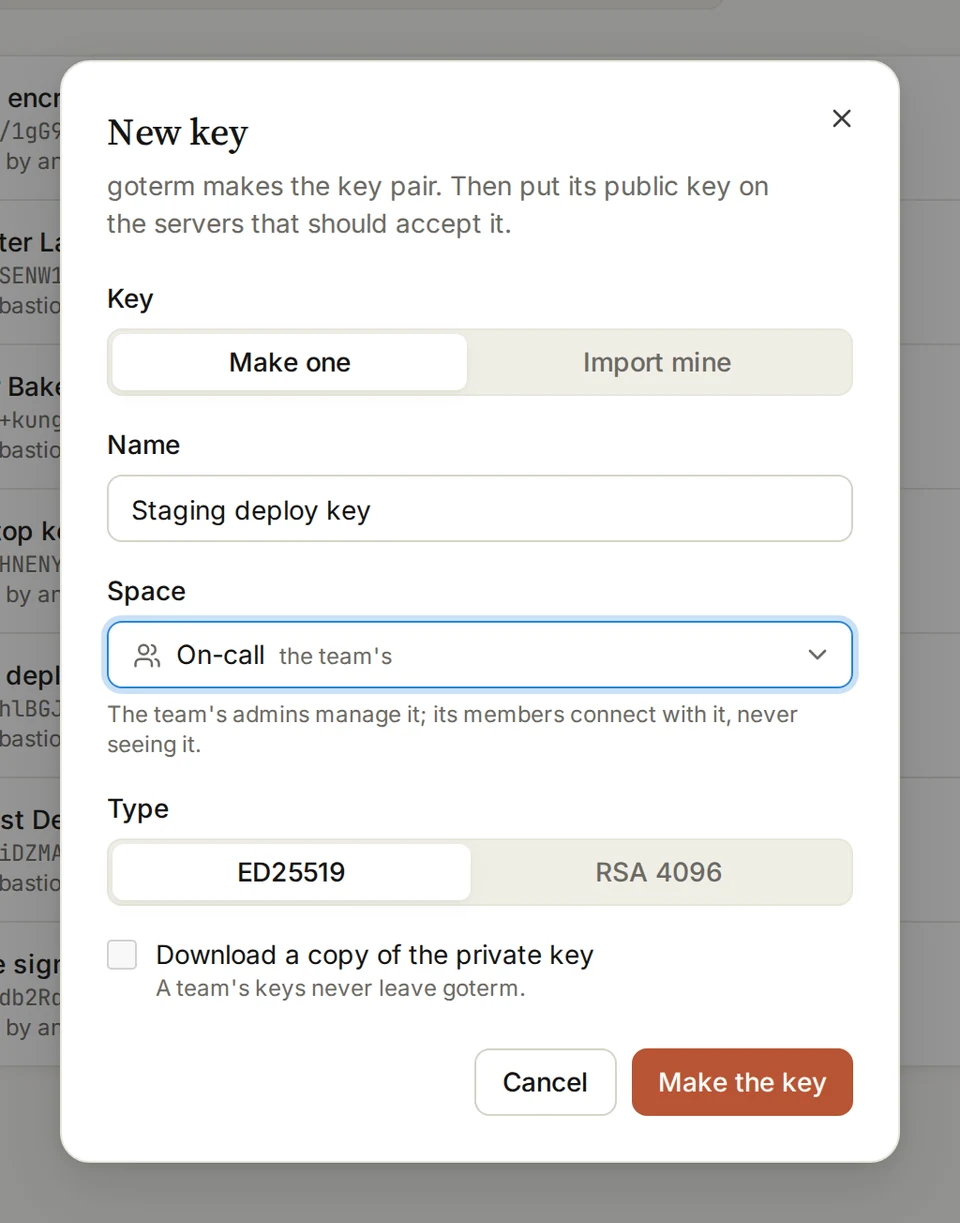
- Open Vault and choose New key.
- Choose Make one, or Import mine and paste or pick your key.
- Name it, and pick its Space: yours, or a team’s.
- For your own key, tick Download a copy of the private key to keep one.
- Choose Make the key or Save the key.
Tip: Made a key? Copy the public key it shows into each server’s authorized_keys.
Put a key on hosts
- Edit a host, or choose New host.
- Under Auth method pick Private key, then the key under Saved key.
- Choose Save. Any host of the same space can use the same key.
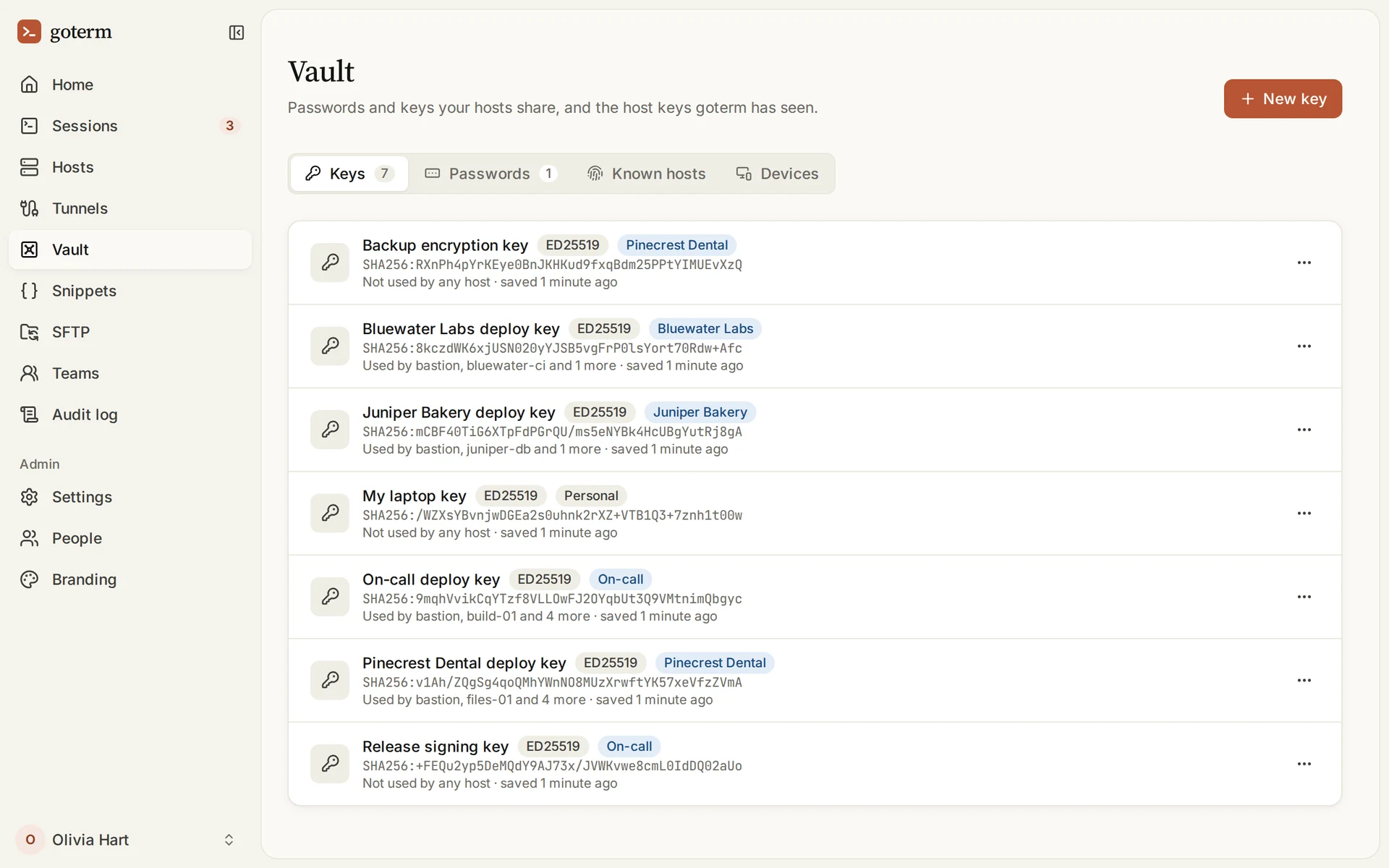
- On the key’s … menu, Copy the public key for the server’s authorized_keys.
Replace or move a key
- On the key’s … menu, choose Replace with another key, and paste the new one.
- Every host that uses it switches at once.
- To hand a key of yours to a team, choose Move to a team. Its hosts go along.
Tip: Passwords work the same way, under Passwords, with Change the password.
Check known hosts
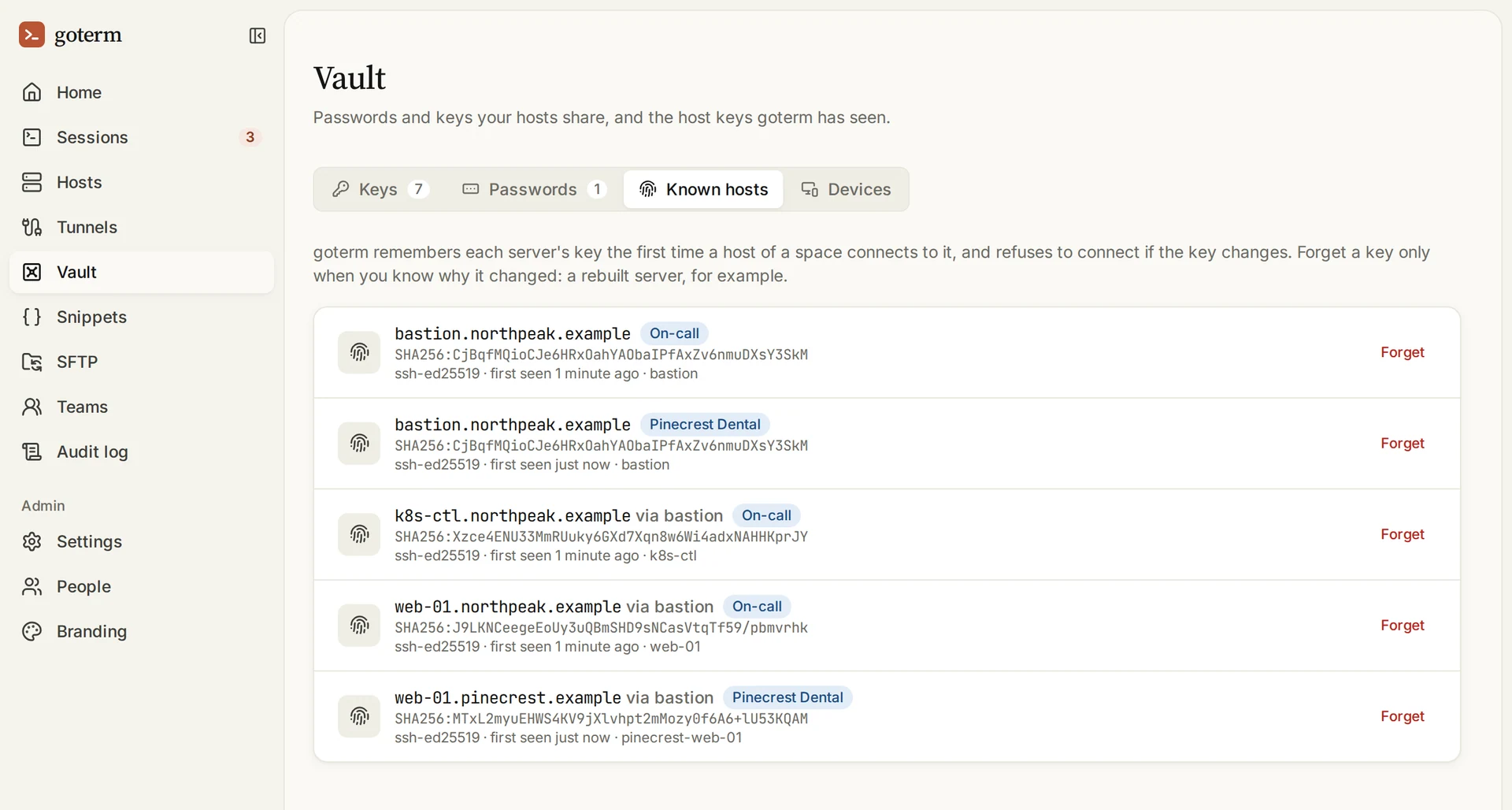
GoTerm remembers each server’s host key the first time it connects, and refuses to connect if the key changes.
- Open Vault, then Known hosts.
- A server was rebuilt, so its key changed? Choose Forget on its row.
- Connect again, and GoTerm remembers the new key.
Confirm and remove devices
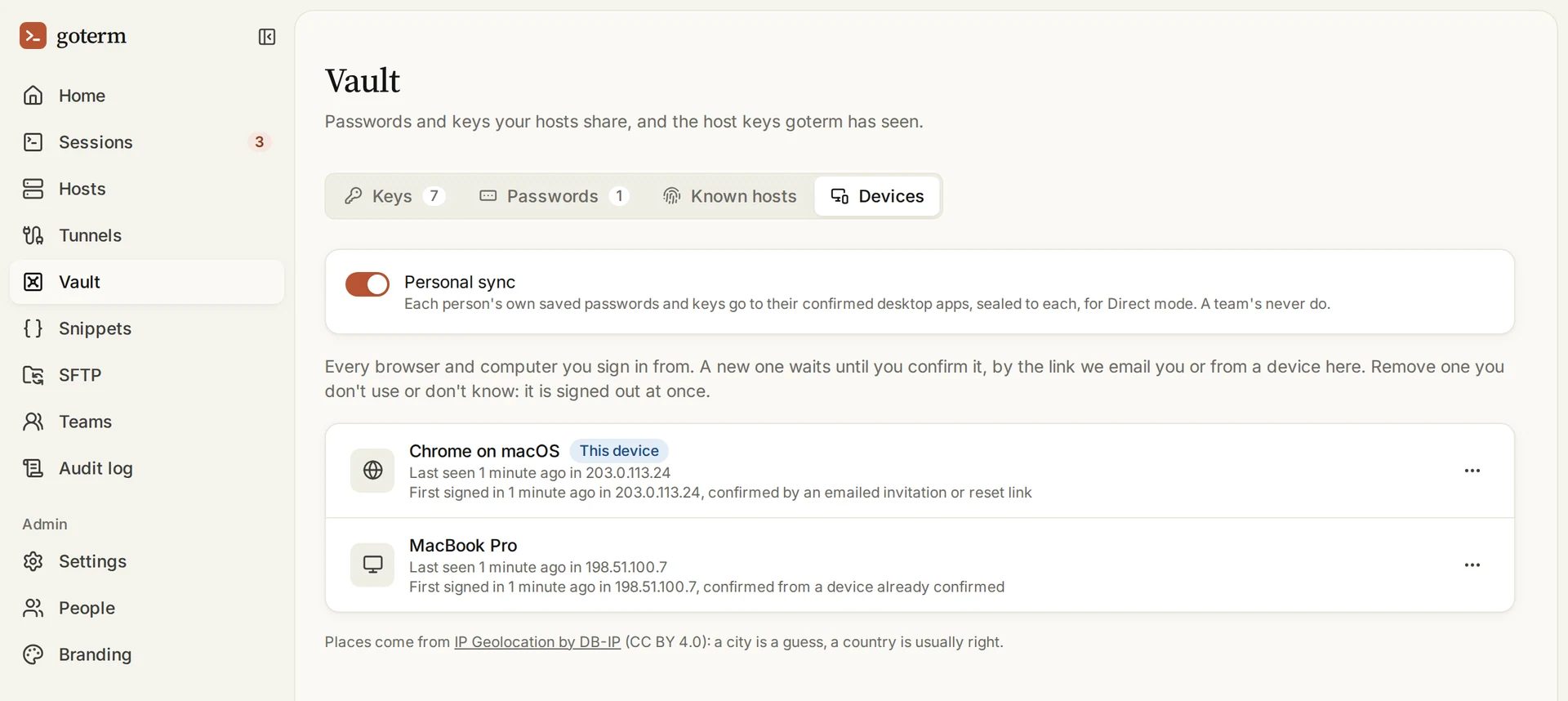
Every browser and computer you sign in from is a device. A new one waits until you confirm it.
- Open Vault, then Devices.
- A device is waiting? Choose Confirm only if you know it’s yours.
- Lost a laptop? Choose Remove on its … menu. It’s signed out at once.
Your keys on your desktops
Your own passwords and keys go to the desktop apps you confirmed, sealed for each one, so Direct mode can use them. A team’s never leave GoTerm.
- Only desktops you confirmed receive anything. A browser never does.
- Remove a desktop, and it deletes its copies when it next comes online.
- Admins can turn Personal sync off for the whole organization.
More on keys
- Agent forwardingUse your keys from a server you’re signed in to, without copying them there.
- Certificates and FIDO2 keysSign in with SSH certificates, or with a hardware key you touch to connect.
Good to know
- A key that hosts use can’t be deleted until you take it off them.
- Key names are unique in their space.
- Every change to a saved password or key is in the audit log, with who made it.
Didn’t find your answer?
Write to us, and an engineer who builds GoTerm will reply.