Everyday work
Files beside your terminal
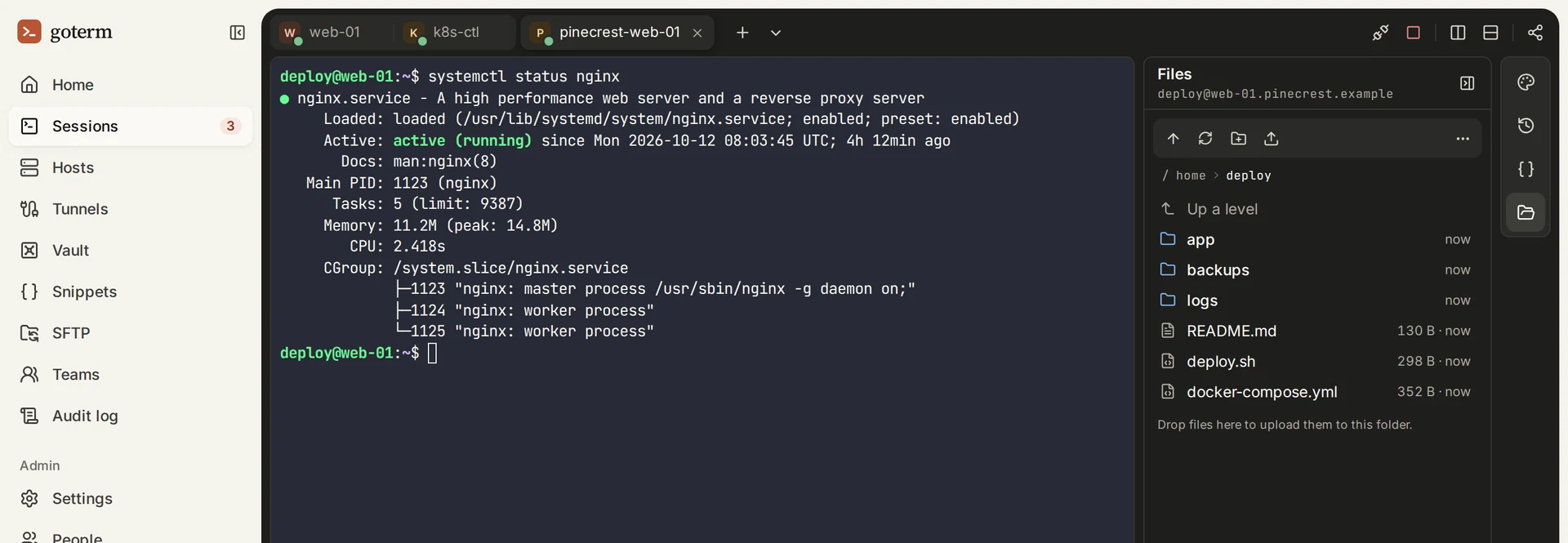
The Files panel shows a server’s files next to its terminal, over SFTP. It signs in the way the host does, so there’s nothing more to set up.
Updated
How it works
Files travel between your browser and the server through GoTerm’s gateway, which passes them along as they come and keeps no copy.
Open Files
- In a session, choose Files on the rail at the right.
- The panel opens in your home folder. Click a folder to open it.
- The up arrow goes up a folder. The … menu has Go to a folder… and Show hidden files.
Upload and download
- Drop files onto the panel, or use its Upload files here button.
- To download a file, choose the download button on its row.
Tip: An upload replaces a file of the same name in that folder.
Rename, add folders, delete
- The New folder button makes a folder where you are.
- Use the rename and delete buttons on a file’s or a folder’s row.
- Delete works on files and on empty folders.
Good to know
- Files has a connection of its own to the host, so it keeps working while the terminal is busy.
- A host that asks for its password each time asks again when you open Files.
- Files works through a jump host too.
Didn’t find your answer?
Write to us, and an engineer who builds GoTerm will reply.