Keys and security
Only for your own devices
On a server of your own, your workspace runs a private network of its own, on WireGuard. With Private access on, it answers the devices on it, and nobody else.
Updated
On this page
How it works
Each person’s laptop or phone gets a WireGuard setup of its own. With Private access on, the workspace doesn’t answer anyone off the private network at all.
- A device’s address lets in only its own person.
- Only traffic to GoTerm goes through the private network. The rest of the device’s traffic goes the usual way.
- It runs on a server of your own: Business, or the dedicated server on Personal and Teams.
Add a device
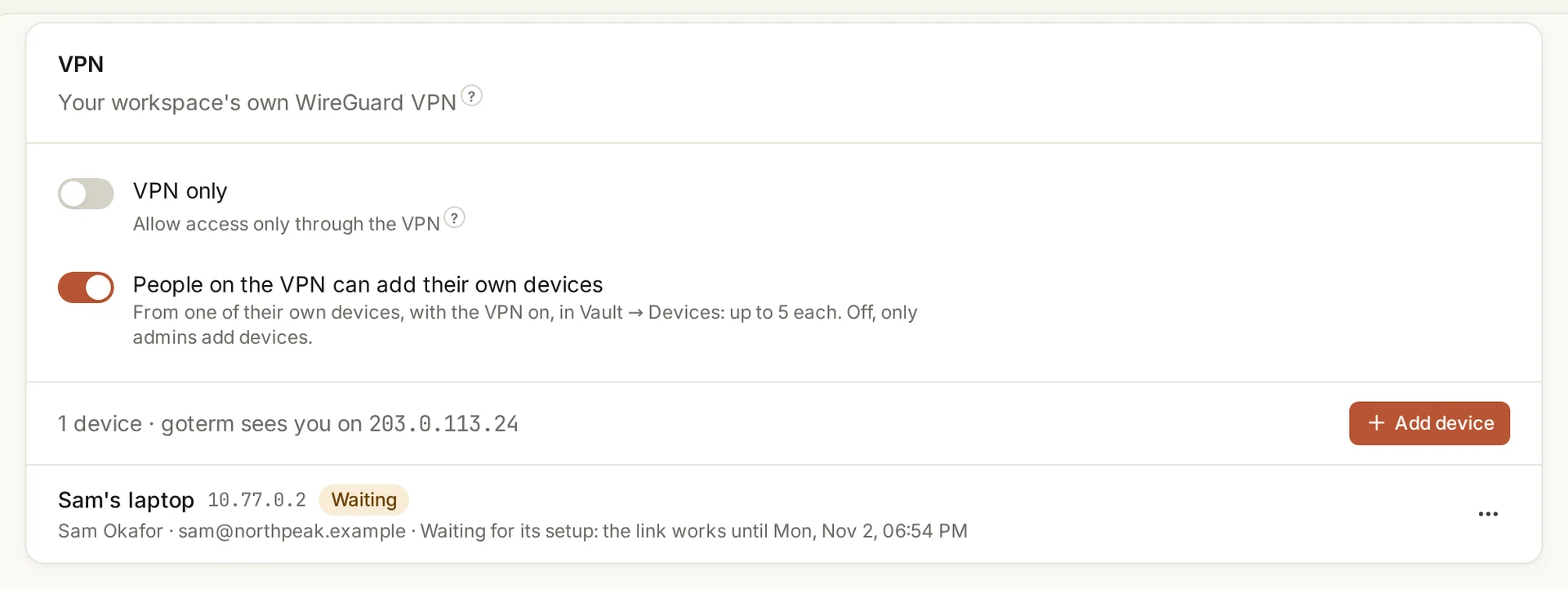
- Open Admin, then Security, and under Private network choose Add device.
- Pick the Person, and give a Device name, such as Sam’s laptop.
- They’re emailed a link that works once, within 24 hours. A device of your own shows its setup at once.
Set it up on the device
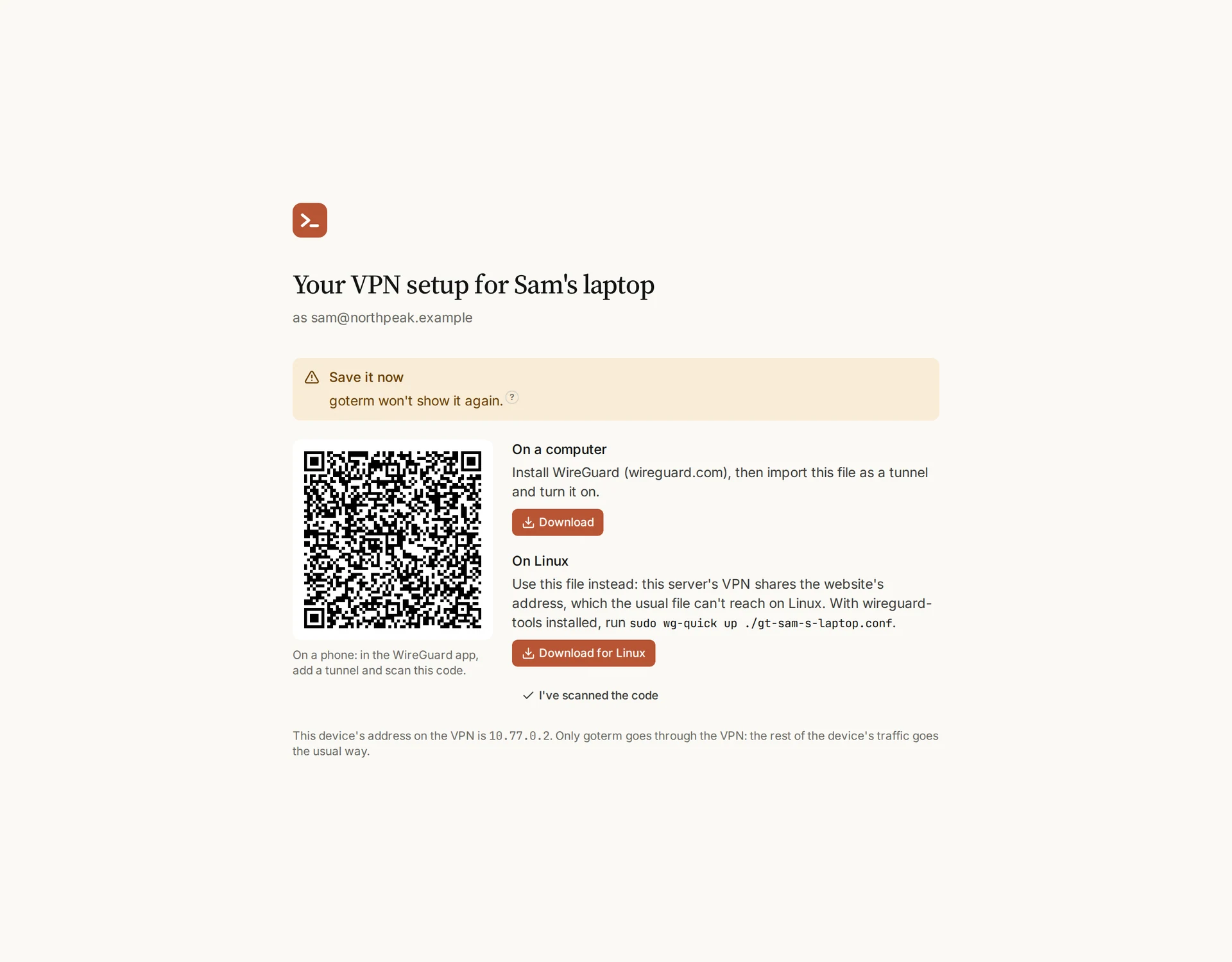
- Open the link on the device. GoTerm makes its key, and shows the setup once.
- On a phone, scan the code in the WireGuard app. On a computer, install WireGuard, import the file, and switch it on.
- On Linux, take Download for Linux when the page offers it.
Tip: Lost the setup? Ask for a new link: it makes a new key and retires the old one.
Turn Private access on
- Set up a device for everyone who needs in. GoTerm lists who has none before it turns on.
- From one of your own devices on the private network, switch on Private access under Admin, then Security.
- Anyone off the private network is disconnected within seconds. Their sessions keep running.
Tip: Locked out? Whoever runs the server can turn it off with one command.
People add their own
- On one of their devices, with WireGuard on, a person opens Vault, then Devices, and chooses Add a device under the private network.
- Its setup shows at once. Up to five devices each.
- Admins can turn this off with People on the private network can add their own devices.
Good to know
- Private access runs on a server that holds your workspace alone: Business, or the dedicated server on Personal and Teams.
- While it’s on, the allowed addresses and their email passes aren’t used. They’re kept for when it’s off.
- With Private access off and the address list on, a device’s address still lets its own person in.
- Another person signing in from someone’s device is refused.
- Removing a device disconnects it within seconds.
- After a move to another region, Private access arrives off, and each device gets a link to a new setup. Turn it on again once they’re set up.
Didn’t find your answer?
Write to us, and an engineer who builds GoTerm will reply.