Everyday work
Commands you save once
A snippet is a command you save once and run on any host: from the Snippets page on several hosts at once, or in a session, as if you typed it.
Updated
On this page
How it works
Running a snippet types it into a terminal, through the same path as your keys. So it goes only where your typing goes.
- Snippets are plain text, not secrets: everyone who can run one can read it. Keep passwords in the Vault.
- Yours are yours alone. A team’s are there for everyone on the team.
- Someone who only watches a session can’t run a snippet in it: the gateway drops their typing.
The Library
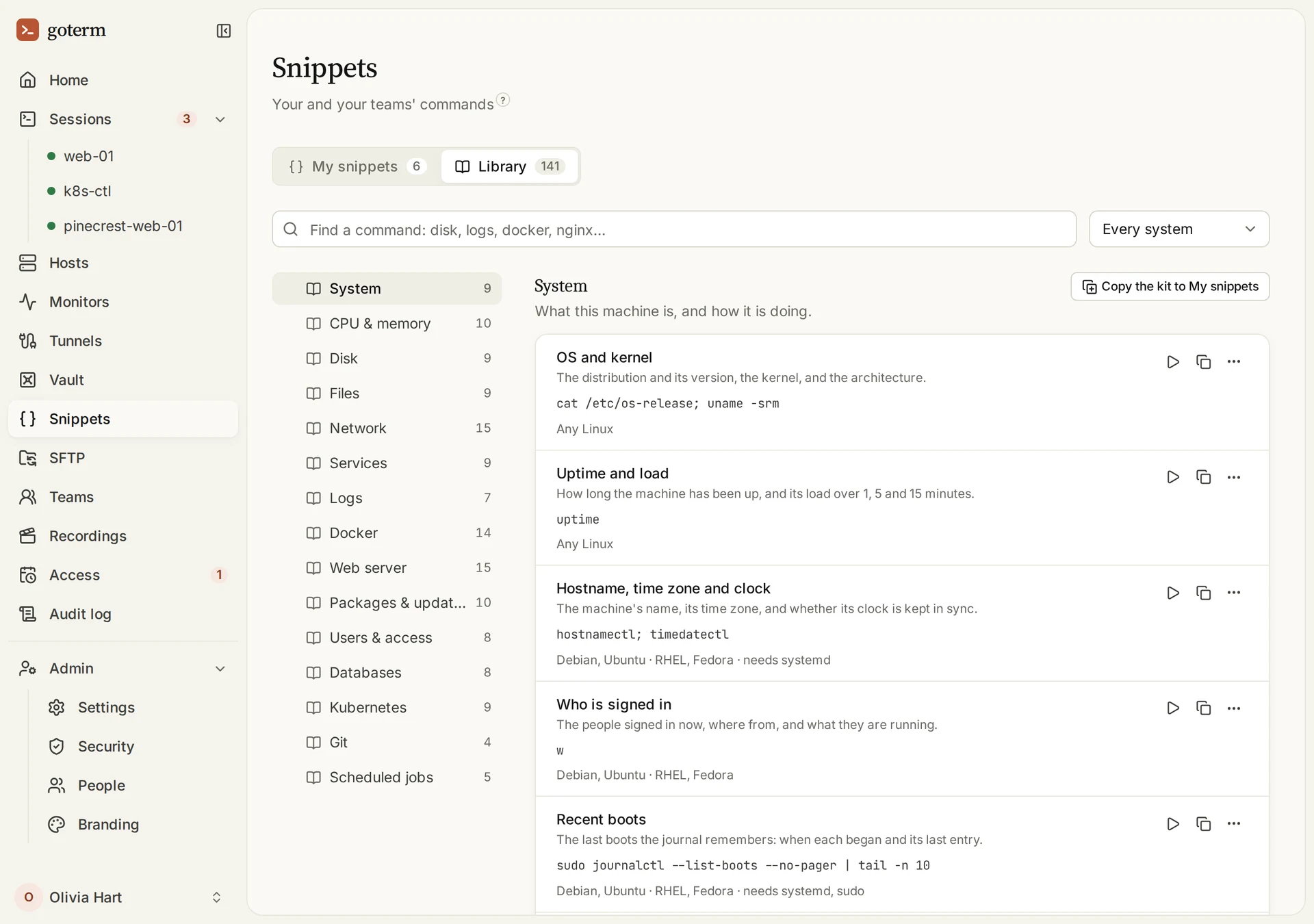
- Open Snippets, then Library: about 140 ready commands in 15 kits, such as Disk, Logs and Docker.
- Search for what you need, or pick your system to see only what works there.
- Run one with its run button, or choose Copy the kit to My snippets to change your own copy.
Tip: Each Library command says what it does, which systems it suits, and whether it changes the server.
Make a snippet
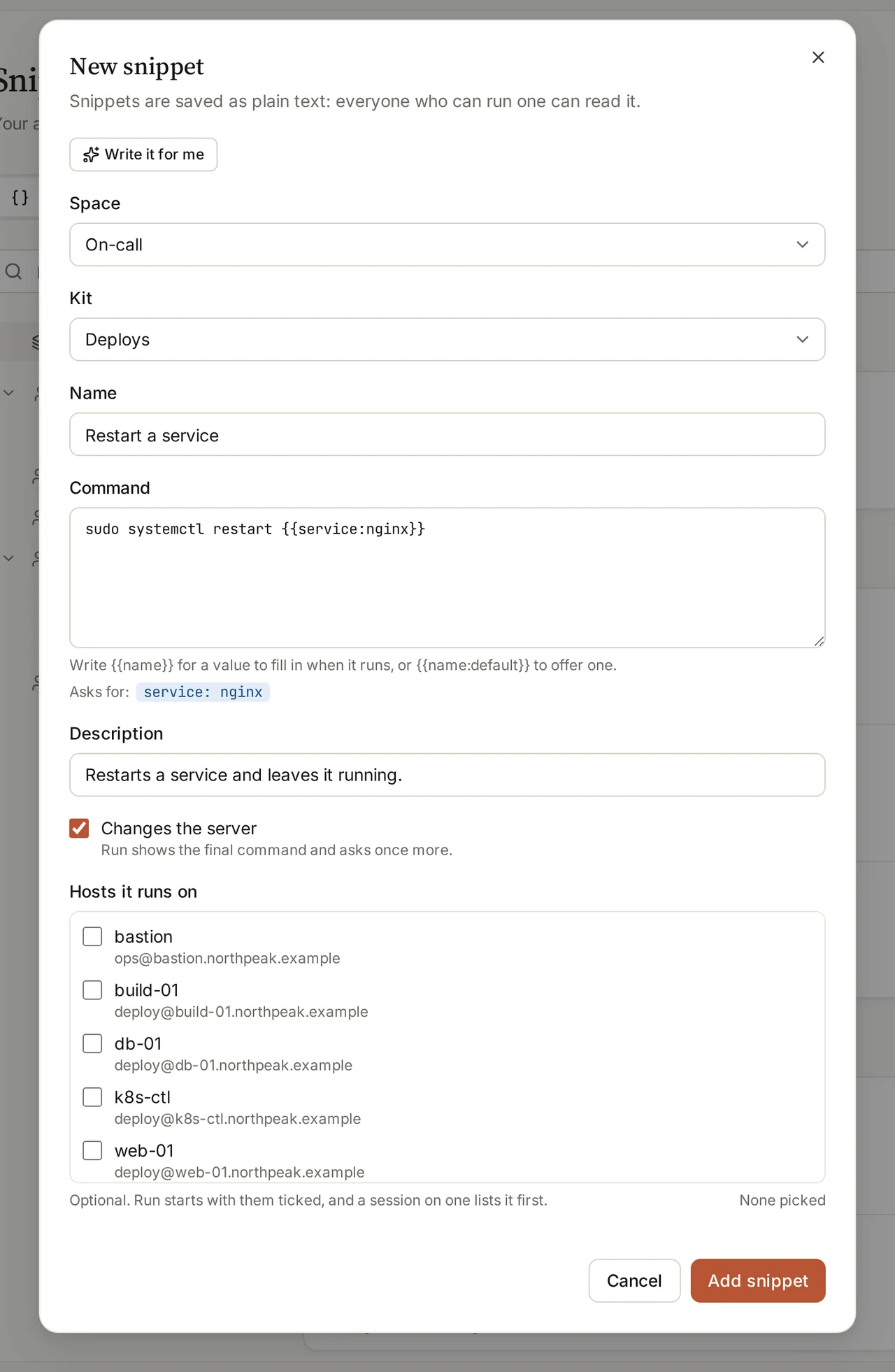
- On My snippets, choose New snippet. Pick its Space and, if you like, a Kit.
- Give it a Name and a Command. Write {{name}} for a value to fill in when it runs, or {{name:default}} to offer one.
- Tick Changes the server for a restart, a delete or an upgrade: its run shows the final command and asks once more.
- Choose Add snippet.
Tip: Pasted something that looks like a password or a token? GoTerm warns you, and refuses a private key: those belong in the Vault.
Write it for me
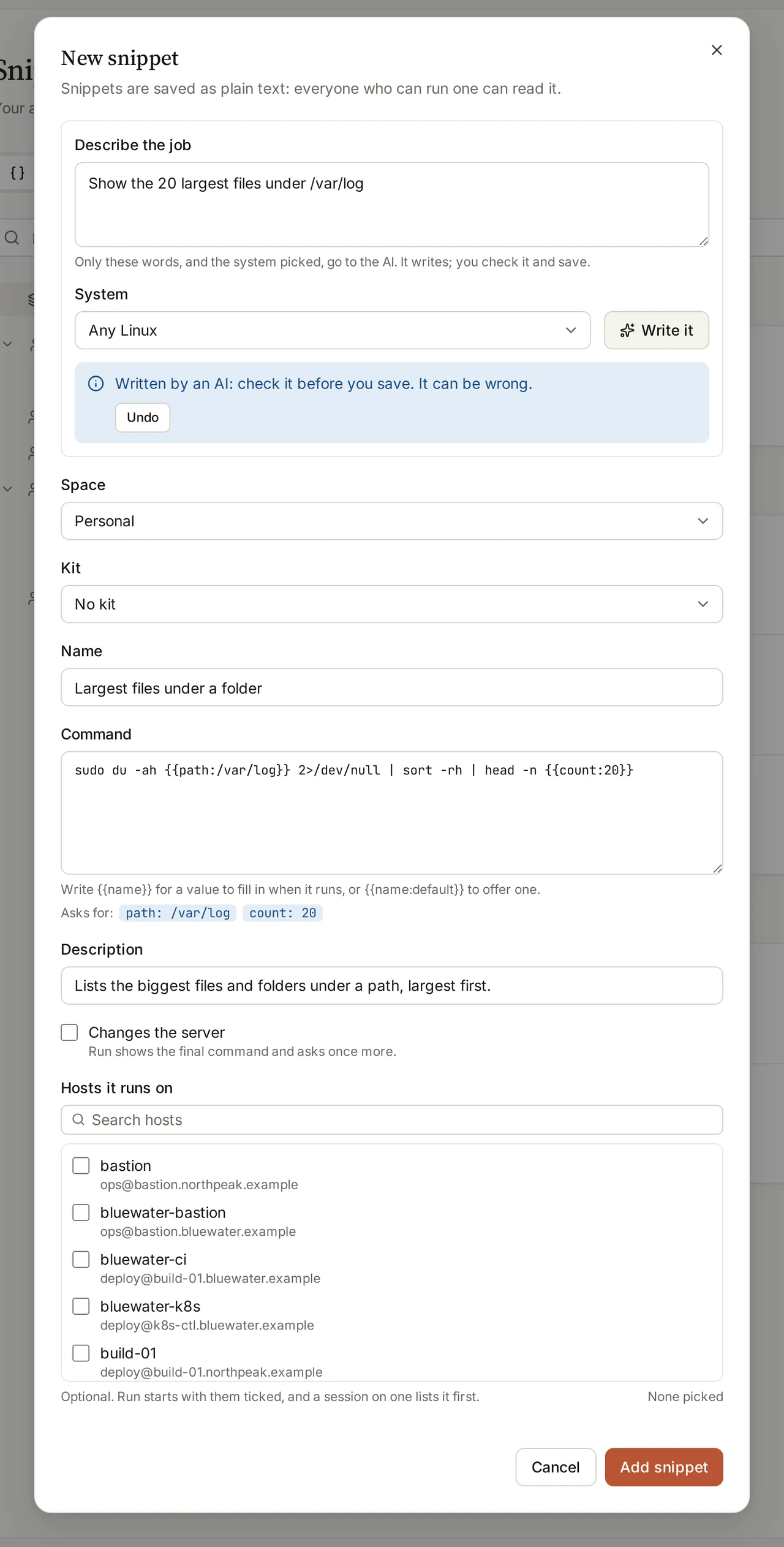
- In New snippet, choose Write it for me and describe the job in a sentence.
- Pick the System, then choose Write it.
- Check the command it writes, and change it if you need to. It never runs by itself.
Tip: Only your sentence and the system go to the AI: never a host, an address, or what a terminal showed.
Run it on hosts
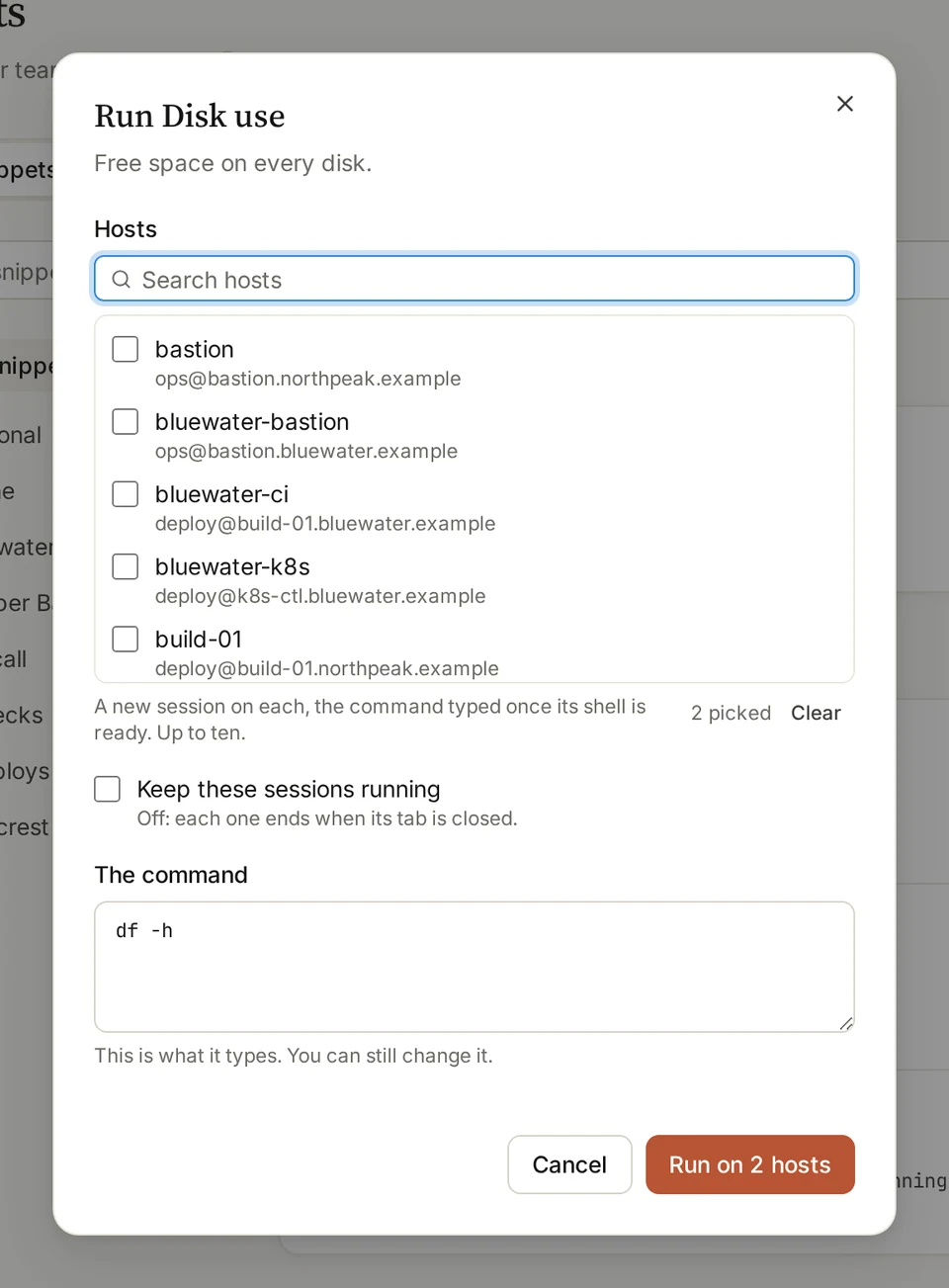
- On Snippets, choose a snippet’s run button.
- Tick up to ten hosts. GoTerm opens a session on each, and types the command once its shell is ready.
- Fill in any values, check The command, then choose Run on 2 hosts, or however many you ticked.
Tip: Paste on a host…, on a snippet’s menu, types it without pressing Enter.
In a session
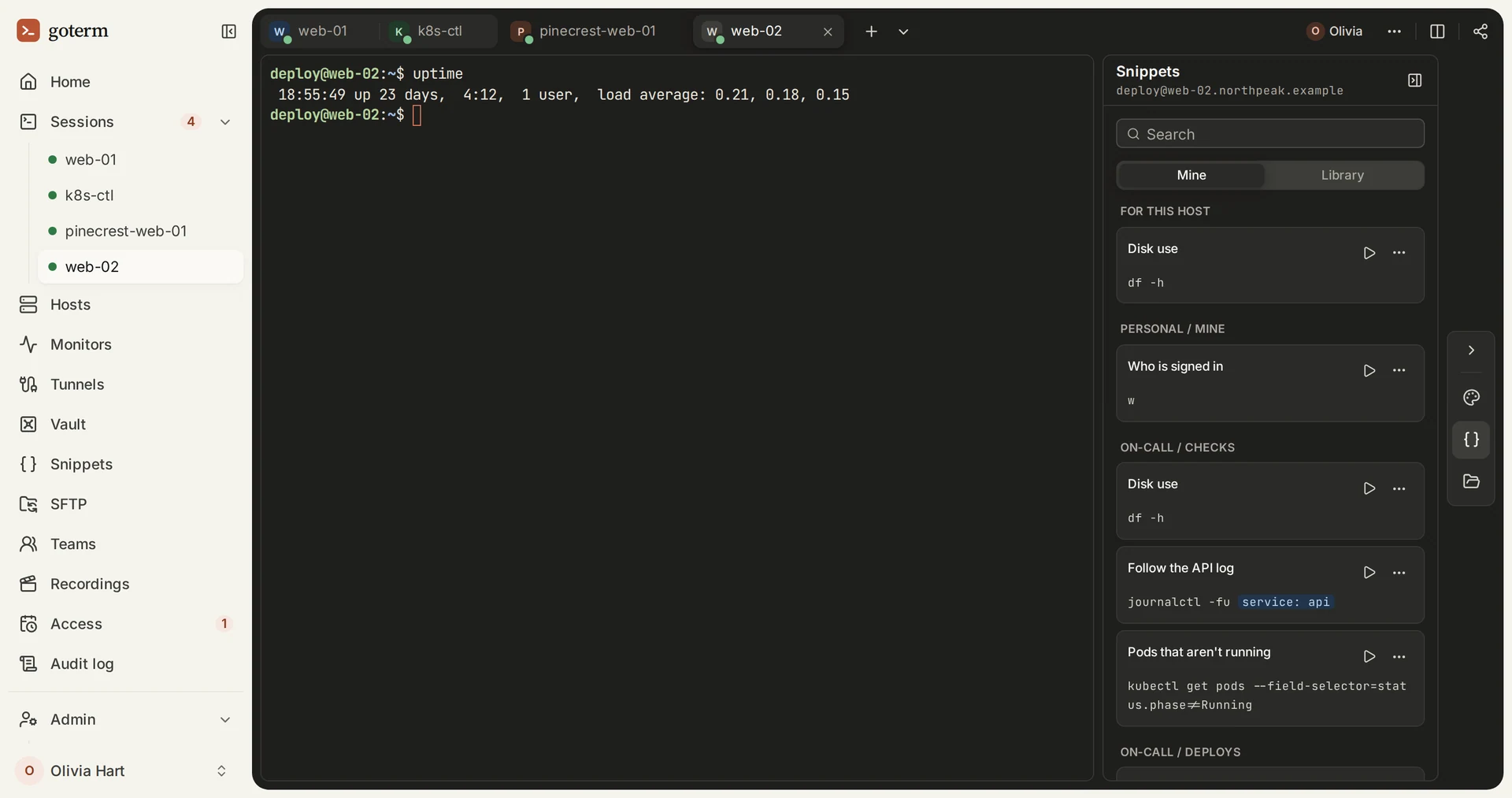
- In a session, choose Snippets among the session tools at the right.
- Mine lists this host’s own first, then yours and your teams’. Library has GoTerm’s kits.
- Choose a snippet’s run button to type it here. Run in open sessions…, on its menu, types it into several of your sessions at once.
Tip: GoTerm asks first when a program fills the screen or a line is half typed, and never types into a password prompt.
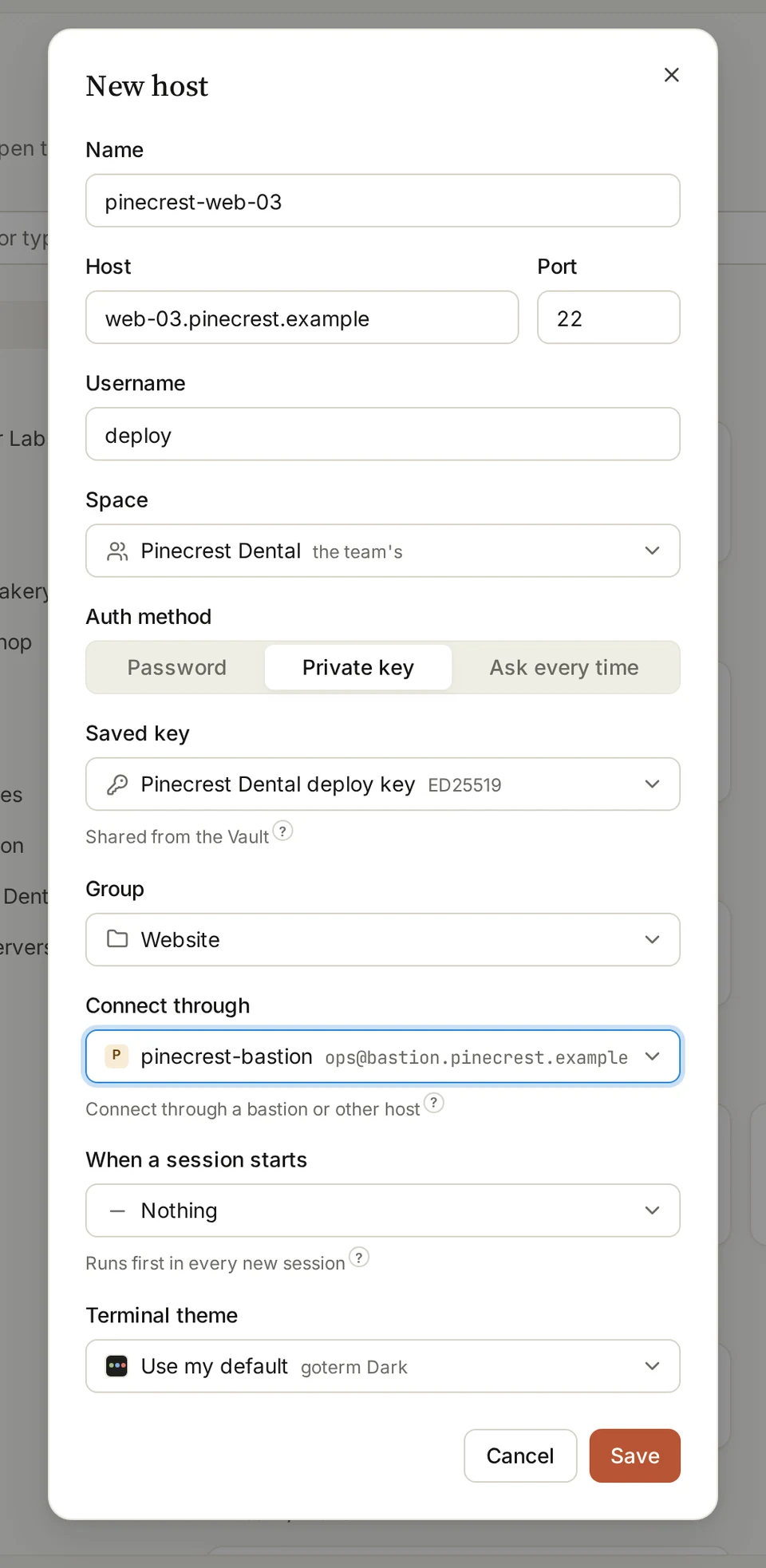
When a session starts
- Edit a host. Under When a session starts, pick a snippet from the host’s space or the Library.
- It runs each time a new session starts on the host: not when someone attaches again, nor for someone watching.
- It can’t be one that changes the server, and each value it asks for needs a default.
A team’s snippets
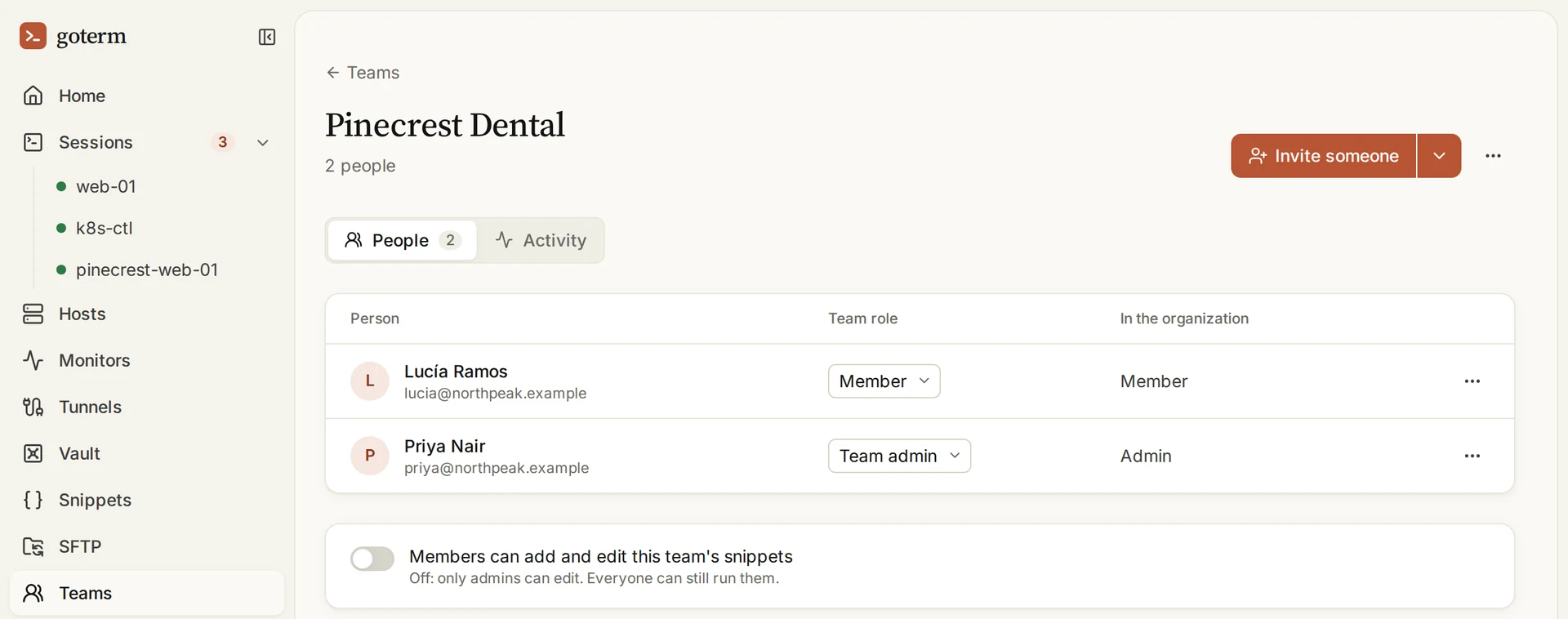
- A team’s admins, and the organization’s, add and edit its snippets. Every member can run and copy them.
- To let members add and edit them too, open Teams, then the team, and switch on Members can add and edit this team's snippets.
- A snippet that a host runs when a session starts stays the admins’ to edit, whatever the switch says.
More with snippets
- AutocompleteAs you type in a terminal, your snippets and the Library suggest the rest of the command.
Good to know
- Runs, and the values you fill in, are never logged, as no typing is.
- Changes to a team’s snippets go in the audit log, without the command’s text.
- Personal snippets are yours alone: no admin sees them.
- A run that would go past your workspace’s limit on open sessions stops, and names the hosts it didn’t start.
- Write it for me is on every paid plan, and in the trial.
Didn’t find your answer?
Write to us, and an engineer who builds GoTerm will reply.