Keys and security
Your key, in your own cloud
On Business, or with the add-on on Teams, your workspace’s key can live in your own AWS KMS or Google Cloud KMS key. Your key service holds what opens your saved passwords and keys, and you can cut GoTerm off from your own console.
Updated
On this page
- How it works
- AWS: make the key
- AWS: copy the key’s ARN
- AWS: make the role GoTerm takes on
- AWS: let the role use the key
- AWS: copy the role’s ARN
- In GoTerm: use your AWS key
- Google Cloud: make a key ring
- Google Cloud: make the key
- Google Cloud: let GoTerm use the key
- Google Cloud: copy the key’s name
- In GoTerm: use your Google Cloud key
- See your cloud key in use
- Cut GoTerm off, and let it back in
- When it doesn’t work
How it works
GoTerm makes your workspace’s key and has your key service encrypt it. When someone connects, the gateway asks your key service to decrypt it, at most once every 5 minutes.
- Disable your key in your console, and within 5 minutes GoTerm can’t open your saved passwords and keys. Work already open ends within the hour.
- Your key never leaves your key service: GoTerm only asks it to encrypt and decrypt.
- GoTerm calls only the providers’ own addresses: AWS’s STS and KMS in your key’s region, and Google’s sign-in and Cloud KMS.
AWS: make the key
- In the AWS console, pick the region your key should live in, open Key Management Service (KMS), then Customer-managed keys and Create key.
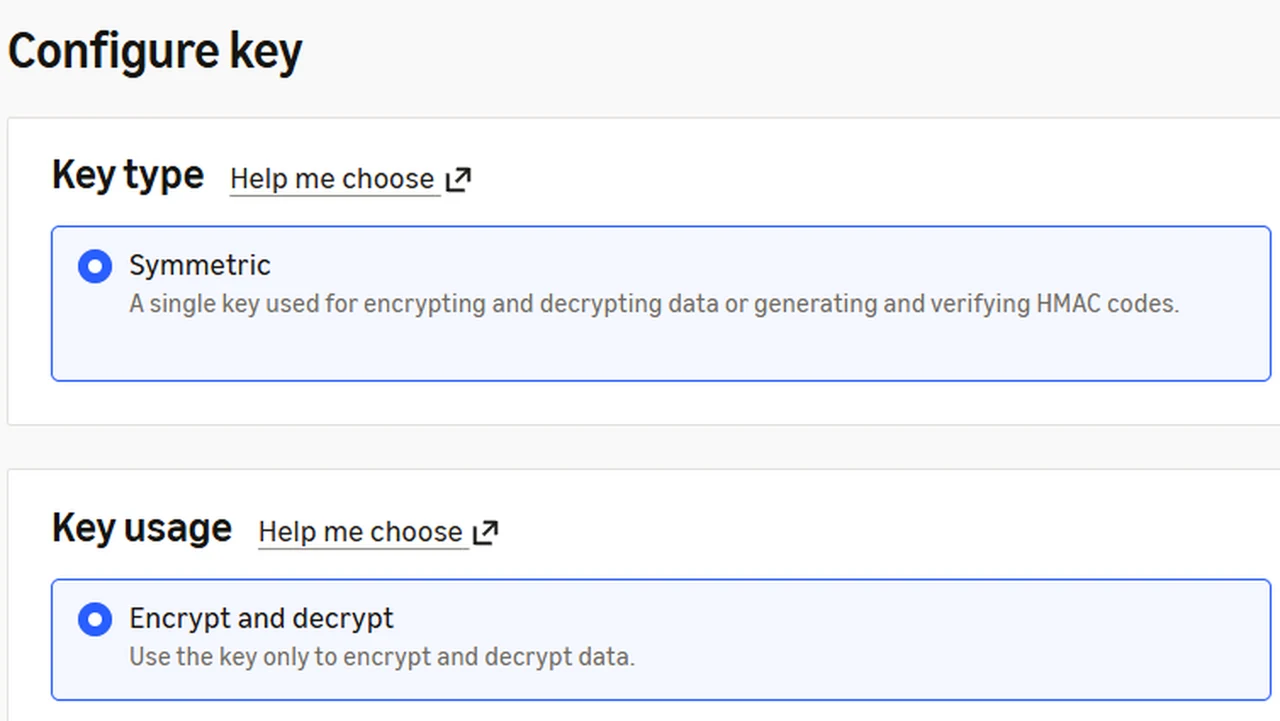
- Choose Symmetric and Encrypt and decrypt, then Next.
- Give it an alias you’ll know it by, and finish.
AWS: copy the key’s ARN
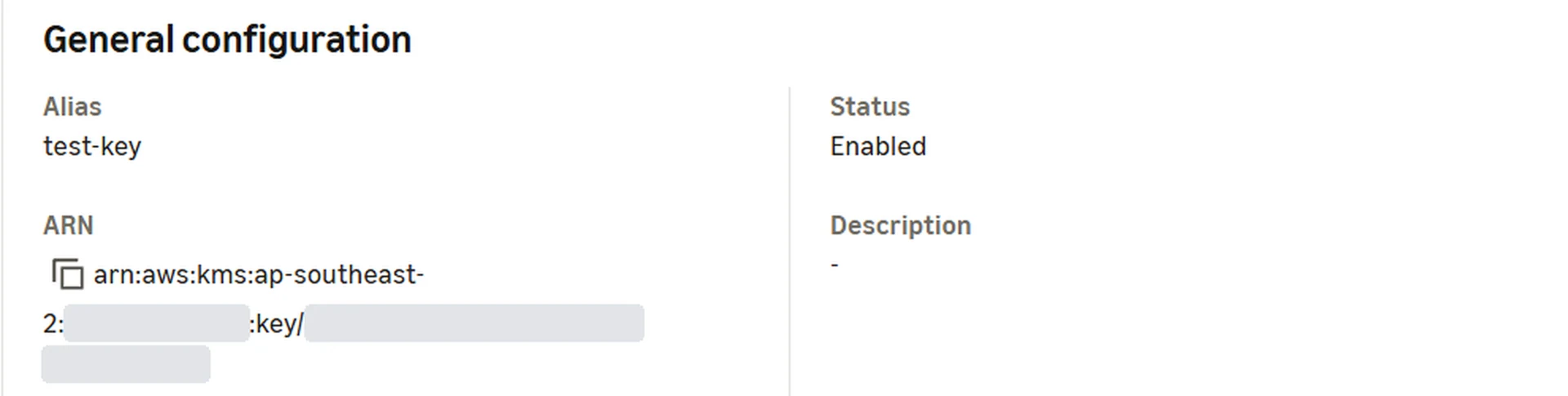
- Open the key. Under General configuration, copy its ARN: it starts with arn:aws:kms: and ends with key/ and the key’s ID.
- Keep it for the next steps. Use the key’s ARN, never its alias: a policy that names an alias lets nothing encrypt with the key.
AWS: make the role GoTerm takes on
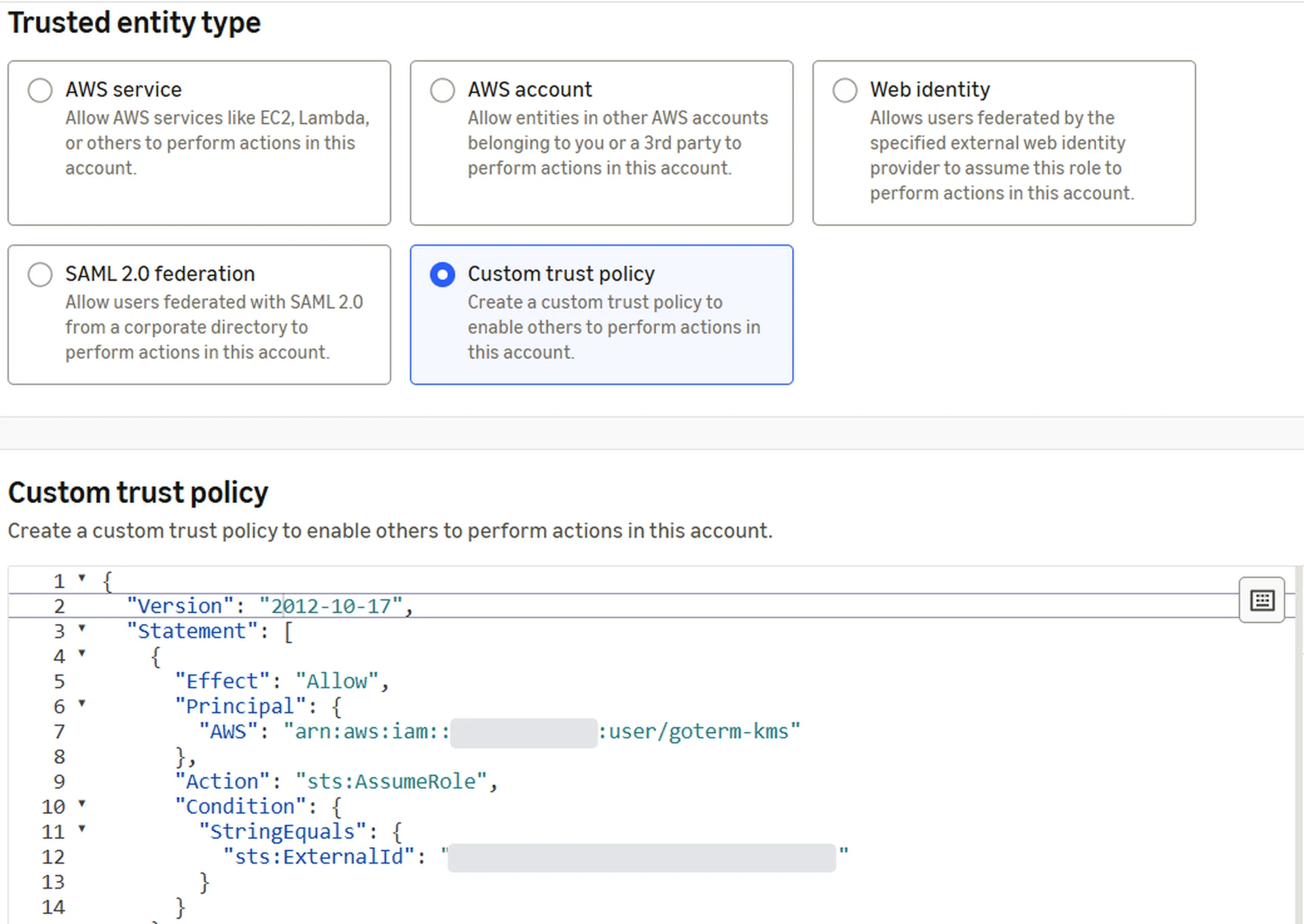
GoTerm reaches your key through a role in your account. Your workspace’s external ID makes the role yours alone.
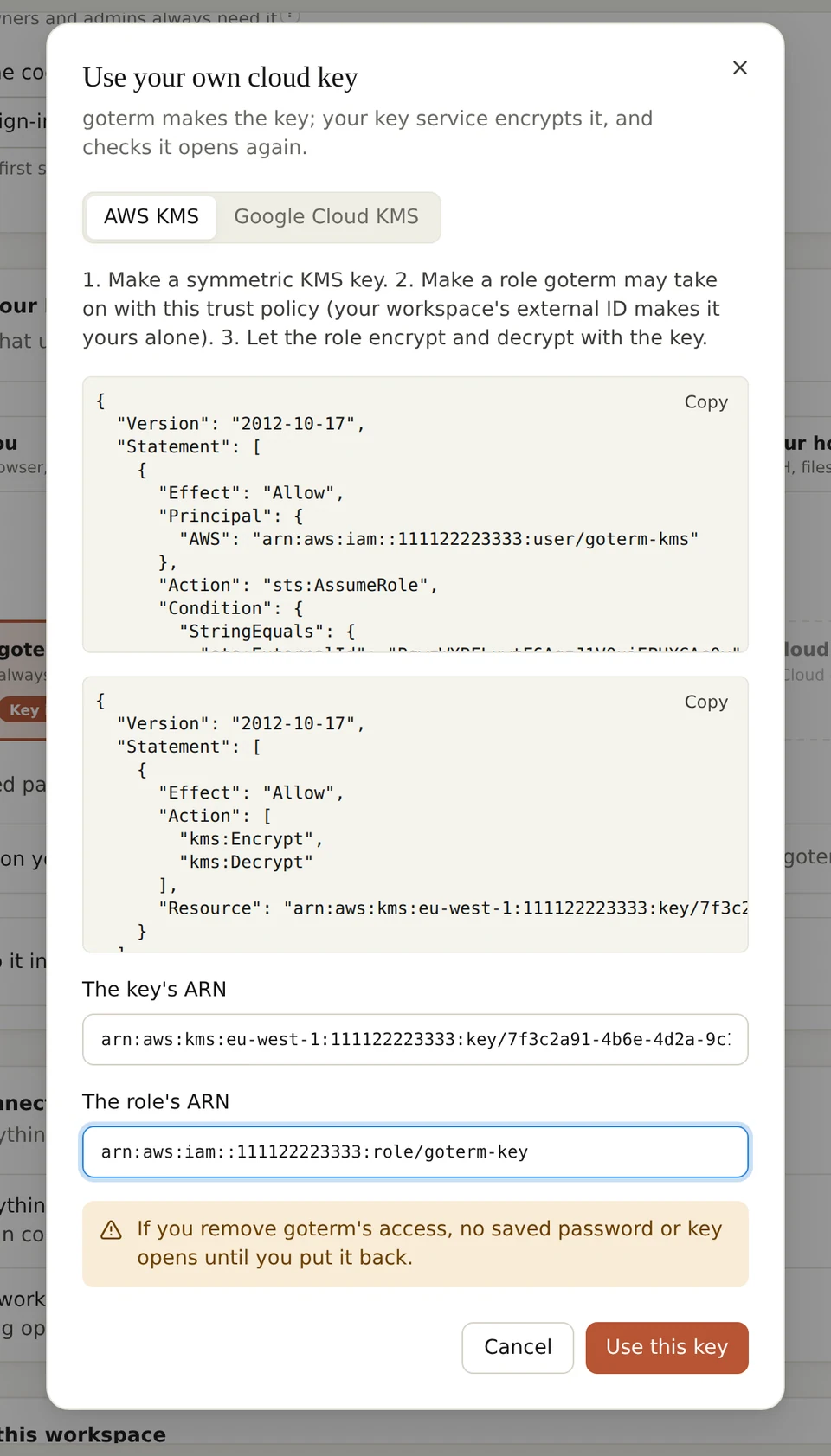
- In GoTerm, on the Security page, choose Use your own cloud key…, then AWS KMS. The first time, choose Make this workspace's external ID.
- Paste the key’s ARN under The key's ARN, then Copy the trust policy.
- In the AWS console, open IAM, then Roles and Create role. Choose Custom trust policy, and paste GoTerm’s policy over the one there.
Tip: Leave GoTerm’s dialog open: you come back to it twice.
AWS: let the role use the key
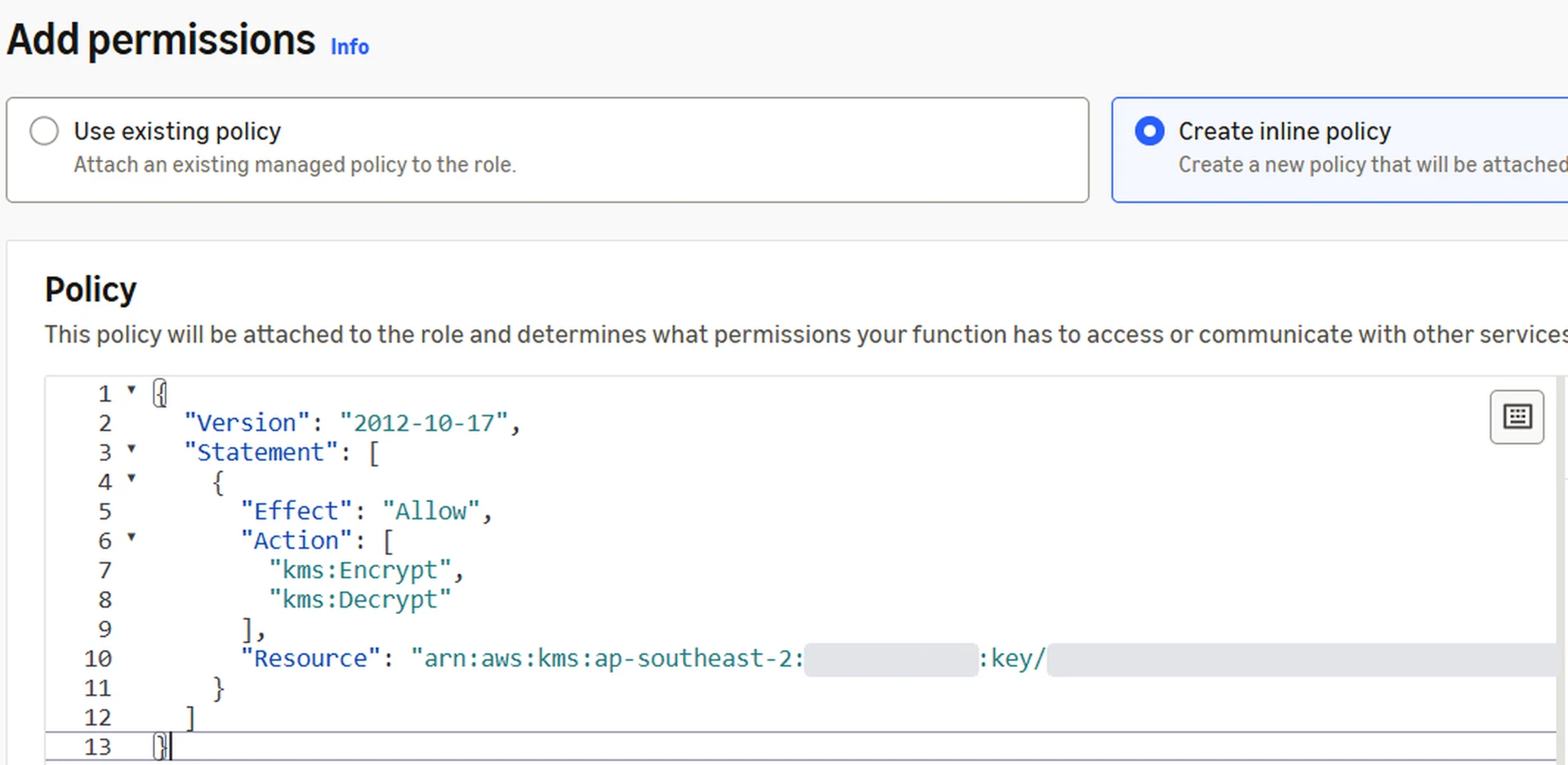
- In GoTerm’s dialog, Copy the key policy under the trust policy. It allows kms:Encrypt and kms:Decrypt on your key’s ARN, and nothing else.
- In the AWS console, under Add permissions, choose Create inline policy and paste it.
- Name the role, and create it.
AWS: copy the role’s ARN
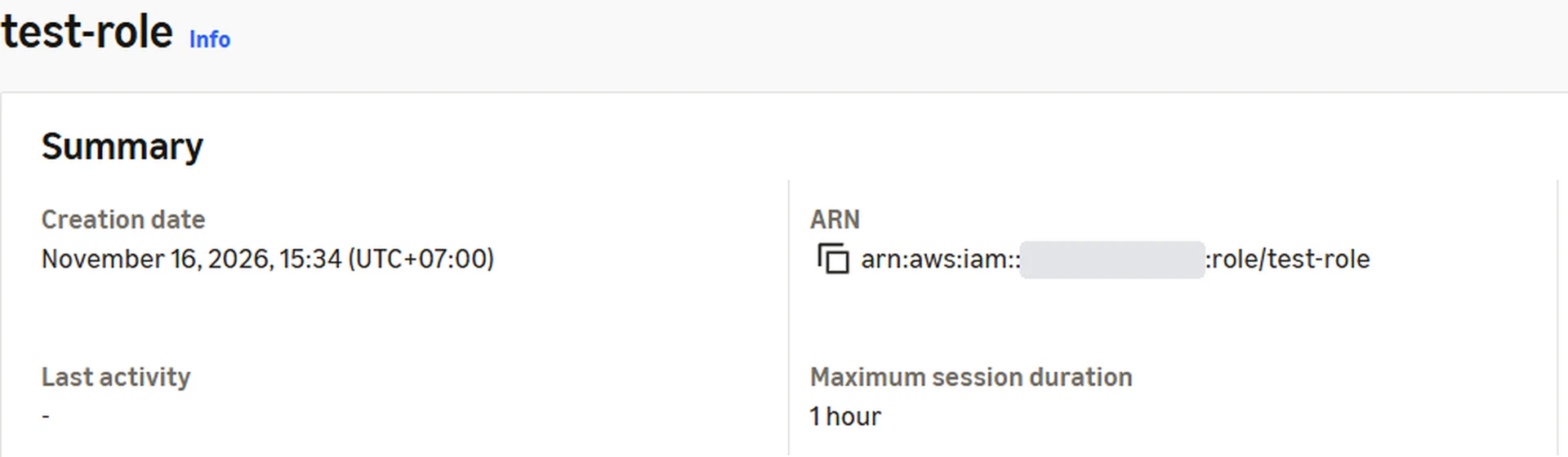
- Open the role. Under Summary, copy its ARN: it starts with arn:aws:iam:: and ends with role/ and the role’s name.
In GoTerm: use your AWS key
- Back in GoTerm’s dialog, paste the role’s ARN under The role's ARN. The key’s ARN is there already.
- Choose Use this key. GoTerm has your key encrypt your workspace’s key, and checks that it decrypts again before using it.
- Your saved passwords and keys then move to the new key.
Google Cloud: make a key ring
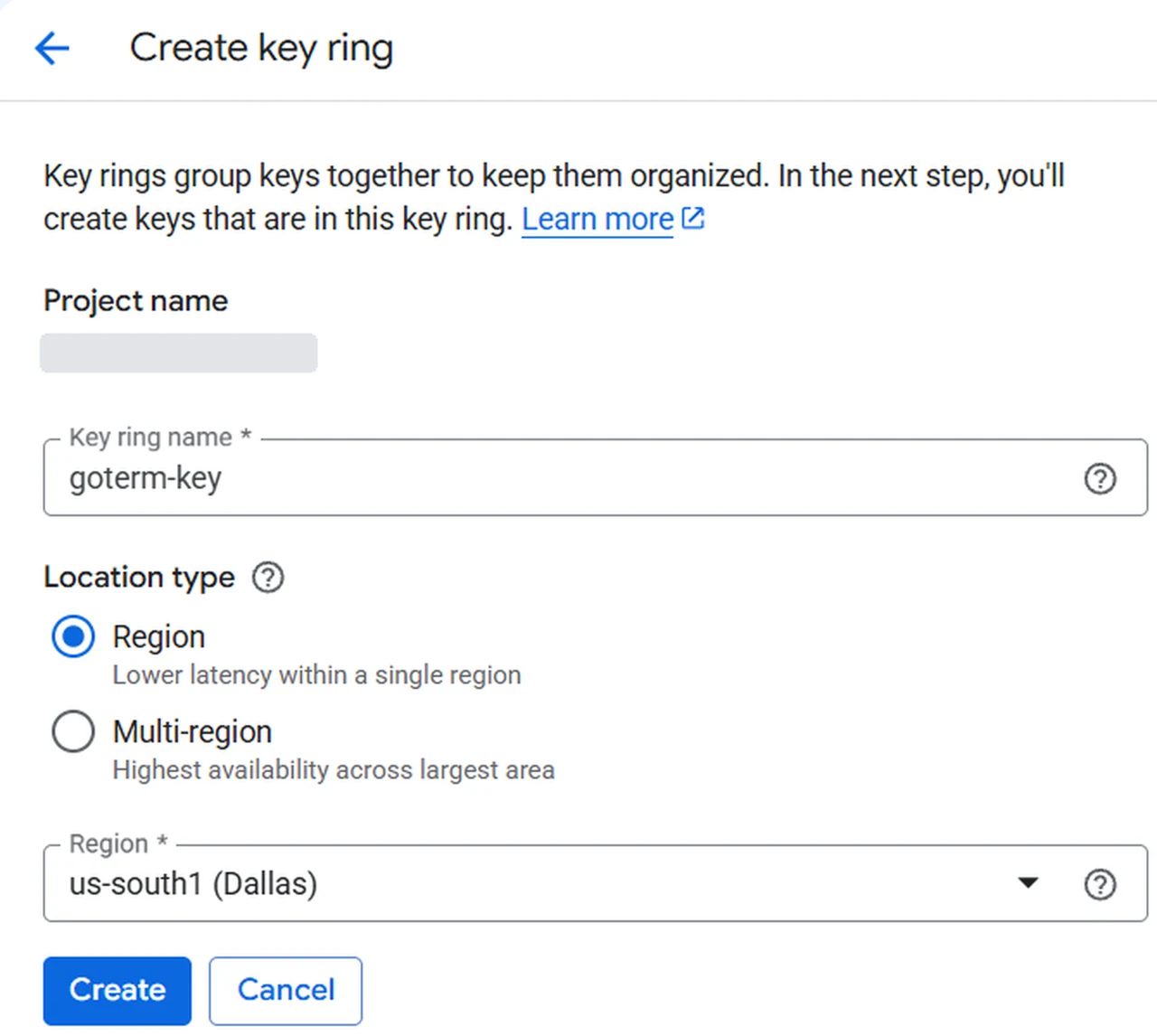
- In the Google Cloud console, pick your project, then open Security, Key management and Create key ring.
- Name it, such as goterm-key, choose Region and the region your key should live in, then Create.
Google Cloud: make the key
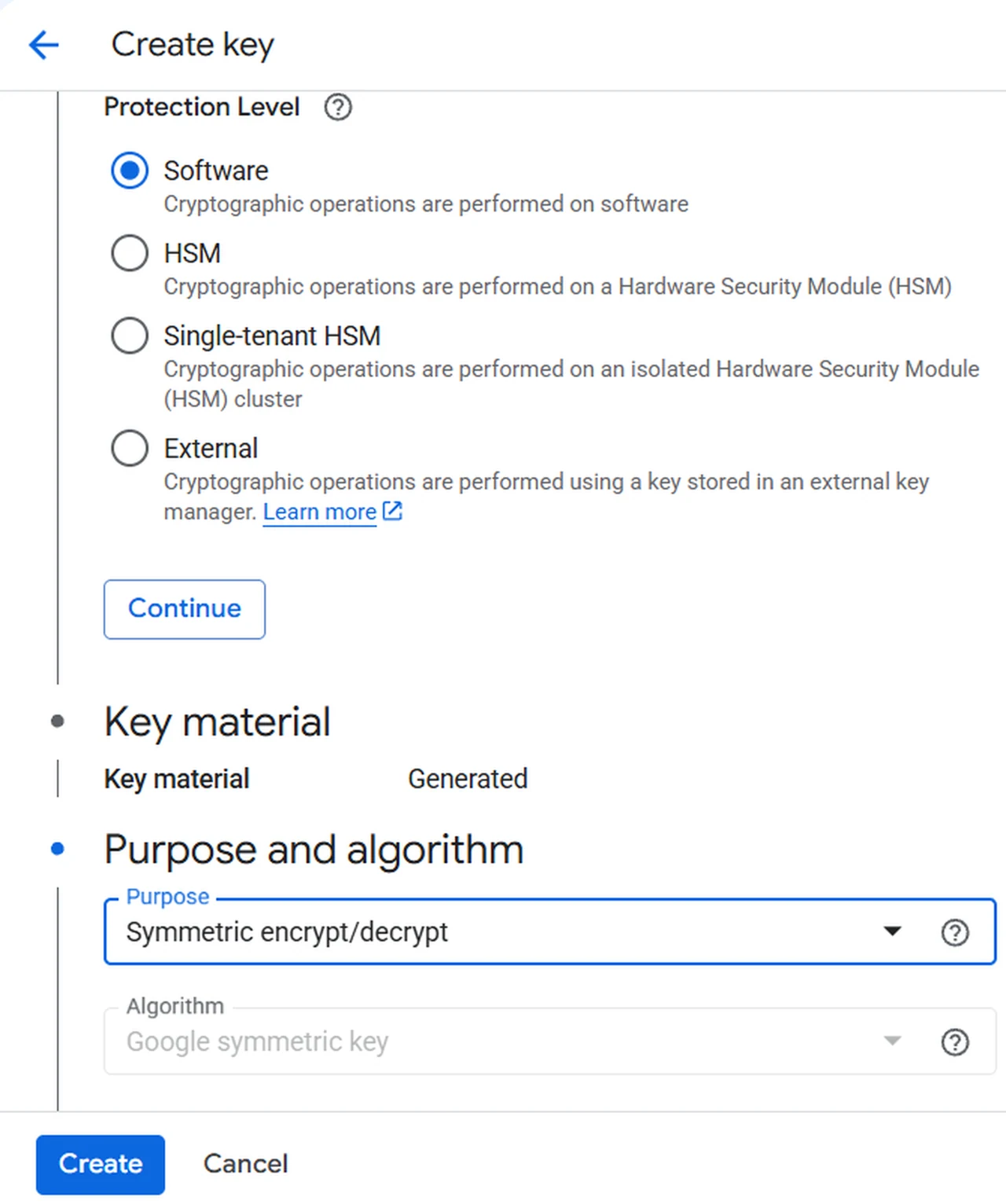
- In the key ring, choose Create key and name it.
- Leave Protection Level at Software.
- Under Purpose, choose Symmetric encrypt/decrypt, then Create.
Google Cloud: let GoTerm use the key
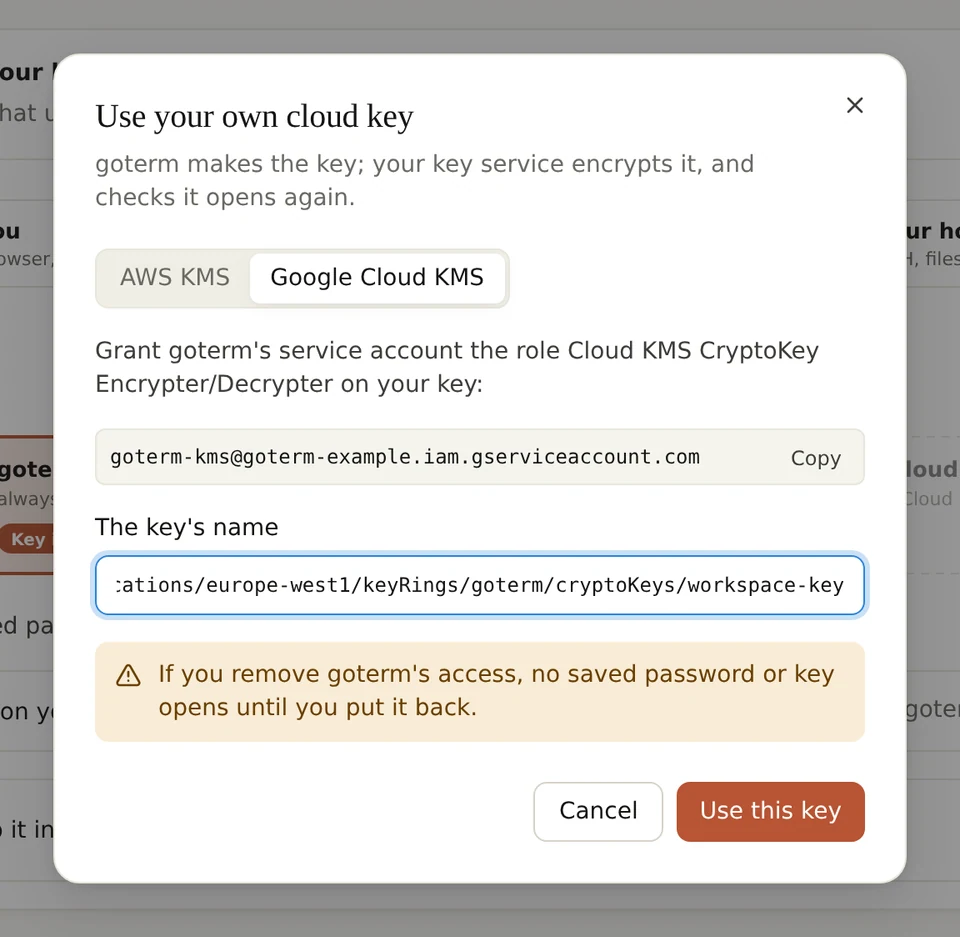
- In GoTerm, on the Security page, choose Use your own cloud key…, then Google Cloud KMS, and Copy GoTerm’s service account.
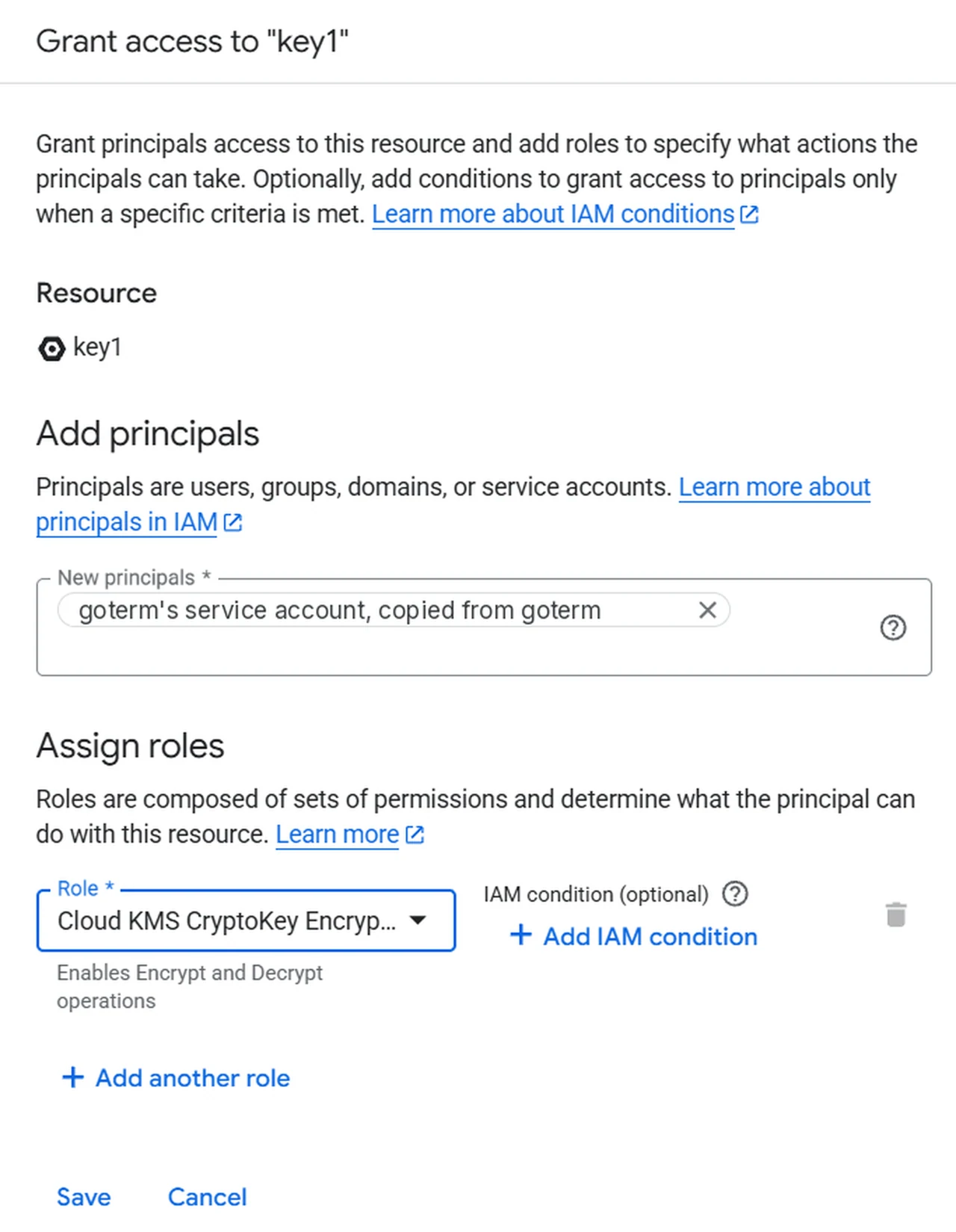
- In the Google Cloud console, open the key, then Permissions and Grant access.
- Paste GoTerm’s service account under New principals, choose the role Cloud KMS CryptoKey Encrypter/Decrypter, then Save.
Tip: Grant the role on this key alone, never on the project.
Google Cloud: copy the key’s name
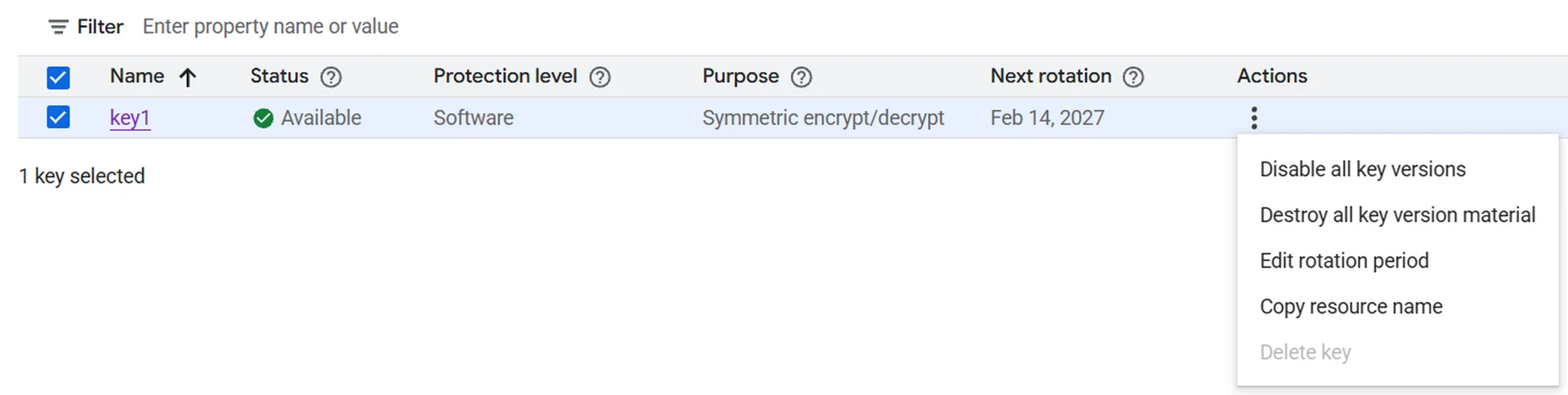
- In the key ring’s list of keys, open the key’s ⋮ menu and choose Copy resource name.
- It starts with projects/ and ends with cryptoKeys/ and the key’s name. A name that ends with a key version works too: GoTerm uses the key.
In GoTerm: use your Google Cloud key
- Back in GoTerm’s dialog, paste the key’s name under The key's name.
- Choose Use this key. GoTerm has your key encrypt your workspace’s key, and checks that it decrypts again before using it.
See your cloud key in use
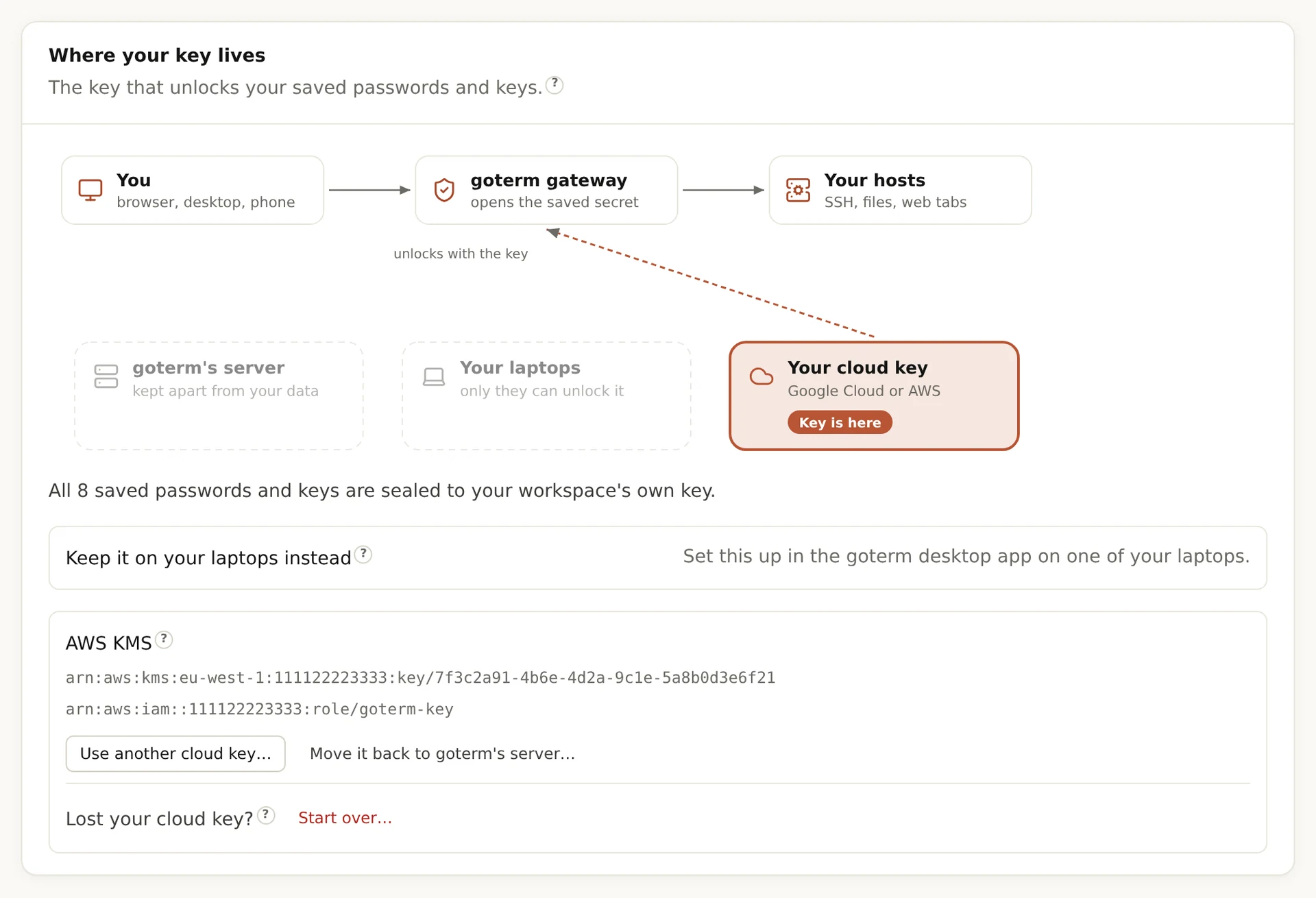
- On the Security page, Where your key lives names your key service, your key and, on AWS, the role.
- To change keys, choose Use another cloud key…. To stop, choose Move it back to goterm's server…: GoTerm’s server moves your saved secrets itself.
Cut GoTerm off, and let it back in
- On AWS, select the key, then Key actions and Disable. Enable lets GoTerm back in.
- On Google Cloud, open the key’s ⋮ menu and choose Disable all key versions. Enabling the version lets GoTerm back in.
- Within 5 minutes of disabling it, GoTerm can’t open your saved passwords and keys, and work already open ends within the hour. The audit log says your cloud key refused GoTerm.
Tip: Taking GoTerm’s permissions away works too, but takes longer: your provider applies it in its own time, and on AWS a changed trust policy waits for GoTerm’s current role session to end, within 15 minutes.

When it doesn’t work
- “Your cloud key refused goterm”: check the role’s trust policy, the role’s key policy, and that the key is enabled. On Google Cloud, check the role on the key.
- The key’s ARN is an alias, such as alias/goterm-key? Use the ARN that ends with key/ and the key’s ID.
- “Your cloud key service couldn’t be reached”: the provider didn’t answer. Try again shortly; nothing needs changing.
- Each refusal is in the audit log, with your key service’s own reason, such as DisabledException.
- Lost the cloud key for good? The workspace’s owner can start over: the saved secrets sealed to it are deleted, and GoTerm’s server holds a new key.
Didn’t find your answer?
Write to us, and an engineer who builds GoTerm will reply.