Keys, people and security
Open only from your addresses
Choose the addresses your workspace opens from, such as your office and your VPN. Anyone elsewhere is turned away, and someone away from the office can let themselves in by email for a day.
Updated
On this page
How the check works
With the list on, GoTerm looks at the address every request comes from: signing in, the app, terminals, files, tunnels, web tabs and share links.
- Each workspace has its own list. On a shared GoTerm server, yours changes nothing for anyone else.
- Single addresses and ranges, IPv4 and IPv6: 203.0.113.9, 203.0.113.0/24, 2001:db8::/48.
- On every paid plan: Personal, Teams and Business.
Turn it on
The organization’s owner and admins keep the list.
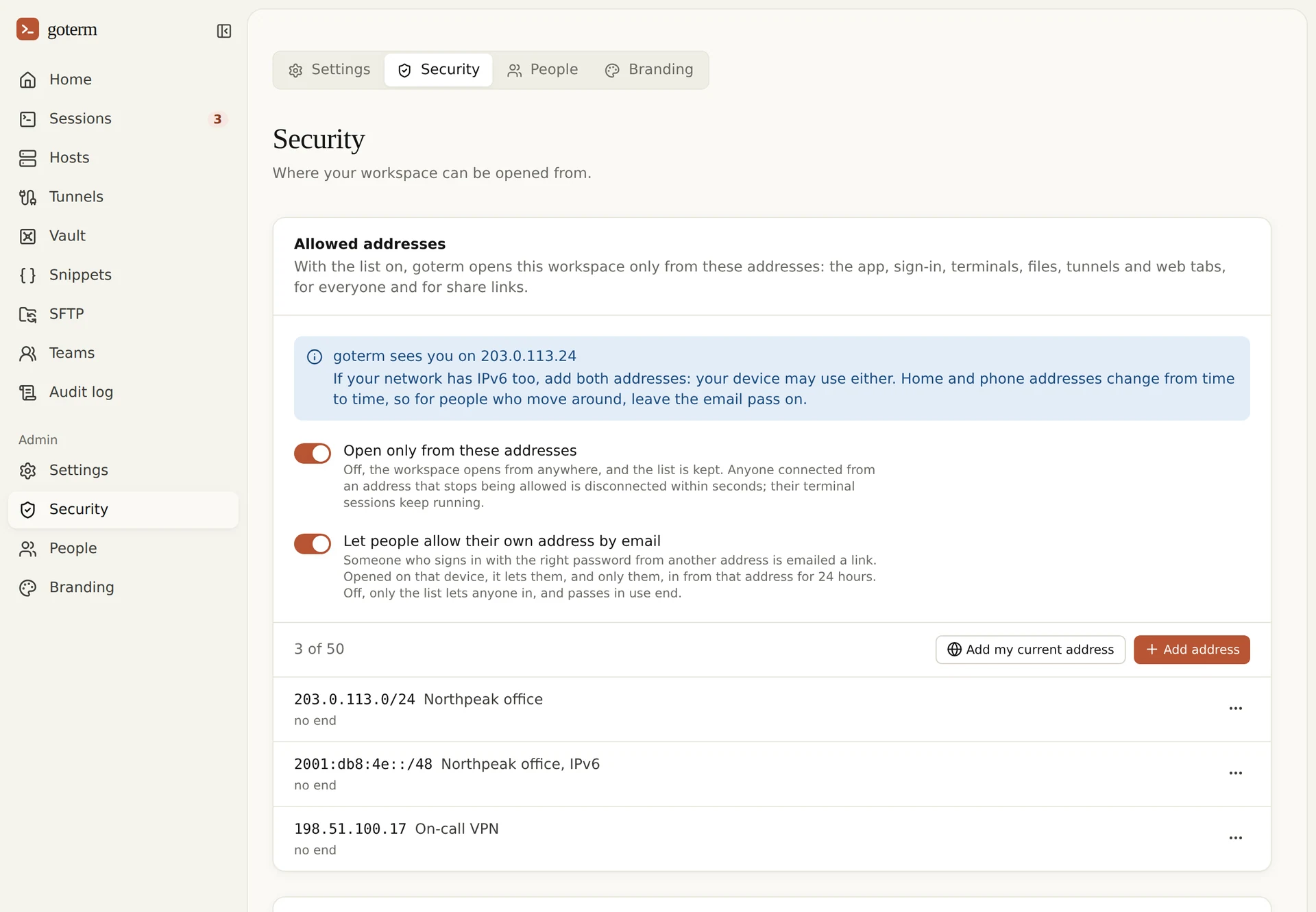
- Open Admin, then Security.
- Choose Add my current address, or Add address for your office’s or VPN’s range. Give it a label, and a last day if it’s for an event.
- Turn on Open only from these addresses.
Tip: If your network has IPv6 too, add both addresses: your device may use either. The page shows the address GoTerm sees you on.
Away from the office
With Let people allow their own address by email on, a person with the right password can let themselves in from where they are, for one day.
- The refusal looks the same whether the password was right or wrong, so it gives nothing away.
- The pass covers one person from one address (and the same computer’s other address, IPv4 or IPv6). Everyone else there is still refused.
- A new device still has to be confirmed, as it always does.
See and end passes
- Open Admin, then Security, and look under Passes in use: who, from where, and until when.
- Choose End to end a pass now, or Add to the list to keep its address.
- To let only the list in, turn off Let people allow their own address by email. Passes in use end at once.
If you’re locked out
- Connect from an address on the list, such as your office network or VPN, and change the list from there.
- With the email pass on, sign in where you are, then open the emailed link on the same device.
- Ask another admin who is on an allowed address to add yours.
- Nobody can get in? Write to us. On a GoTerm server of your own, whoever runs it can turn the list off with one command.
Good to know
- GoTerm won’t save a change that would lock you out: the address you’re on has to stay allowed.
- Take an address off the list and anyone connected from it is disconnected within seconds. Their terminal sessions keep running.
- Up to 50 addresses or ranges, each with a label and an optional last day.
- Every change, every refused address and every pass is in the audit log, under Security.
- Direct mode in the desktop app connects from your own computer, not through GoTerm, so the list doesn’t apply to it.
Didn’t find your answer?
Write to us, and an engineer who builds GoTerm will reply.