Security
After Binance: keep your team’s SSH keys off laptops
The Binance hack began on a DevOps laptop. How to keep a team’s SSH keys off laptops, bring your own key, and let your servers answer only one gateway.
Published
On October 29, 2026, about $6.3 billion was moved out of Binance’s wallets. Binance’s first finding was that the way in was a DevOps engineer’s laptop: it let the attacker reach a service that could send withdrawals. Blockchain analysts at TRM Labs, confirmed by Chainalysis, tie the theft to TraderTraitor, a North Korean group. Binance itself hasn’t named anyone.
Much is still unknown. Binance hasn’t said what was on that laptop. It says it has found no leaked wallet key, that the attacker “did not simply use one engineer’s permissions”, and that there were other breaches. So this article claims nothing about Binance’s systems beyond what Binance has said, and nothing here says a tool like GoTerm would have stopped it.
It isn’t the first time. In February 2025 the same group took more than $1.4 billion from Bybit. That attack began when a developer at Safe{Wallet} was talked into running a Docker project that carried malware. From that computer the attackers took the developer’s AWS sessions, which had already passed two-factor sign-in, and used them for almost three weeks.

The lesson is old, and it keeps getting more expensive: the laptops of the people who run your servers are the target. Assume one of them will be taken over one day, and decide now what it gives away.
What a DevOps laptop usually holds
On most teams, the people who run the servers carry the keys to them:
- SSH private keys in
~/.ssh, often one key that opens every server, sometimes with no passphrase; - a
~/.ssh/configthat lists every host, its user and its jump host; - cloud logins and tokens, signed in for the day;
.envfiles and scripts with passwords in them;- a password manager, open whenever the laptop is.
Malware on that laptop can copy all of it in seconds and use it from anywhere. Replacing every key afterwards is slow, and you rarely know which ones were taken.
Keep the team’s keys off the laptop
GoTerm turns this around. The team’s SSH keys and passwords are saved once, in the workspace’s Vault on GoTerm’s server. When someone opens a terminal, GoTerm’s gateway opens the key in its memory, signs in to the server with it, and drops it. The person gets the terminal, never the key.
- A team’s keys never leave GoTerm’s server. They aren’t shown in the browser once saved, synced to anyone’s desktop, or downloaded.
- Each person reaches only the hosts their team, or a grant, gives them.
- When someone leaves, you remove them from GoTerm. There is no copy of a team key on their laptop to chase.
- Direct mode in the desktop app, and the personal Vault’s sync, are for a person’s own hosts and keys, and do keep those on that person’s computer. For the team’s servers, use the gateway.
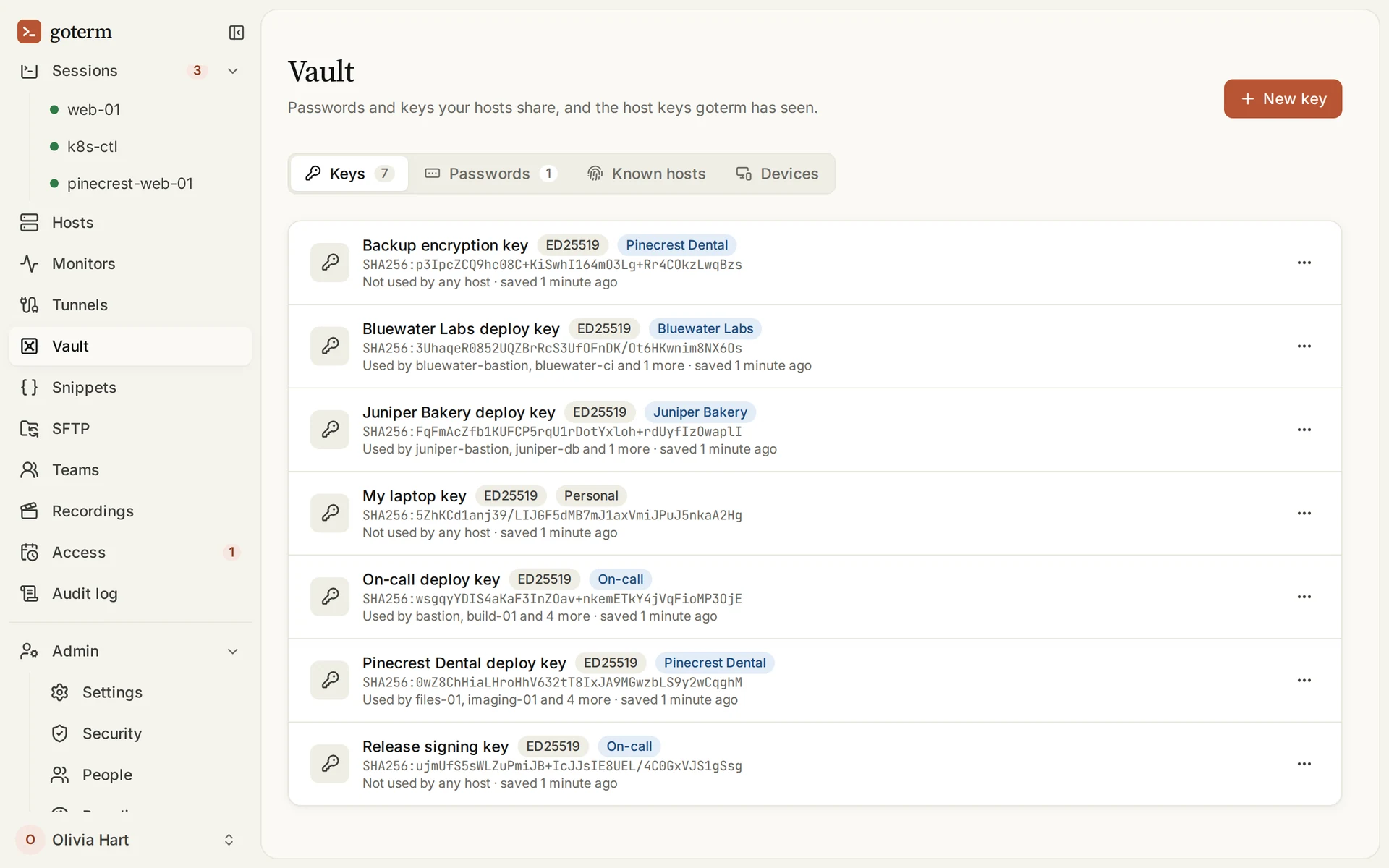
A laptop that is taken over then holds none of the team’s keys. The rest of this article narrows what it can still reach: where the key that opens the Vault lives, where GoTerm can be reached from, which servers answer, and how fast you can stop it all.
Where the key that opens the Vault lives
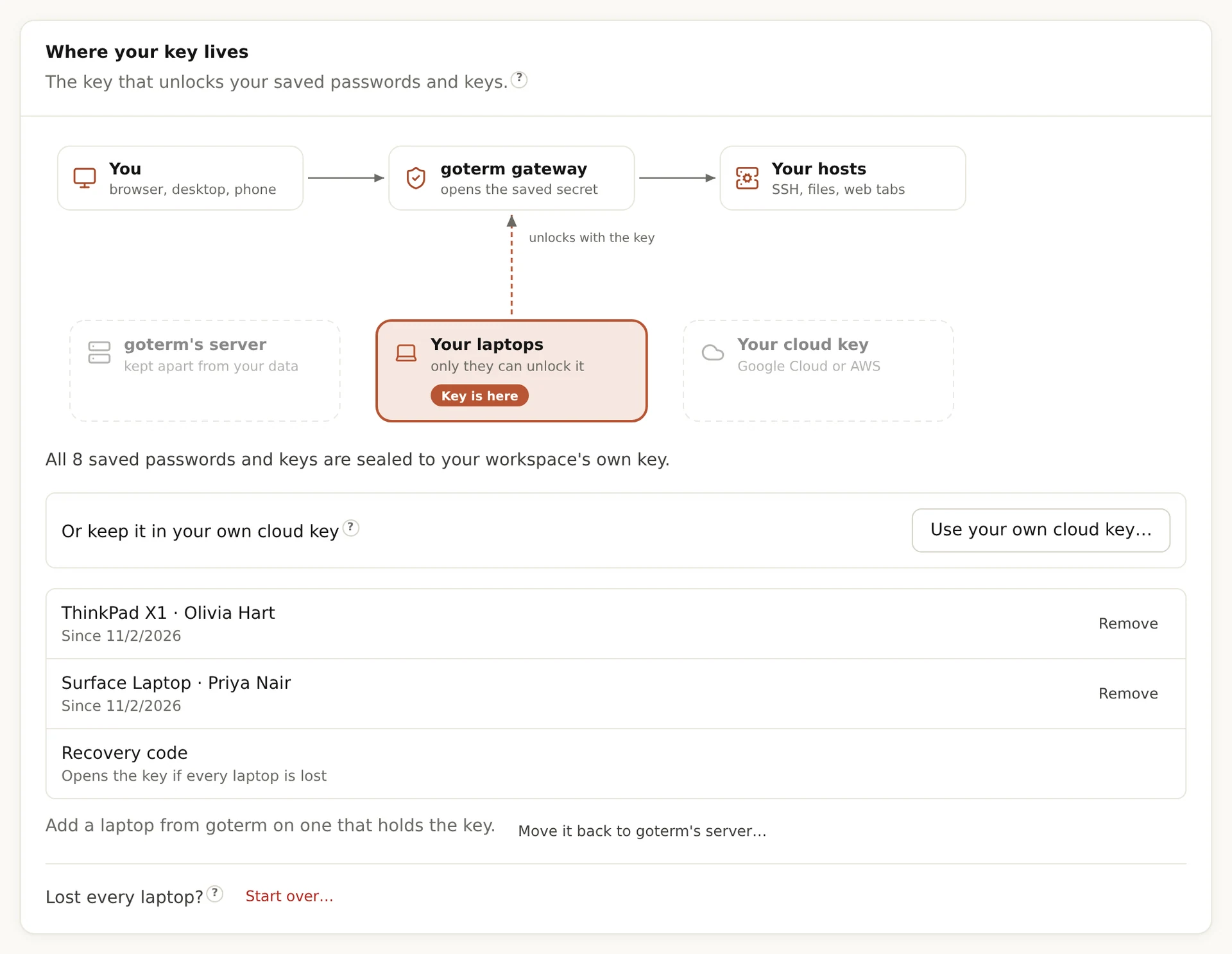
Every saved key and password is sealed to the workspace’s own key. You choose where that key lives:
- On GoTerm’s server, kept apart from the database, on every plan. Nothing to set up.
- On a few laptops you choose, on Personal, Teams and Business. Not every engineer’s: one or two owners or admins, ideally your most careful people. GoTerm’s server can’t open the Vault without one of them.
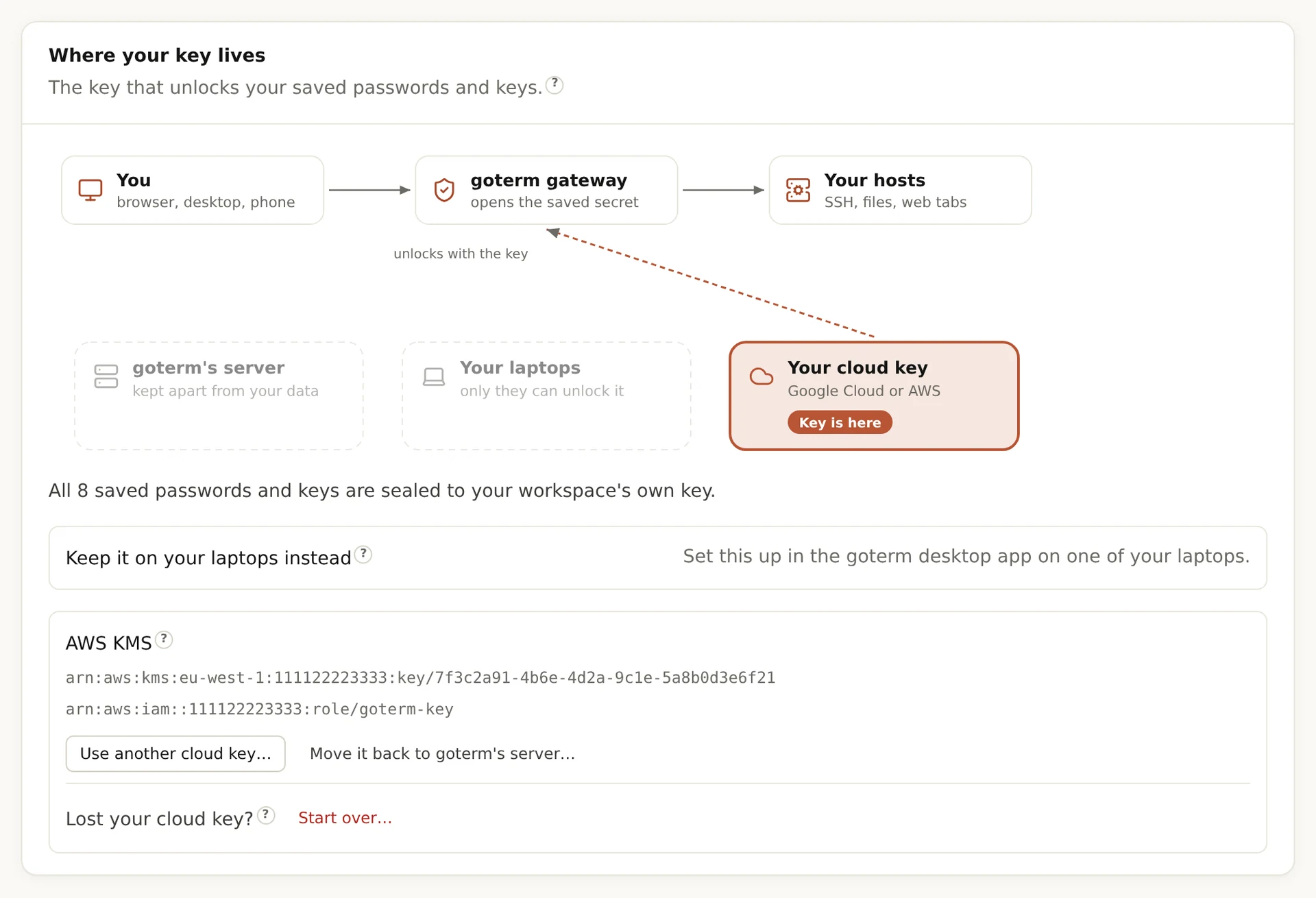
- In your own cloud key, on AWS KMS or Google Cloud KMS: bring your own key, on Business, or for $10 a month on Teams.
Keeping the key on chosen laptops doesn’t put the team’s keys on them. A chosen laptop opens one key at a time, when a connection needs it; what it opened stays in GoTerm’s memory for 5 minutes at most, and the audit log records which laptop opened which key. The laptop holds the key to the Vault, not what’s in it: the sealed keys stay on GoTerm’s server, so neither opens them alone. Look after those few laptops more than the rest, and if one is lost, remove it and replace the key from another.
Bring your own key
With your own cloud key, GoTerm opens nothing without your key service. Disable the key in your AWS or Google Cloud console, and within 5 minutes GoTerm can’t open your saved secrets; open connections end within the hour. It is a switch you hold, outside GoTerm. The cloud key guide walks through making the key on AWS and Google Cloud.
Make stolen access useless anywhere else
If someone does take over a laptop, the next thing they want is to use that access from their own machine. GoTerm checks every way in, and three of the checks are yours to switch on:
- Private access, on Business or with a server of your own: the workspace opens only to devices on its own private network, over WireGuard. Each device is added by name before it can connect, and anyone else is turned away.
- Allowed addresses, on every paid plan: the workspace opens only from your office’s addresses. Someone away from the office can allow their own address for a day, by email, and every refusal is in the audit log.
- Two-factor sign-in: a code from an authenticator app after the password. Owners and admins always need it, and a workspace can require it of everyone. By default it’s asked at every sign-in, and a sign-in lasts 24 hours: about once a day on each device.
- Confirmed devices: a new browser or desktop waits until it’s confirmed before it’s trusted. Remove a device and it’s disconnected within seconds.
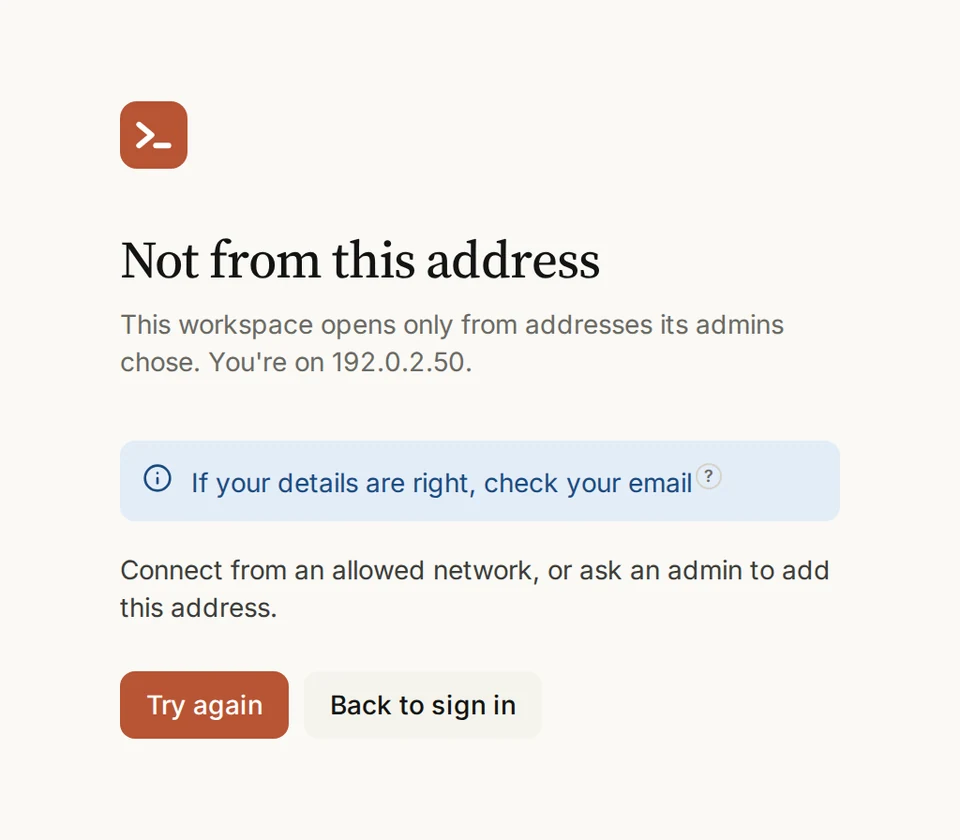
Two-factor alone isn’t enough against a laptop that’s been taken over: the Bybit attackers used sessions that had already passed it. What keeps stolen access from working elsewhere is where it works from. For the strictest setup, use Private access with only admins adding devices, or allowed addresses with “Let people allow their own address by email” turned off, so access can’t be widened from the laptop itself. The Private access guide and the allowed addresses guide set them up.
Let your servers answer only GoTerm
The last check is on your servers. With a server of your own, on Business or as an add-on, your workspace connects to your hosts from its own IP address. Let SSH on your servers answer only that address, and perhaps one emergency address of your own. Then a key copied from a laptop, or from anywhere, opens nothing when it’s used from anywhere else. On the shared servers, GoTerm’s address is shared with other customers, so a rule like this is for a server of your own. A host you reach through a jump host or the connector sees that machine’s address instead: lock the jump host to your workspace’s address, and the hosts behind it to the jump host. Direct mode connects from the laptop itself, so it stops working for those hosts, which is the point.
Do it in your firewall or your cloud provider’s security group: allow port 22 only from your workspace’s address. OpenSSH can also tie a key to an address, so the key works from there and nowhere else. In the server’s ~/.ssh/authorized_keys, put from= before the key (203.0.113.10 stands for your workspace’s address):
from="203.0.113.10" ssh-ed25519 AAAAC3NzaC1lZDI1NTE5AAAA... deployNarrow what one person can reach
- Teams give each group of people its own hosts, and on Business a host group can be limited to chosen people.
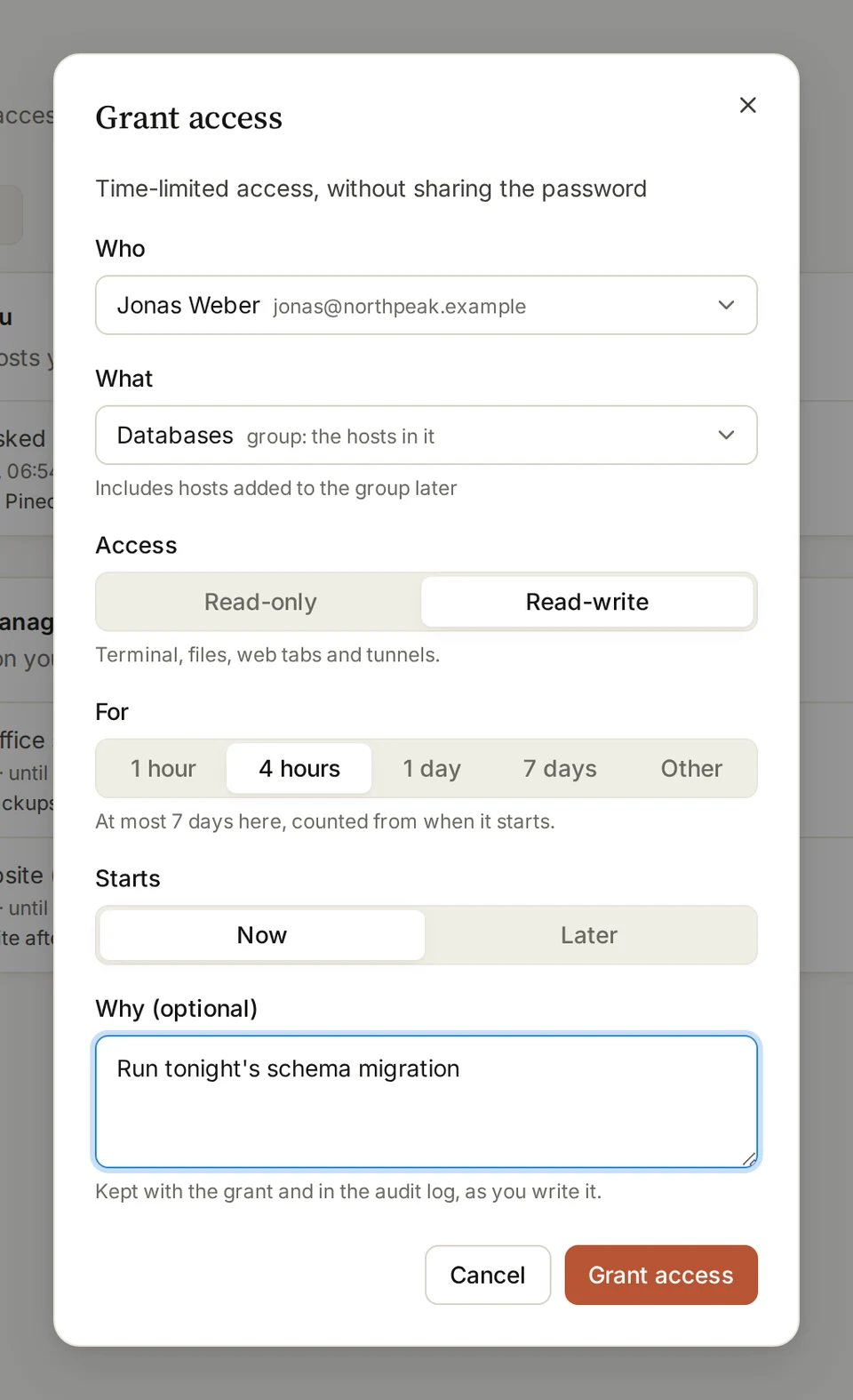
- An access grant gives someone a group of hosts for a few hours, read-only or read-write, with the reason on record, and ends on its own. Grants and contractors come with Teams and Business.
- A shared session can be view only, and the gateway drops a viewer’s typing.
- A team’s saved password goes only to the servers it already signs in to, known by their host keys, so a look-alike server gets nothing.
Everything is on the record

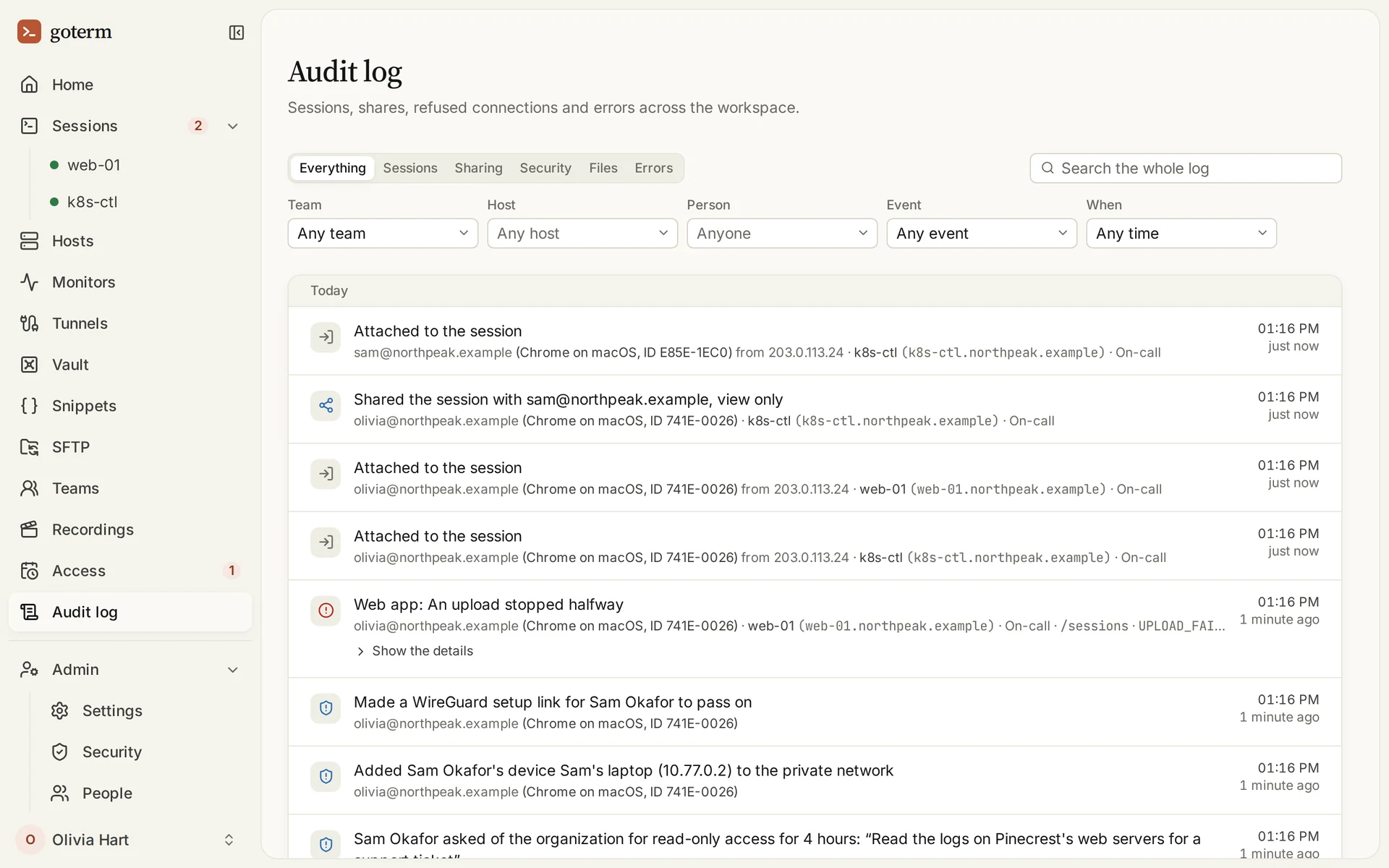
The audit log records sessions, files, sharing, sign-ins and errors, with who, on which device and from where. Each time a chosen laptop opens a key, which laptop it was is there too, and so is every change to where the key lives. On Teams and Business, recordings keep what a session’s screen showed.
If a laptop is taken over
Whoever takes over a signed-in laptop gets what its person can reach, and no more. GoTerm keeps that small and short: nothing on the laptop to copy, access that doesn’t work from elsewhere, one person’s reach instead of everyone’s, and a record of every step. And two switches: on Admin → Security, the workspace’s owner can end everything open at once, or lock the workspace so nobody can connect until they lift the lock.
When you move the key, a few things are worth knowing. Recordings, two-factor secrets and Private access keys stay under GoTerm’s own key. Replace the keys that matter after the move, since backups made before it still open the secrets saved then. And keep the recovery code somewhere safe: with every chosen laptop and the code lost, you start over and save the keys again.
A short checklist
- Move the team’s SSH keys and passwords into the Vault, and replace the keys that lived on laptops: a copy may already be gone.
- Choose where the Vault’s key lives: GoTerm’s server, a few careful people’s laptops, or your own AWS or Google Cloud key.
- Require two-factor of everyone, and turn on Private access, with only admins adding devices, or allowed addresses, with the email pass off.
- With a server of your own, let your servers’ SSH answer only its address.
- Give people only the hosts they need, and grants for the rest.
- Know where the owner’s two switches are before you need them.
The security page has the whole picture, and the demo gives you a workspace of your own for an hour to try it.
Sources
- BleepingComputer: Binance links $6.3 billion crypto theft to compromised DevOps laptop: the amount, the laptop, Binance’s statements (that it has named no one), and TRM Labs’ and Chainalysis’s attribution.
- Euronews: How the Binance hack happened and who was behind it: the other breaches Binance found.
- SecurityWeek: How social engineering sparked a billion-dollar supply chain cryptocurrency heist: the Bybit attack, the Docker project and the AWS sessions past two-factor.
- Cointelegraph: Safe Wallet releases Bybit hack post-mortem: Safe{Wallet}’s own account of the developer’s Mac and the AWS sessions.
- Where your key lives and Your own cloud key: GoTerm’s guides to the key’s three places.
